
Welcome to the new Airalo, where one setup sets you up for life, and you can buy data even without having data. Here's everything you need to get started: an easy step-by-step guide plus FAQs.
In this article:
The new Airalo
What is the new Airalo?
With the new Airalo, you set up one eSIM, only once, on your device. After that, you can buy packages for different destinations.
If you've used Airalo before, this is the key change: you don't need to install a new eSIM for every new destination anymore.
The new Airalo also provides data-free access to open the app, buy packages, and contact support.
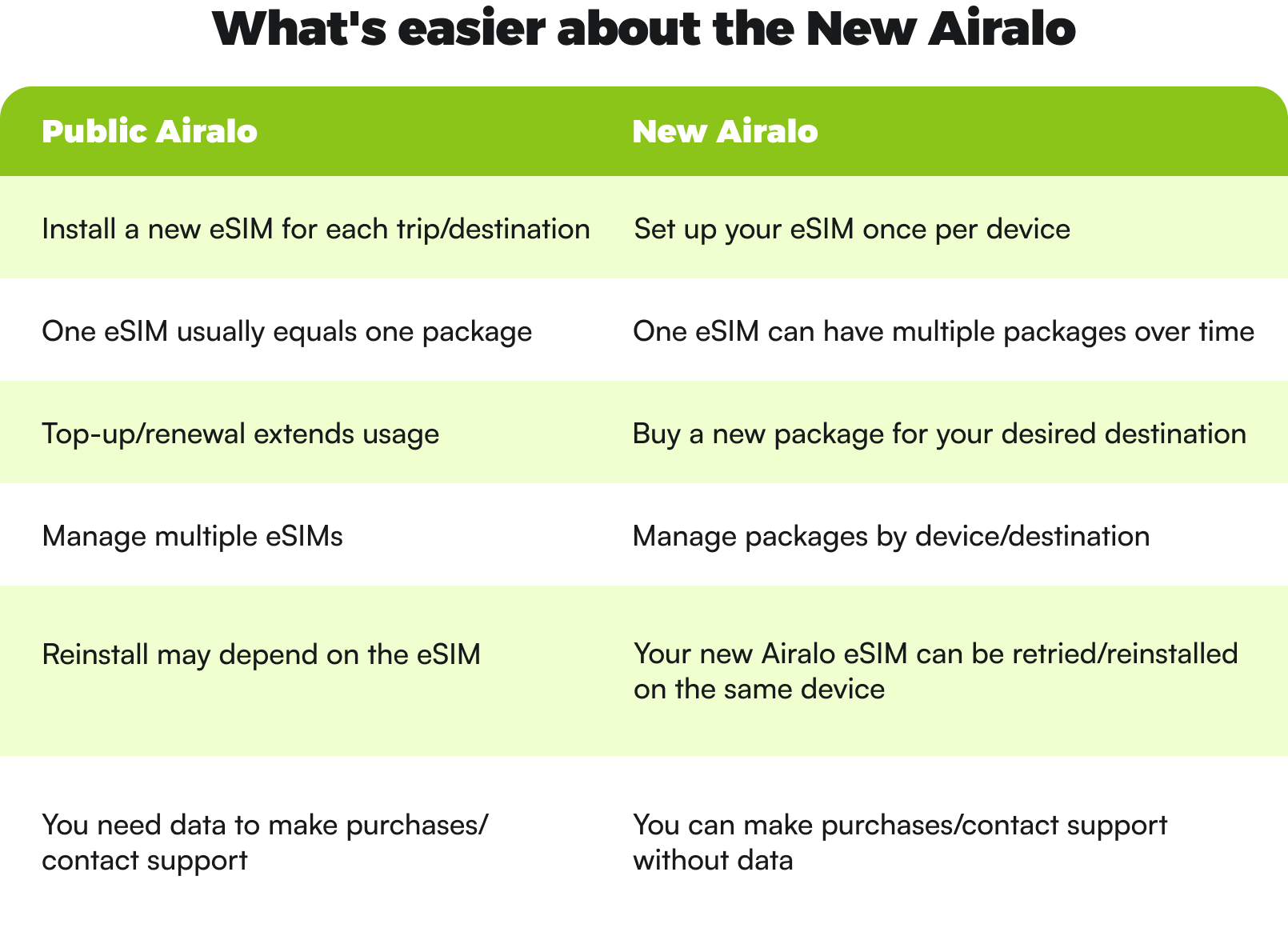 Understand the differences between the public and new Airalo.
How do I know if I'm using the new Airalo or the public Airalo?
- If the app asks you to "Just set up once and add data later", you are using the new Airalo. Simply open the Packages tab (formerly "My eSIMs") to complete setup, and after that, whenever you buy a new package for your desired destination, it will be added to that same device automatically — no new eSIM needed for every new trip.
- If the app shows individual eSIM installation instructions for each purchase and you see the "My eSIMs" tab instead of "Packages", you are using the public Airalo.
Set Up and Get Connected With the new Airalo
1. Set Up Your Device Once
You only need to set up your device once. After that, you'll never need to reinstall another eSIM, and every new package you buy will be added to your existing eSIM automatically.
Make sure you're on stable Wi-Fi, that your device is unlocked and eSIM compatible, and that you have a few minutes to focus before you get started.
Then open your Airalo app.
Introduction screen
Setup can start from the:
- Packages tab / empty state
- Store banner
- Purchase flow
Here's what it will generally look like.
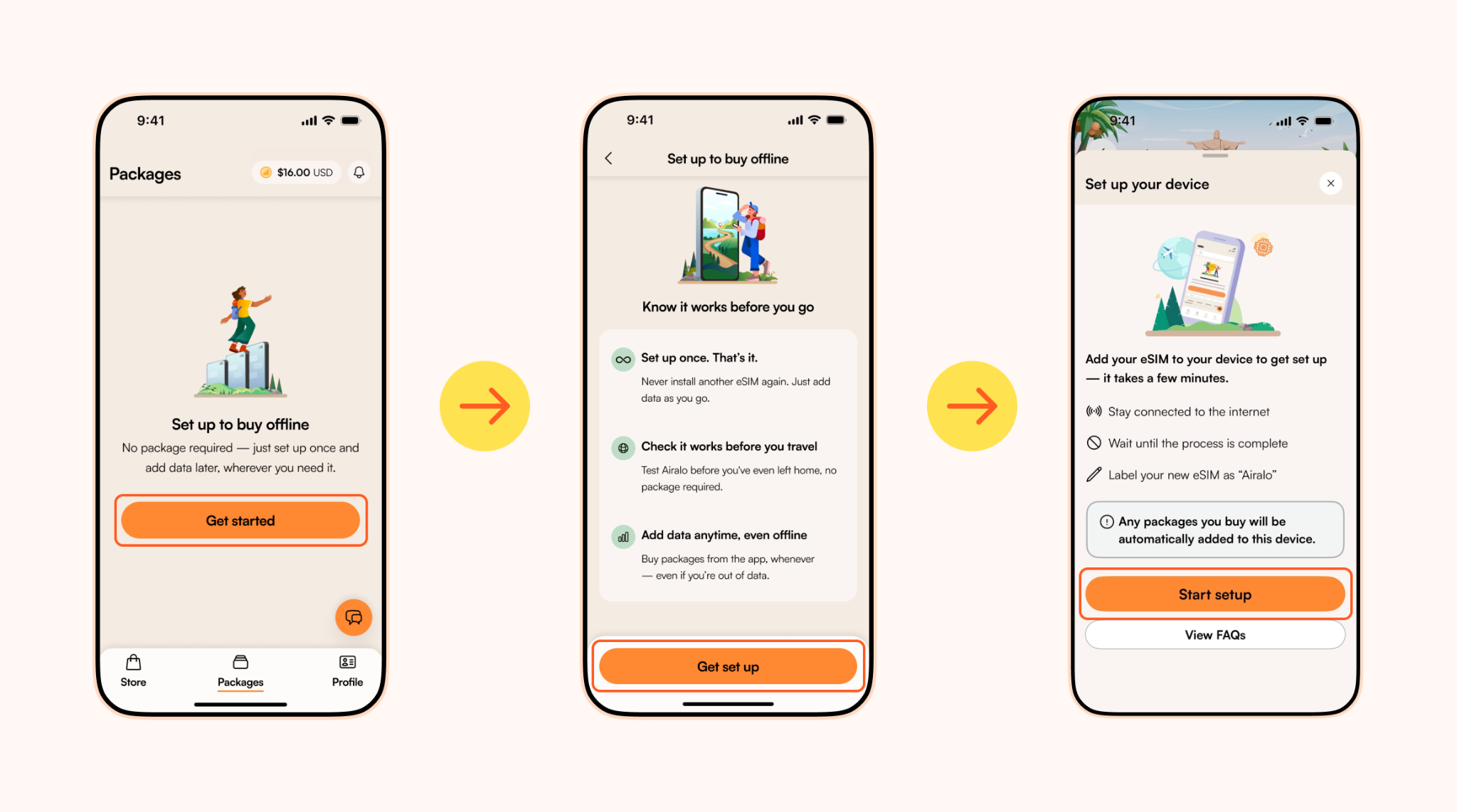 Set up and get connected with the new Airalo experience.
Tap Get started or Set up device if prompted. Then follow the setup instructions in the Airalo app.
Compatibility Check
Your device will then go through a compatibility check. If it's eSIM compatible, you'll be able to proceed without seeing this screen. If not, you'll see this screen and get to view supported devices.
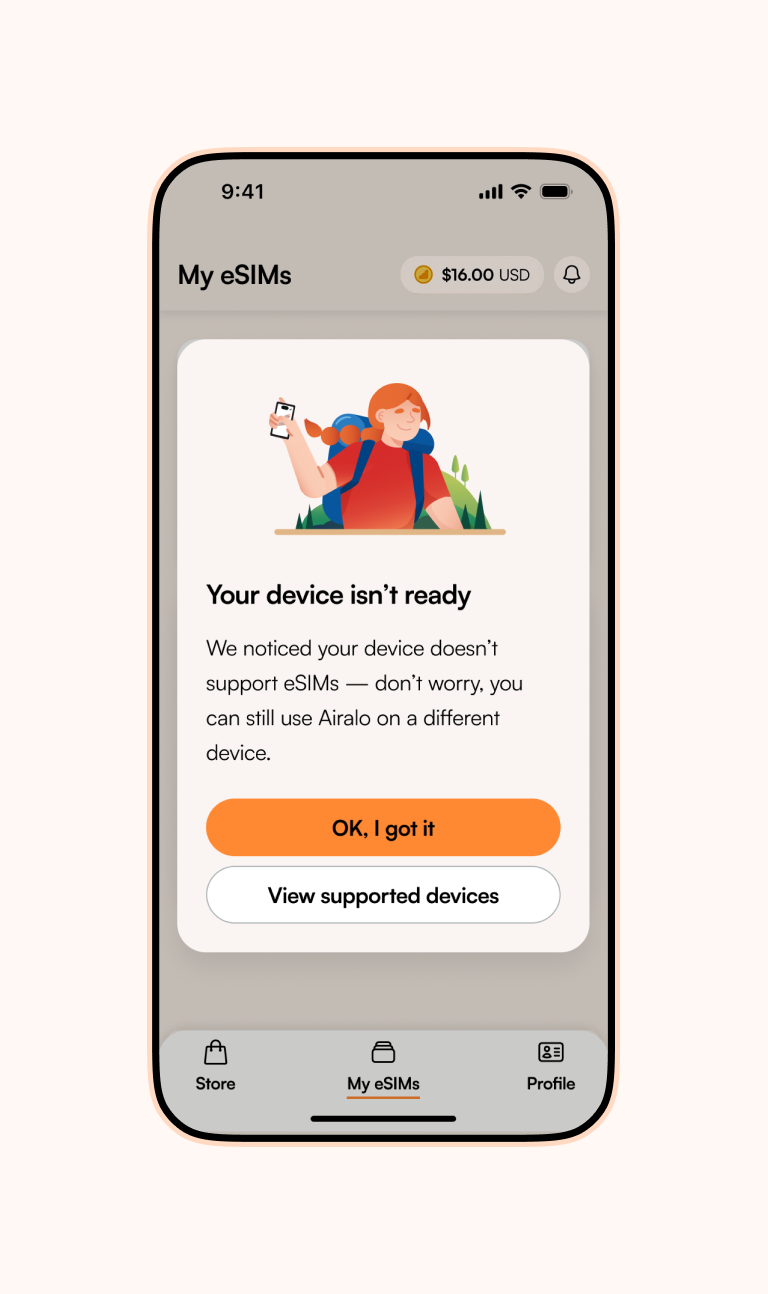 Find out if your device supports eSIMs before the system handoff.
System Handoff
Once your device passes the eSIM compatibility check, the app hands off the installation to the device's operating system (iOS/Android), where the eSIM is added.
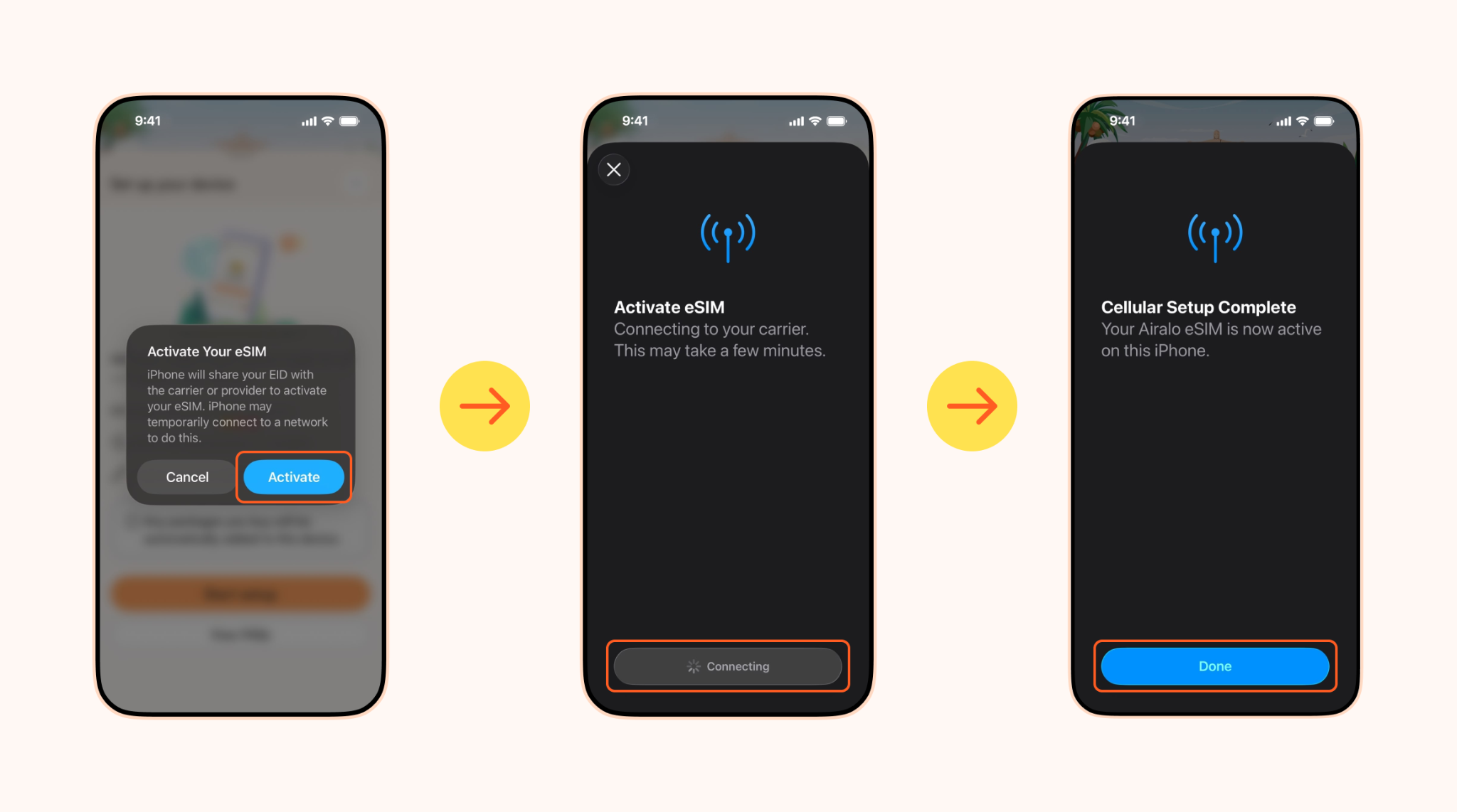 Follow the steps on your iOS device.
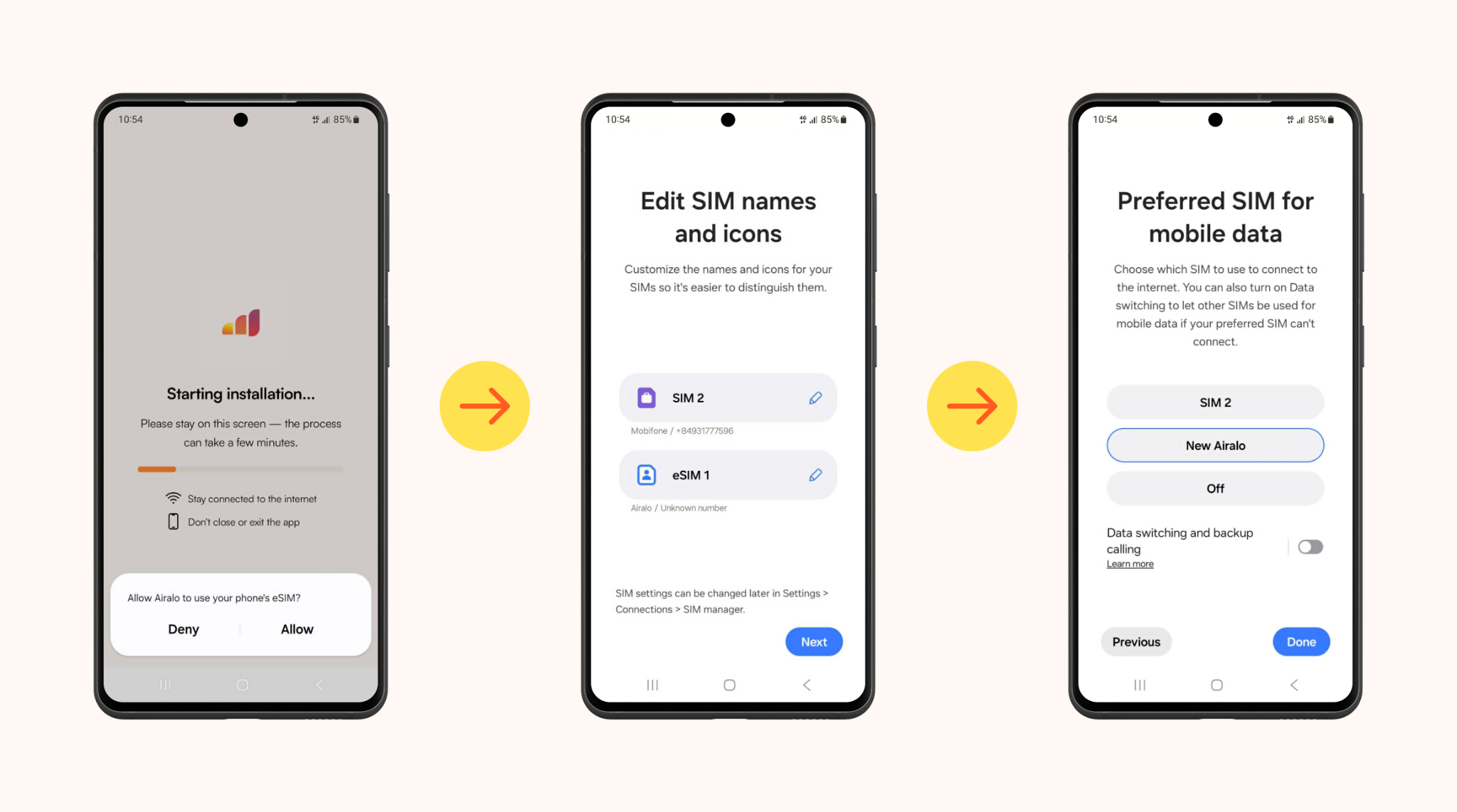 Follow the steps on your Android device.
Note: Follow the prompts on your screen. Once the process has started, don't close anything or interrupt the process—wait until it's finished. It may take a few minutes.
Return to App and Completion
After successful installation, you'll be returned to the app and informed that your device is ready to use. Confirm that your device appears as set up in Packages. You'll then be able to purchase a package if you haven't already.
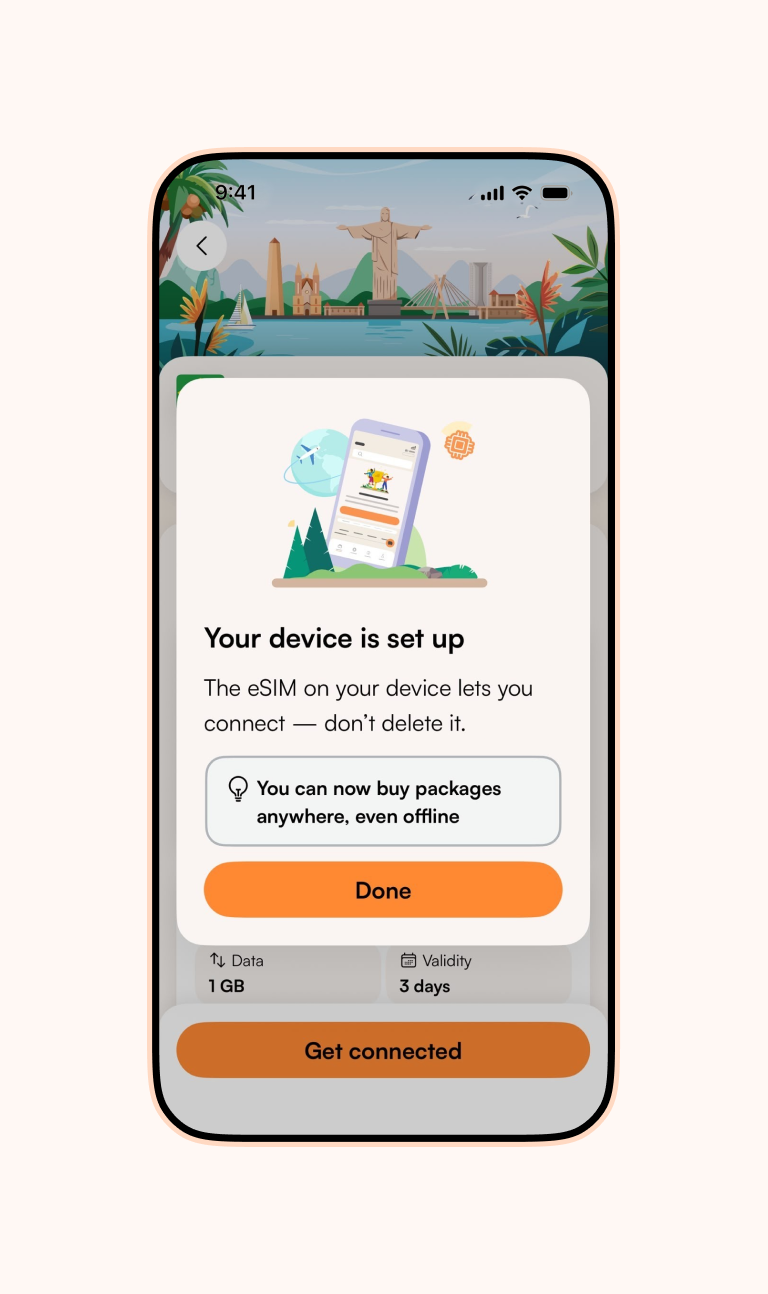
Your device is set up once you see this screen.
2. Buy a Package
How to Buy a Package
Packages are purchased in the Store. You choose a destination, choose a package, and complete checkout.
- In the app: You can buy a package anytime, but completing your device setup first ensures your data is ready to use immediately.
- On the web: If your device isn't set up yet, you'll be prompted to complete setup in the Airalo app to finish your purchase.
Here's a quick and easy way to select the amount of data you need:
- 1-5GB: For shorter trips or for basic tasks like checking emails or maps.
- 10 GB: For slightly longer trips or users who frequently post on social media.
- 20-50 GB: For extended trips or users who watch a lot of videos.
- Unlimited: Unlimited data is ideal if you don't want to stress about your data usage. Toggle between Standard and Unlimited data at the top of the eSIM page before making a purchase.
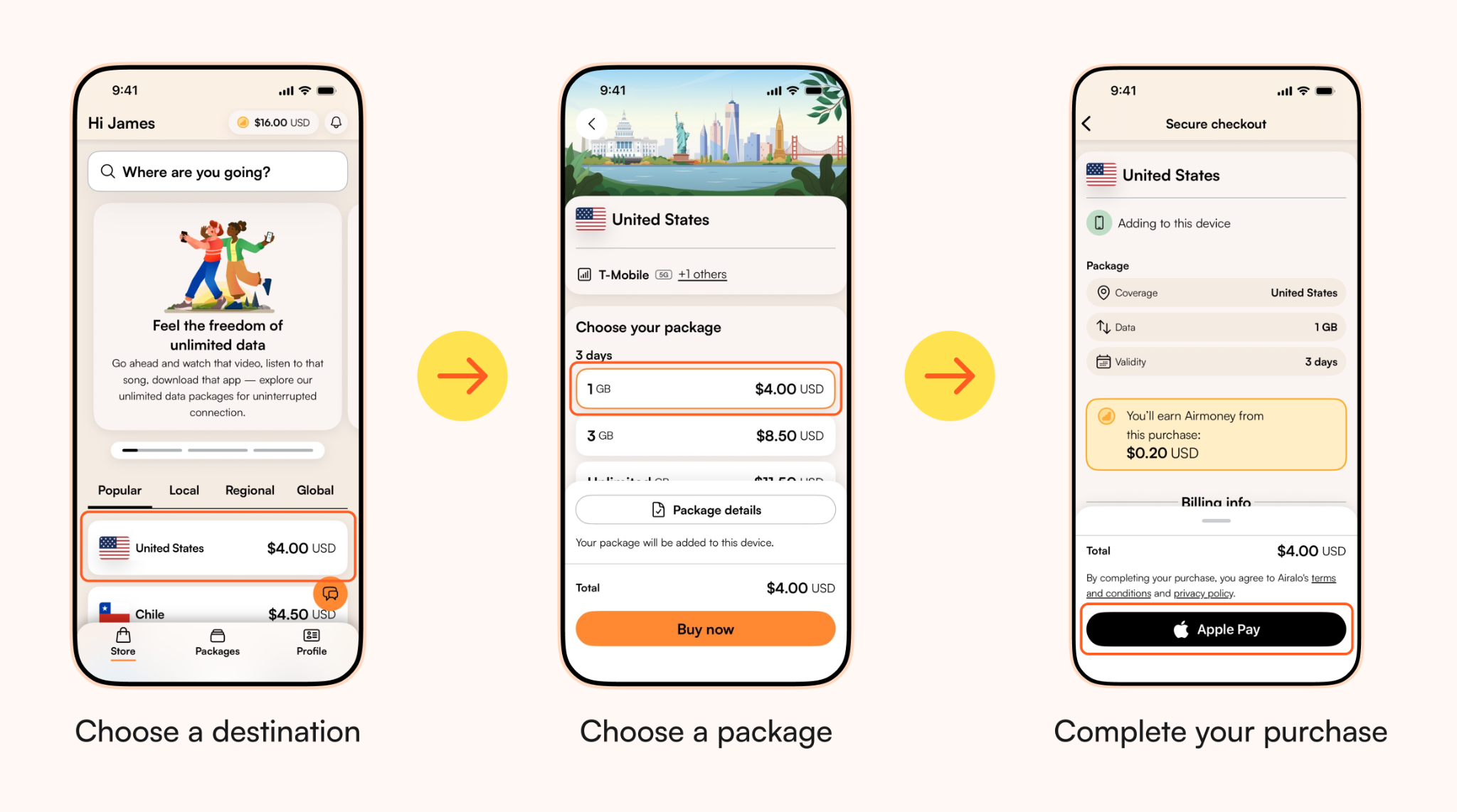 Choose and purchase your new Airalo package.
If you have multiple devices, you will be asked which device should receive the package.
Packages will then be added to your new Airalo eSIM on the selected device. Note that the exact behavior can vary by platform.
Package Status
You can set up your device before or after buying a package—either way works. Check your package status to see what's left to do to get connected.
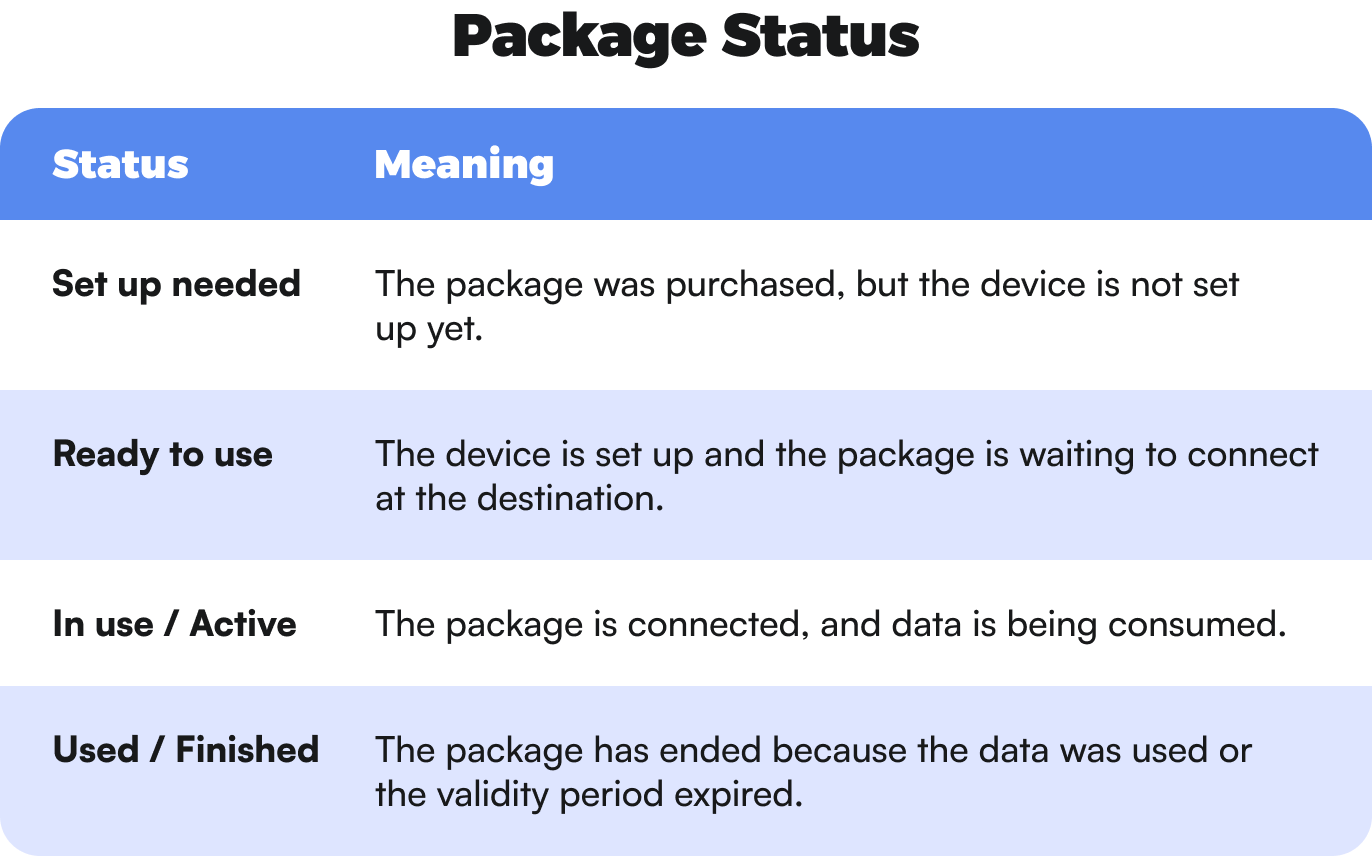 Understand your new Airalo package status.
Owning Multiple Packages
You can have multiple packages. Packages will be prioritized by coverage:
- Local Packages: Provide data coverage within a single specific country (e.g., France, Japan, or the United States).
- Regional Packages: Provide data coverage across multiple countries within a specific geographic region (e.g., Europe, Asia, or Latin America).
- Global Packages: Provide data coverage across multiple destinations worldwide.
Packages are used in the following priority order: Local → Regional → Global. Within the same coverage type, the oldest eligible package is used first.
A package starts when your device connects to a supported network in a destination covered by that package.
3. Get Connected
Your package's activation happens automatically when the eSIM connects to a supported network at your destination. For more instructions:
- Open Packages in the app
- Select your package
- Follow Get connected
- Turn the eSIM line ON
- Select it for mobile/cellular data
- Turn data roaming ON if needed
- Test the connection by turning off Wi-Fi
Note: APN should be automatic; fallback is globalapn.
If you run into any issues connecting, check out our troubleshooting guide for quick fixes and step-by-step help or contact our support team.
FAQs
How do I manage packages and devices with the new Airalo?
Packages are managed in the Packages section. Destination Details show your package status, remaining data, validity, active device, package history, and actions. The Device Options Menu may include ways to rename your device, retry device setup, view your ICCID (your eSIM's identifying number), and more.
Can I use the new Airalo on multiple devices?
One Airalo account can have multiple devices, each set up individually. Each device would have its own eSIM and cannot be used across multiple devices. Packages are also tied to the device they were added to and are added to the device currently being used. On the web, you can select the device at checkout.
What happens to my past eSIMs with the new Airalo?
Existing past eSIMs remain available. You can access your past eSIMs under Past eSIMs (Go to Packages, tap your device name, then tap View past eSIMs) and continue using them normally during the transition. Over time, you may move fully to the new Airalo.
Can I use the new Airalo without data?
The new Airalo allows limited access to Airalo services even without data, such as:
- Opening the app
- Buying a package
- Accessing support
- Viewing key troubleshooting prompts
It is not usable for general internet browsing and is not the same as free data.
I accidentally deleted my Airalo eSIM. What should I do?
If you accidentally deleted your Airalo eSIM, don't worry. New Airalo supports unlimited reinstalls and retries on the same device. You can trigger the reinstall directly in the app via the setup flow or through the Device Options Menu (Retry device setup). If you are still facing issues, contact our support team for help.
Tip: Avoid deleting or uninstalling your Airalo eSIM unless necessary. Keeping it installed means you can continue using it whenever you need it.
How do I test my connection?
Turn off Wi-Fi and load a simple webpage. You can also open an app that uses data and confirm it loads, or follow the steps to test your connection in the app — go to Packages and open "Get connected".
Can I transfer a package to another device?
With the new Airalo, new devices need to be set up separately. Packages are only available on the device they were added to.
If you get a new phone:
- Download the Airalo app on your new phone and log in to your account.
- Complete the steps to set up your device.
- Purchase a new package for your target destination (when buying on the web, you can choose which registered device receives the package).
