

Are you tired of worrying about where to buy data and racking up roaming charges every time you travel? With an eSIM, those days are gone. An eSIM, or embedded SIM, is a digital version of a traditional SIM card.
If you're using an Oppo phone, the good news is that many newer Oppo models support eSIMs. And adding an Airalo eSIM to your phone is a straightforward, fast process that takes just a few minutes. Here's how to do it.
Step-By-Step: How To Add An eSIM To Your Oppo Phone
1.) Check Your Oppo's eSIM Compatibility
If you've got a newer Oppo, your phone is likely to be eSIM-compatible. The Find X5 Pro, Find X3 Pro, and Reno 6 series all support eSIM technology.
To check that your Oppo phone is eSIM-compatible, open Settings and tap About Phone. Look for SIM or Network settings. If your phone has an Add eSIM or Download eSIM option, then you're in business.
If you don't see it, your phone might need a software update, or it could be an older model that isn't eSIM compatible.
2.) Buy an eSIM from Airalo
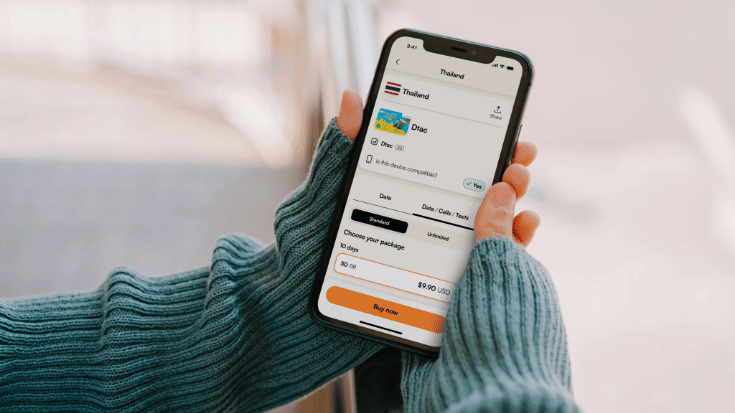
Head over to Airalo.com or open up the Airalo app. Search by destination and select a data plan that fits your trip and travelling style.
Hit 'Purchase' and look out for your confirmation email or app notification, which will contain all the information you need to get set up.
3.) Install the eSIM
How to install eSIM on Oppo: ColorOS offers the following three ways to set up your eSIM.
Option A: Scan the QR Code
Pull up your Airalo confirmation email on another device, or print it if you'd prefer. On your Oppo, navigate to Settings, then Mobile Network and eSIM.
Hit Scan QR Code, point your camera, and watch your phone pull down the eSIM profile.
Option B: Install From The Airalo App
Navigate to the Airalo app and select My eSIMs. Tap Install eSIM or Add to Device. Follow the instructions that pop up on your screen, and you'll be guided through the process from there.
Option C: Manual Installation
To install an eSIM on your Oppo phone manually, go to Settings, then Mobile Network, then eSIM. Enter the SM-DP+ address and the activation code provided in your Airalo email, then tap Confirm.
4.) Activate the Plan
Installation and activation are separate steps. Once your eSIM appears in Mobile Network, toggle it on. You'll see your new network name appear, and signal bars should show shortly afterwards. This confirms that your eSIM is active.
5.) Set Your Data and Roaming Preferences
Navigate to Settings, then Mobile Network and eSIM. Choose which SIM handles mobile data. If you're travelling, select your eSIM from Airalo as the default for data.
Turn on data roaming for your eSIM; Airalo plans include roaming at no extra cost in supported countries.
Don't forget: When you land back in your home country, make sure you switch your data default back to your home SIM to avoid any unexpected charges.
Important to Know: Airalo eSIMs can only be downloaded once. Ideally, you should perform the download over a trusted, stable Wi-Fi connection, such as your home Wi-Fi network, to minimise the risk of the download failing. Also, eSIMs typically can't be reinstalled. We recommend that you don't remove eSIMs that you still intend to use. Instead, temporarily disable the eSIM when you're not using it.
6.) Test Your Connection
Open your browser or pull up Google Maps and perform a search. If it loads straight away, that means you're connected and ready to navigate, stream, and share.
If it's not working yet, open your Airalo app and double-check the APN settings listed. Nine times out of ten, a quick phone restart will resolve any issues.
Troubleshooting Oppo eSIM Installation
If you experience any hitches getting your eSIM set up, Airalo's support team is reachable through the app and ready to support.
Can't find the Add eSIM option? Check for ColorOS updates in Settings, then go to System Updates. Older software versions might not display eSIM features.
Keep Wi-Fi enabled during download and installation, as your Oppo needs internet access to download the eSIM profile.
Still stuck? Contact Airalo Support through your app. The team can verify your eSIM details and walk you through Oppo device-specific solutions.
Why Use Airalo eSIMs on Oppo Phones?
Nowadays, it's no longer necessary to deal with physical SIM cards when you go abroad or move from country to country. The introduction of eSIMs has made life easier, simpler and smoother, and travellers are embracing them fully.
With Airalo, you can access data in over 200 destinations worldwide, as well as choose regional or unlimited eSIM options. These include:
- Country/Local eSIMs: If you're planning on visiting one destination, choosing a local eSIM is the best choice.
- Regional eSIMs: If you're heading off on a multi-country business trip or are vanlifing, backpacking or interrailing across several countries, a regional eSIM is a smart option.
- Unlimited data eSIMs: Enjoying your trip without worrying about running out of data is always preferable. So, in these cases, unlimited data eSIMs are your friend.
- Global eSIMs: For the truly busy traveller jetting off to all corners, a global eSIM for data only, or data, calls and texts, may be the most affordable way to stay connected.
Browse your eSIM options: Planning a trip abroad? Head to the Airalo store to browse your eSIM options, choose how much data you need, how long for, then download your eSIM in minutes. That's it; you're all set for smooth, connected travels with your Oppo phone.
FAQs: How to Add an eSIM to an Oppo Phone
1. Which Oppo phones support eSIMs?
The Find N2 Flip, Find N5, Find X3, X3 Pro, Find X5, X5 Pro, Find X8, X8 Pro, Reno 14, Reno 14 Pro and Watch X2 Mini all support eSIM technology. However, model support may depend on the region/market of manufacture, so always double-check your device's firmware and SIM-unlock status. You can also check your phone's Settings, then go to SIMs and see which options appear. For up-to-date eSIM compatibility information, check Airalo's compatibility list.
2. Can I use two SIMs on my Oppo phone?
Absolutely, you can use your physical SIM to keep your home phone number active and your eSIM for data. No more choosing between staying in touch and staying connected when you're abroad.
3. Do I need Wi-Fi to download an eSIM?
Yes, we recommend downloading your eSIM over a secure Wi-Fi connection. This is because you can only download an Airalo eSIM once, so using as secure a connection as possible reduces the risk of the download failing mid-way through.
4. Can I delete and reinstall my Airalo eSIM?
We recommend that you don't remove eSIMs that you still intend to use. Instead, temporarily disable the eSIM when you're not using it.
5. How long does Airalo eSIM activation take?
Installing an Airalo eSIM should only take a few minutes. Once you've installed it and toggled it on in your mobile settings, the network kicks in pretty much straight away.