Most Google Pixel users have mastered the basics of using their phones, such as texting, scrolling, and taking snaps.
But there are plenty of Google Pixel hidden features still waiting to be discovered.
And among them is a whole host of Google Pixel tips and tricks with the potential to transform how you work, travel, and stay connected.
From productivity boosters and camera magic to clever Pixel hacks, these tools are designed to make your life easier.
Top 5 Google Pixel Features for 2025
- Productivity: Call Screen and Hold for Me are essential Google Pixel tips and tricks.
- Photography: Magic Eraser is the ultimate cool Google Pixel feature.
- Safety and Travel: Use Live Translate and Car Crash Detection.
- Hidden Hacks: Quick Tap and Now Playing are popular Pixel hacks.
21 Google Pixel Features, Tips and Tricks You'll Actually Use
You might be a busy professional juggling calls, a traveller capturing memories, or someone who values privacy and security.
Either way, the best Google Pixel features could supercharge how you use your device.
Let's dive into 21 Google Pixel tips and tricks and unlock some clever Pixel hacks you never knew you needed.
Maximise Your Google Pixel Features Abroad with a Travel eSIM
Never get stuck without an internet connection; level up your Google Pixel with an eSIM. Here's how to tell if your Google Pixel is eSIM compatible.
Google Pixel Tips and Tricks for Productivity
1. Call Screen with Google Assistant

Want to say a permanent goodbye to unsolicited calls interrupting your day?
Let Google Assistant handle unknown numbers. It asks the caller who they are and their reason for calling. It's like having a personal secretary screening your calls.
To turn it on, open the Phone app, then Settings, and select Call Screen.
From there, choose your protection level of Basic, Medium, or Maximum and toggle the option to automatically screen unknown calls.
2. Hold for Me
This is one of the most powerful Google Pixel hidden features for busy users.
Nobody enjoys waiting on hold with customer service. With the Google Pixel Hold for Me feature, Google Assistant waits in the phone queue so you don't have to.
Once someone picks up, your phone will alert you and reconnect the call.
To enable it, go to the Phone app, tap Settings, select Hold for Me, then switch the feature on.
The next time you're placed on hold, tap Hold for Me on the call screen and Google Assistant will take over until someone answers.
3. At-a-Glance Widget
The At-a-Glance widget transforms your home screen into a personal command centre.
From here, you can see real-time info such as flight departure times, package delivery ETAs and traffic updates at a glance.
It removes the need to open multiple apps when you're in a rush to catch a train or checking if your online shopping has arrived.
Camera and Photo Tips
4. Magic Eraser Tool: The Coolest Google Pixel Feature for Photos
Magic Eraser uses AI to remove unwanted people and objects from photos with just a tap.
That tourist who walked into your sunset pic? Gone. The rubbish bin spoiling your landscape? Deleted.
Open Google Photos, select a photo, tap Edit, go to Tools, then Magic Eraser.
From there, you can tap or circle anything you want to remove, and your Pixel will clean up the shot automatically.
5. Face Unblur and Photo Unblur
Blurry photos are frustrating, especially when capturing those once-in-a-lifetime moments on your travels.
Google Pixel's Face Unblur and Photo Unblur features automatically sharpen faces and scenes that didn't come out quite right.
Use them by opening the Google Photos app, select a photo, tap Edi, choose Tools and select Unblur.
The Pixel’s AI will smooth edges, reduce motion blur, and bring details back into focus, even if the photo wasn't taken on a Pixel phone.
6. Top Shot Mode
Missing the perfect photo opp can be heartbreaking.
With Top Shot, your Google Pixel automatically captures multiple frames before and after you press the shutter. That way, you can choose the one where everything's just right.
You'll never lose that perfect smile, mid-jump shot, or candid laugh again.
To use it, open the Camera app, tap the settings icon and turn on Top Shot. After taking a photo, open it in Google Photos, swipe up, and choose Top Shot to pick your favourite frame.
7. Astrophotography

Want to photograph stars and night skies like a pro? Point your Pixel at the night sky and let Astrophotography Mode work its magic.
Your phone needs to be completely still, and it takes around four minutes, so make sure you use a tripod. But the results are so worth the wait.
The stars appear to pop through the night sky, and you can even capture the Milky Way.
Google Pixel Features for Battery and Performance
8. Extreme Battery Saver
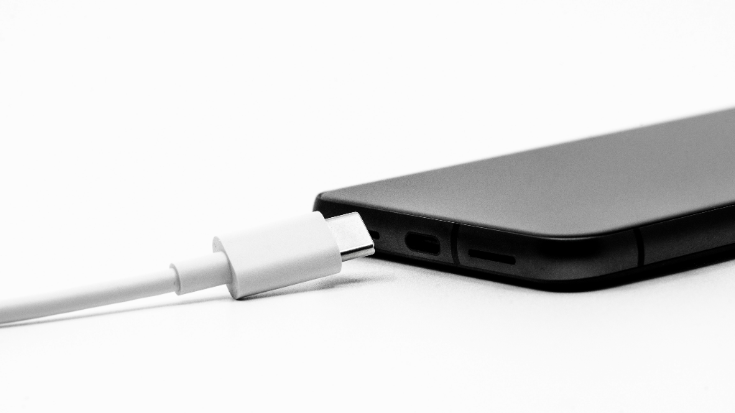
When your battery is critically low and you're nowhere near a charger, Extreme Battery Saver is the lifeline you need.
It pauses non-essential apps and features, stretching your remaining power for hours longer. Essential for long travel days.
To switch it on, go to Settings, then Battery, Battery Saver and select Extreme Battery Saver.
You can turn it on manually, or set it to activate automatically when your battery reaches a chosen percentage.
It will pause background activity, limit apps to essentials, and dim power-hungry features, keeping you going until you find a plug socket.
9. Adaptive Charging
Optimising your battery's health can positively impact your phone's long-term performance.
Adaptive Charging learns your routine and charges your phone slowly overnight, helping reduce battery wear and extend it's lifespan.
You'll still wake up to a full battery, but one that stays healthy for longer.
To turn it on, go to Settings, tap Battery, then Adaptive preferences, and switch on Adaptive Charging.
10. Adaptive Battery
Adaptive Battery uses AI to learn which apps you use most and limits background power for the rest.
The more you use your Google Pixel phone, the smarter it gets at conserving energy, giving you extra hours of battery life when you need it most.
To turn it on, go to Settings, tap Battery, then Adaptive preferences, and switch on Adaptive Battery.
Privacy and Security Features
11. Clear Calling
Poor call quality can ruin your conversations.
Clear Calling uses AI to reduce background noise and enhance voices. So you can hear and be heard clearly, even in noisy places like airports or cafés.
To turn it on, go to Settings, tap Sound and Vibration, then Clear Calling, and switch it on.
12. Safety Check and Emergency SOS
Google Pixel phones have smart safety features that can make a real difference in an emergency.
Safety Check lets you set a timer when you're in a potentially risky situation. If you don't confirm your safety when it ends, the phone will automatically notify your emergency contacts.
Emergency SOS can call for help, share your location, and even record video - all ideal features for solo travellers.
To set them up, go to Settings, tap Safety and emergency, then choose Safety Check or Emergency SOS to configure each feature.
13. App Permissions Dashboard
Stay in control of your privacy with a clear view of which apps have access to your camera, location, microphone, and more.
You can easily revoke any permissions that don't feel right.
To view the App Permissions dashboard, go to Settings, tap Privacy, then Permissions manager. Or, on some models, it will surface as Privacy Dashboard.
Fun and Customisation Features
14. Material You Theming
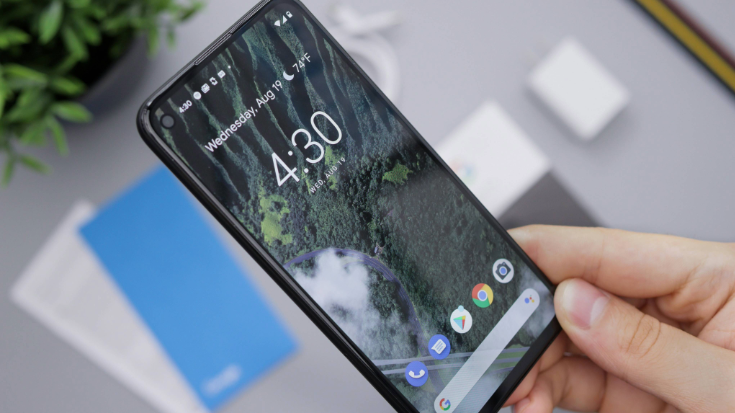
Make your phone truly yours. Material You matches your system colours to your wallpaper.
It creates a unified palette that flows across icons, menus, and widgets so your Pixel always looks like your Pixel.
To customise it, go to Settings, tap Wallpaper and Style, then Wallpaper colours or Basic colours.
15. Custom Quick Tap Gestures: A Hidden Pixel Hack
Get things done faster with Quick Tap.
Double-tap the back of your phone to open the camera, turn on the torch, take a screenshot, or launch your favourite app.
To set it up, go to Settings, tap System, then Gestures, and select Quick Tap to start actions.
16. Now Playing Widget

Ever hear a great song but don't know what it is?
Your Pixel automatically identifies music playing nearby and displays the song title and artist right on your lock screen.
It works even when you're offline, without sending audio data to Google.
To turn it on, go to Settings, tap Sound and Vibration, then Now Playing, and enable Identify songs playing nearby.
17. Dynamic Wallpapers and AI Wallpapers
Static wallpapers are so last season. Choose from Dynamic Wallpapers that subtly change throughout the day.
Or try AI Wallpapers that generate unique designs from your prompts, turning your home screen into your creative gallery.
To explore them, go to Settings, then tap Wallpaper and Style. Then select Change Wallpaper and choose either the Dynamic or AI-generated options.
Cool Google Pixel Features and Secret Hacks
18. Recorder App with Real-Time Transcription
Record meetings, interviews, or ideas and get instant transcriptions, even offline.
Pixel's Recorder app can distinguish speakers and export text. It's ideal for writers, journalists, and travellers on the go.
To use it, open the Recorder app, tap the Record button, and your Pixel will handle the rest automatically.
19. Live Translate
A true travel essential, Google Pixel phones' Live Translate function breaks language barriers in real time.
It translates text, audio, and face-to-face conversations into your language for super-fast interpretation.
You can even point your camera at signs, menus, or documents for instant static text translation.
To enable it, go to Settings, tap System, then Live Translate, and turn it on.
20. Screen Call Transcripts
See who's calling and why before you pick up.
When an unknown number rings, Call Screen uses Google Assistant to ask who's calling and why. Then it shows you a live transcript so you can decide whether to answer or block.
To turn it on, open the Phone app, tap the More icon, then Settings, select Spam and Call Screen, and choose Call Screen.
21. Car Crash Detection
Your Pixel can detect severe car crashes using motion sensors, location data, and ambient sound.
If it suspects you've been involved in an accident and receives no response from you, it will automatically contact emergency services with your location.
To enable it, go to Settings, tap Safety and Emergency, then Car Crash Detection, and switch it on.
Maximise Your Google Pixel Features with a Travel eSIM
Ready to test these Google Pixel features on your next adventure abroad?
Pair your Google Pixel with an eSIM from Airalo to stay connected wherever you are.
Global, regional and country eSIMs from Airalo ensure you can share photos, navigate with confidence and stay in touch with loved ones without worrying about shock roaming charges.
Visit the Airalo store, search for a destination and follow the installation instructions to get online the moment you land.
FAQs - 21 Google Pixel Features, Tips and Tricks You'll Actually Use
1. What are the best Google Pixel features in 2025?
Magic Eraser for photo editing, Call Screen for spam protection, Live Translate for breaking language barriers, and Car Crash Detection for safety. These features combine AI intelligence with practical functionality.
2. What are some hidden Google Pixel features I should know about?
Hold for Me saves time on customer service calls, the At-a-Glance widget provides instant information, Quick Tap gestures add shortcuts and Now Playing identifies background music. These features often go unnoticed, but can make life a lot more convenient.
3. How can I get the most out of my Google Pixel?
Enable Adaptive Battery and Adaptive Charging for better performance, set up Call Screen for spam protection, customise Quick Tap gestures for shortcuts, and explore camera features like Top Shot and Magic Eraser. Regularly exploring features maximises your phone's potential.
4. What cool Google Pixel hacks are worth trying?
Use the Recorder app for transcripts, enable Material You theming for personalisation, set up Safety Check and Live Translate for solo travel and experiment with AI features. These Google Pixel hacks can transform your phone from a basic communication tool into a customised assistant.
5. Does the Google Pixel have exclusive features compared to other Android phones?
Yes, Pixel phones include exclusive Google features like Magic Eraser, Call Screen, Live Translate, Car Crash Detection, Hold for Me, and Now Playing. These AI-powered features aren't available on other Android devices, making Pixel phones uniquely intelligent.