


If you've ever had to deal with a physical SIM card, then you're all too familiar with its limits. From having to wait in line at airports, to setup hassle and easy misplacement, the physical SIM card can cause frustration. That's where eSIMs come in.
eSIMs are digital SIMs that you can download directly to your phone. eSIMs help you stay connected on the go more smoothly, but like any new technology, you may need some guidance to get started. In this article, we'll take you through 3 simple steps to install and connect your Airalo eSIM.
In this article:
What Are the Benefits of Using an Airalo eSIM?

eSIMs have many benefits over traditional SIM cards, such as instant travel connectivity and more. Using an eSIM from Airalo comes with many benefits, including:
- No roaming fees. Airalo eSIMs are prepaid. Pay only for the data you need, and say goodbye to surprise roaming fees.
- You aren't tied to a specific carrier. You can choose the eSIM data package that best suits your needs and easily switch packages when you travel.
- You can connect like a local. Airalo works with local providers to ensure you get the best prices and service during your trip.
- Contact us 24/7. Our support team is available 24/7, so you can get the assistance you need, no matter your time zone.
Prepare for Your Airalo eSIM Setup

Before you install and activate your eSIM, check that your device is:
- Carrier-unlocked
- eSIM Compatible
- Connected to Wi-Fi
Read on for more information or jump to Step 1.
1) Ensure Your Phone is Unlocked
Carrier-unlocked means that your device isn't tied to a contract with a mobile carrier. If you're unsure, we recommend calling your carrier to confirm or checking your device's settings.
Here's how to do it on iPhone:
- Go to your iPhone's Settings.
- Tap General.
- Tap About.
- Scroll down to Carrier Lock or Network Provider Lock.
- Check the status there.
- If your iPhone is unlocked, its status will be No SIM restrictions. If it's locked, you'll see your carrier's name.
Settings will look different based on your Android model, but generally will look like this:
- Open Settings.
- Tap Network & Internet, Connections, or a similar menu option.
- Tap SIMs, Mobile Network, or a similar option.
- You'll then be able to choose a network/SIM or select network operators for further choices. If you see more than one network to choose from or options to manage your SIMs, this likely indicates that your phone is unlocked.
2) Check if Your Phone is eSIM-Compatible
Whether your phone is eSIM-compatible depends on the model and where it was manufactured, not just the year it was released. While many newer smartphones support eSIM technology, this isn't guaranteed.
Some phones only support eSIM technology in certain regions, while others may have different hardware depending on the market they were made for. For example, two phones with the same name can have different eSIM capabilities, depending on the country in which they were manufactured.
Before purchasing an eSIM, we strongly recommend verifying that your phone is eSIM-compatible, which means it supports the storage of digital SIMs. Here are a few ways you can do this:
Method 1: Settings Check
- Open Settings on your phone.
- Navigate to your SIMs (under Mobile/Cellular Networks or similar).
- Look for an Add eSIM or Download SIM option. You might have to select a SIM before you see the option.
- If it's there, you're eSIM-ready.
Note: Instructions vary based on your phone model. If you struggle to find the Add eSIM/or Download eSIM option, use your phone's search function.
Method 2: IMEI and EID Check
- Dial *#06# on your phone.
- If you see two IMEI numbers, your phone likely supports dual-SIMs (physical and eSIM).
- Note down the IMEI and check with your carrier.
- Alternatively, if an EID appears, your phone supports eSIM.
Method 3: Manual Check
- Check your phone's original packaging or documentation. If it's available, eSIM support is usually listed in the technical specifications.
- You can also check Airalo's regularly updated eSIM compatibility list here.
Method 4: Quick Dial Code (Android only)
- Open your phone app.
- Dial ##4636##.
- On most Android phones, this opens a hidden menu that allows users to view and modify network settings.
- From this menu, select Phone Information.
- Look for an eSIM or embedded SIM status.
Note: You can still purchase an eSIM if your phone isn't eSIM compatible. You'll have the option to share the eSIM to another device, rather than install it on your phone.
3) Connect to Wi-Fi Before Installing Your eSIM
We always recommend that you connect to a stable Wi-Fi network when installing your eSIM. This is because eSIMs can only be installed once, and an unstable connection can cause the installation to fail.
We generally recommend doing so before leaving for your trip, so that you can get connected upon landing. Most eSIM's validity period only starts when the eSIM connects to the mobile network in its coverage area, so that you won't lose precious data.
Pro tip: Check an eSIM's validity policy by selecting Package details before or after purchase. This will let you know if the eSIM's validity period starts when it connects to a network, or more rarely, upon installation.
Now that you've got the basics down, it's time to buy and install your eSIM.
Step 1: Buy an eSIM
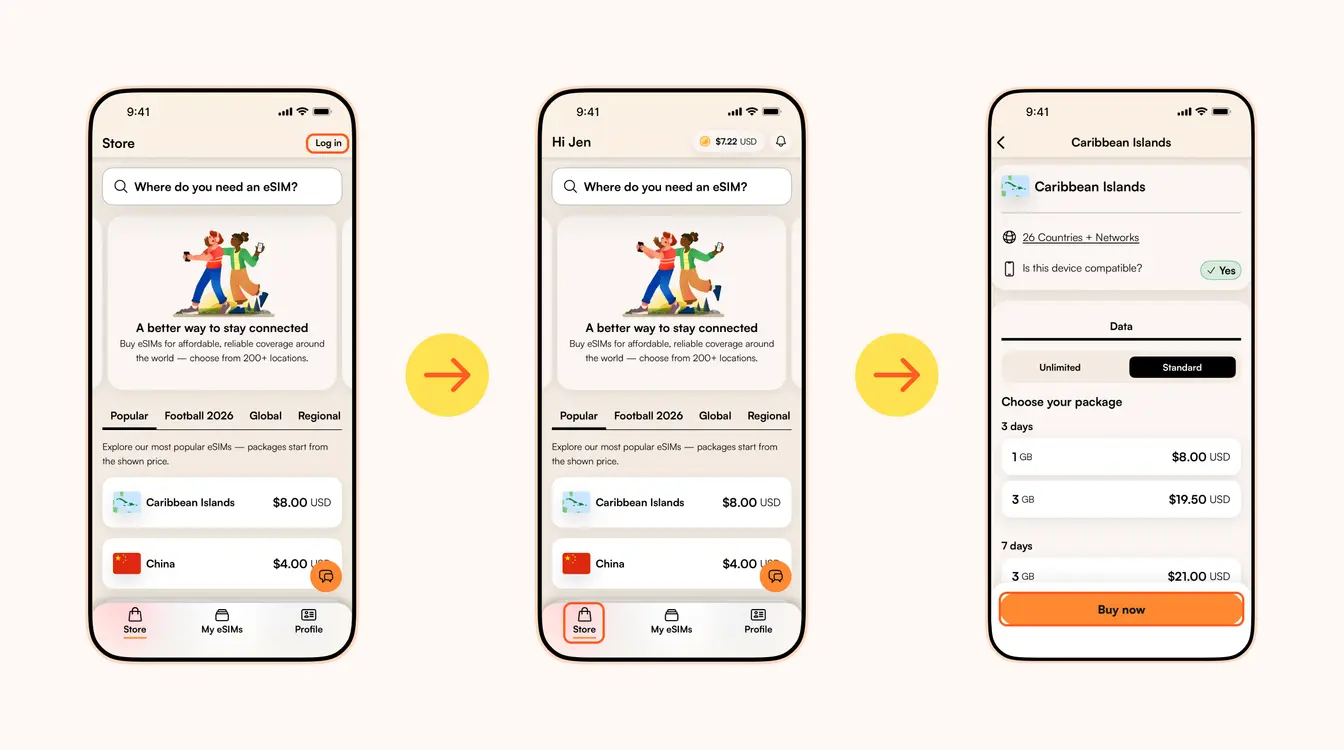
Als u ooit te maken heeft gehad met een fysieke simkaart (en we weten zeker dat u dat heeft), dan weet u hoe geweldig het zou zijn om over te stappen op een eSIM. Van directe connectiviteit wanneer u reist tot eenvoudige installatie en activeringsstappen, wat is er niet leuk aan?
eSIM-aanbieders zoals Airalo (ja, dat zijn wij!) helpen u om onderweg verbonden te blijven. En we nemen het gedoe met simkaarten weg en bieden u directe connectiviteit in meer dan 200 landen en regio's wereldwijd.
Zoals met elke nieuwe technologie heeft u misschien een beetje hulp nodig bij het opstarten. In dit artikel doorlopen we de stappen voor het installeren en activeren van uw Airalo eSIM.
Ga naar:
- Zo installeert en activeert u een Airalo eSIM in vier stappen
- Een eSIM installeren
- Een eSIM activeren
- Lokale, regionale en wereldwijde eSIM's
- Voordelen van het gebruik van een Airalo eSIM
- Veelgestelde vragen over Airalo eSIM's
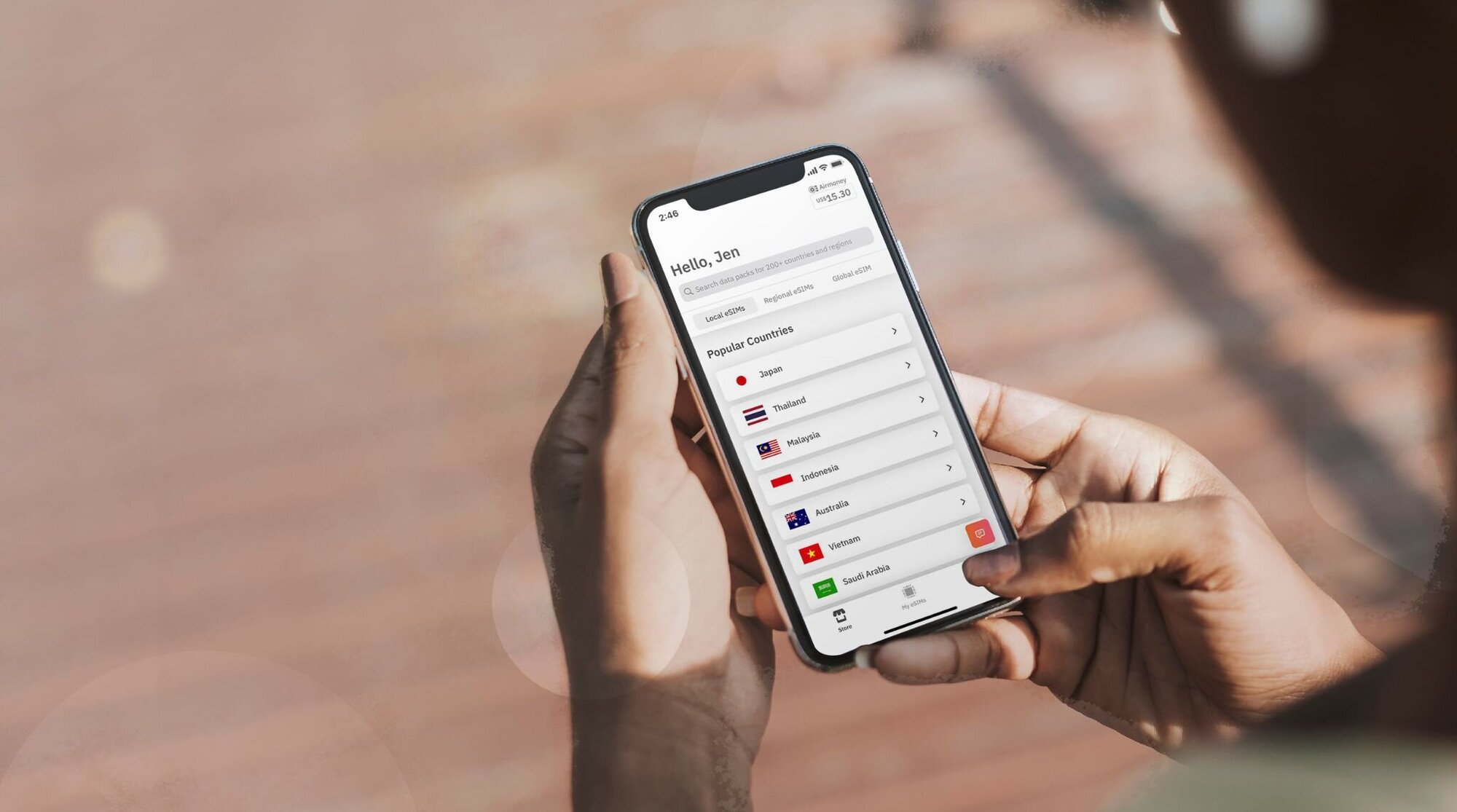
Een Airalo eSIM Activeren in 4 Stappen
Voordat u uw eSIM installeert en activeert, moet u ervoor zorgen dat uw apparaat:
- Onvergrendeld is door uw provider. Dit betekent dat uw apparaat niet gebonden is aan een contract met een mobiele provider. Als u uw toestel rechtstreeks heeft gekocht, zonder mobiele serviceovereenkomsten, dan is uw toestel waarschijnlijk ontgrendeld. Als u het niet zeker weet, adviseren wij u uw provider te bellen om het te controleren!
- eSIM-compatibel. Als u een smartphone heeft die in 2018 of later is gemaakt, dan ondersteunt uw telefoon waarschijnlijk eSIM's. Bekijk onze uitgebreide lijst met eSIM-compatibele apparaten om te zien of uw telefoon erbij zit.
Nu u heeft bevestigd dat uw apparaat ontgrendeld is door uw provider en eSIMs ondersteunt, is het tijd om deze vier eenvoudige stappen te volgen om uw eSIM te installeren en activeren!
Stap 1: Koop een eSIM
Eerst moet u een eSIM kopen. Zo:
- Ga naar de Airalo website of download de Airalo app (beschikbaar op iOS en Android).
- Kies een eSIM voor de bestemming waar je naartoe reist.
- Houd rekening met factoren zoals de hoeveelheid data die u nodig heeft, de geldigheidsduur van de eSIM en de prijs.
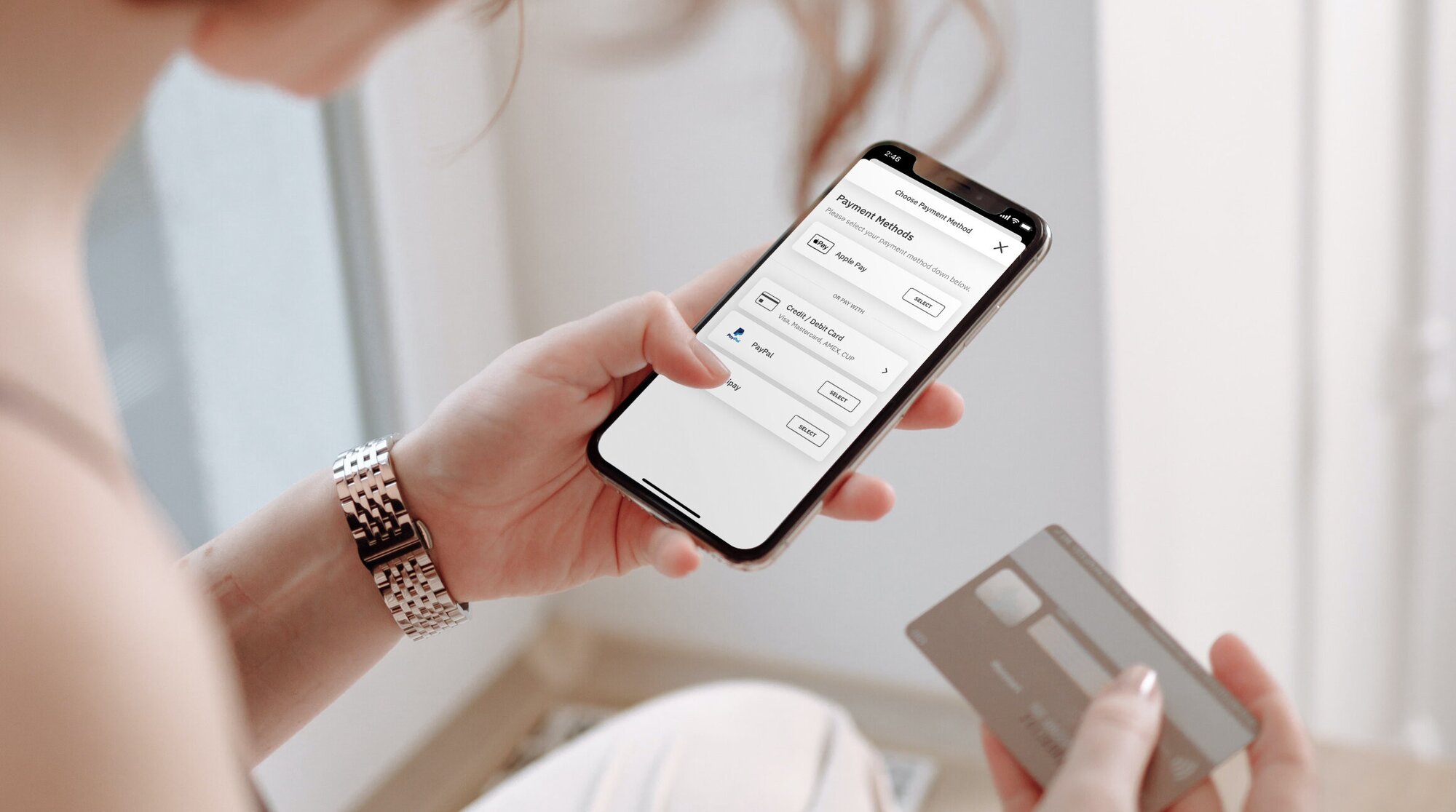
Stap 2: Uw eSIM Installeren
Zodra u uw eSIM heeft aangeschaft, moet u deze op uw toestel installeren. Zorg voor een stabiele Wi-Fi-verbinding voordat u begint met het installatieproces.
Hier zijn drie verschillende methoden om een Airalo eSIM te installeren:
- Direct: Ga naar de Airalo app en volg de stap-voor-stap instructies om uw eSIM te installeren.
- QR Code: Scan een QR-code om het installatieproces te starten.
- Handmatig: Voer uw eSIM-gegevens handmatig in in de instellingensectie van uw apparaat.
Voor meer informatie over het installeren van uw eSIM volgt u de stappen die in deze links worden beschreven:
- iOS/iPhone eSIM-gids
- Android eSIM-gids
- Samsung Galaxy S20/S21 eSIM handleiding
- Google Pixel eSIM-gids
- Huawei eSIM handleiding
Terwijl u de installatiestappen volgt, wordt u gevraagd om uw eSIM te labelen. Als u bijvoorbeeld Egypte bezoekt, kunt u uw lijn labelen als “Egypte eSIM” om onderscheid te maken tussen uw primaire simkaart en uw eSIM. Het maakt het leven een stuk eenvoudiger - vooral als u uw simkaart gebruikt voor gesprekken en sms'jes, en uw eSIM voor data.

Stap 3: Uw eSIM Activeren
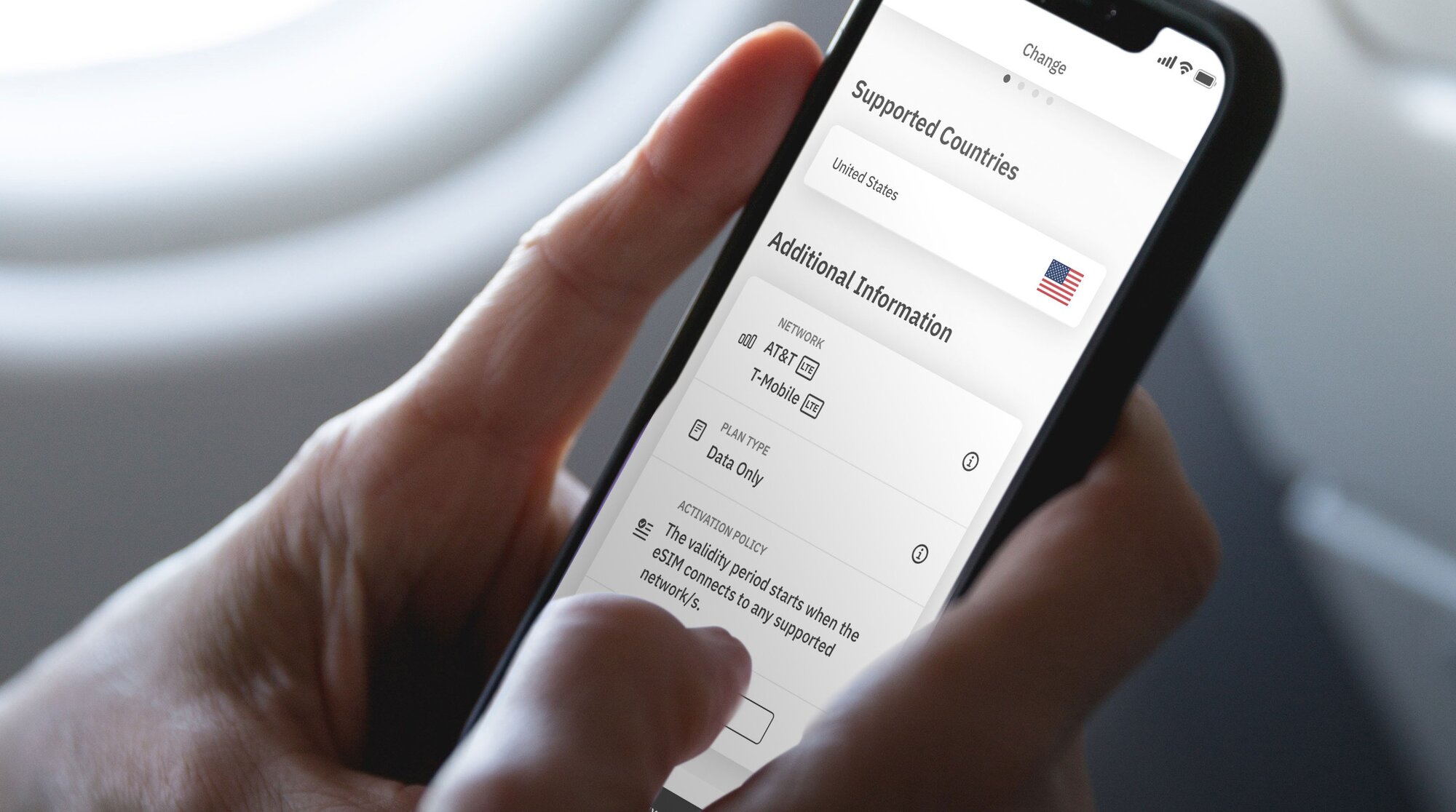
Het activeringsbeleid van uw eSIM vertelt u wanneer de geldigheidsperiode begint. Er zijn twee soorten eSIM activeringsbeleid:
- eSIM's die worden geactiveerd wanneer u verbinding maakt met een ondersteund netwerk. De meeste eSIM's worden geactiveerd wanneer u uw eSIM-lijn inschakelt en verbinding maakt met een ondersteund netwerk op uw bestemming. Zodra u verbinding heeft gemaakt, begint uw geldigheidsperiode en kunt u uw eSIM-data gaan gebruiken.
- eSIM's die bij installatie worden geactiveerd. Sommige eSIM's worden meteen na installatie geactiveerd, zelfs als u nog niet van huis vertrokken bent. Voor eSIM's die onmiddellijk worden geactiveerd, adviseren we om ze te installeren vlak voordat u op reis gaat, zodat u optimaal gebruik kunt maken van uw eSIM-data.
U kunt het activeringsbeleid vinden in de sectie Aanvullende Informatie van uw eSIM:
- Open de Airalo app.
- Selecteer de eSIM die u wilt kopen.
- Tik op NU KOPEN om de details te bekijken ( maakt u zich geen zorgen, u hoeft de eSIM nog niet aan te schaffen).
- Scrol omlaag naar Aanvullende Informatie.
- Lees het Activeringsbeleid.
Stap 4: Verbinding maken met een Lokaal Netwerk
Nu u de twee soorten eSIM activeringsbeleid kent, bekijken we de stappen om uw eSIM-lijn in te schakelen en verbinding te maken met een lokaal netwerk.
Zo schakel u uw eSIM-lijn in op uw iPhone:
- Ga naar Instellingen.
- Tap Cellulair.
- Tik op uw eSIM-lijn.
- Schakel Deze lijn inschakelen in.
- Schakel Dataroaming in.
- Tik op Netwerkselectie en selecteer een ondersteund netwerk (u vindt een lijst met netwerken in het gedeelte Aanvullende Informatie van de eSIM).
En zo doet u dat op Android:
- Ga naar Instellingen.
- Tik op Netwerk & internet.
- Tik op Mobiel Netwerk.
- Schakel uw eSIM in.
- Schakel Mobiele Data in.
- Schakel Dataroaming in.
- Selecteer een ondersteund netwerk (u vindt dit in het gedeelte Aanvullende Informatie van de eSIM).
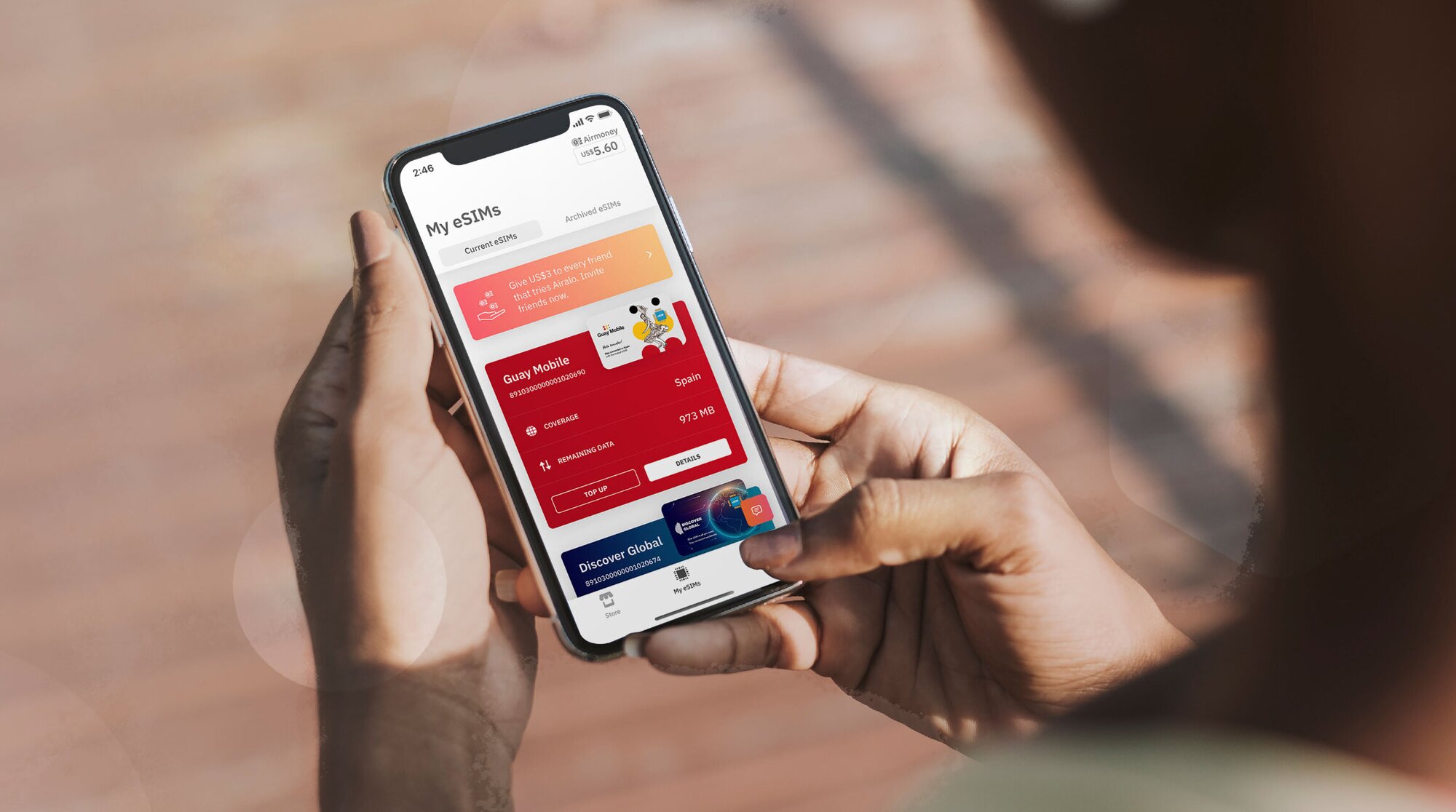
Een lokale, regionale of wereldwijde Airalo eSIM kiezen
Met een Airalo eSIM kunt u verbinding maken in meer dan 200 landen en regio's over de hele wereld.
Sterker nog, u kunt een eSIM-abonnement kiezen op basis van uw reisbehoeften. Kies uit een:
- Lokale eSIM: Als u naar één bestemming reist, is het zinvol om voor een lokale eSIM te kiezen. Dit type abonnement geeft u dekking in één land.
- Regionale eSIM: Maak verbinding over de grens zonder van eSIM te hoeven wisselen. Dit type abonnement geeft u dekking in verschillende landen in een bepaalde regio. Het is perfect als u eilandhopt, een Europese reis maakt, of op zoek bent naar avontuur in Afrika!
- Wereldwijde eSIM: Als u graag de wereld rondreist, is een wereldwijde eSIM de perfecte oplossing om u verbonden te houden. Met een wereldwijd eSIM-abonnement heeft u dekking op verschillende bestemmingen over de hele wereld.
Voordelen van het Gebruik van een Airalo eSIM
eSIM's hebben veel voordelen ten opzichte van traditionele simkaarten, zoals directe connectiviteit tijdens het reizen en meer. Het gebruik van een eSIM van Airalo heeft vele voordelen, waaronder:
- Geen roamingkosten. Airalo eSIM-abonnementen zijn prepaid. U betaalt alleen voor de data die u vooraf koopt of onderweg opwaardeert.
- U bent niet gebonden aan een specifieke provider. U kunt het eSIM-data-abonnement kiezen dat het beste bij uw behoeften past en gemakkelijk van abonnement wisselen terwijl u reist.
- U kunt verbinding maken als een plaatselijke bewoner. Airalo werkt samen met plaatselijke providers om ervoor te zorgen dat u de beste prijzen en service krijgt tijdens uw reis.
- Neem 24/7 contact met ons op. Ons ondersteuningsteam is 24/7 beschikbaar, zodat u de hulp kunt krijgen die u nodig heeft, ongeacht uw tijdzone.

Veelgestelde Vragen Over Airalo eSIM's
Misschien heeft u een paar vragen als u overweegt een Airalo eSIM te gebruiken voor uw reisbehoeften.
Hoe lang duurt het om mijn eSIM te activeren?
Het kost geen tijd!
Afhankelijk van het activeringsbeleid van uw eSIM, wordt deze geactiveerd zodra u deze installeert of wanneer u verbinding maakt met een ondersteund netwerk op uw bestemming.
In beide gevallen moet u uw eSIM-lijn inschakelen en verbinding maken met een ondersteund netwerk om uw eSIM-data te kunnen gebruiken.
Moet ik mijn eSIM opnieuw activeren als mijn abonnement afloopt?
Niet nodig! Uw Airalo pakket heeft al voorgeïnstalleerde data, gebaseerd op het pakket dat u koopt. Als uw data opraakt of uw geldigheidsperiode verloopt, kunt u eenvoudig opwaarderen in uw Airalo app.
Als uw eSIM-abonnement geen opwaardeermogelijkheid heeft, kunt u een ander eSIM-abonnement downloaden om verbonden te blijven.
Wat kan ik doen met mijn Airalo eSIM?
U kunt met een Airalo eSIM dezelfde dingen doen als met een traditionele simkaart, waaronder: verbinding maken met een mobiel netwerk, surfen op internet, uw favoriete apps gebruiken en op internet gebaseerde bel- en berichtenapps gebruiken (zoals WhatsApp).
Kan ik mijn simkaart en eSIM samen gebruiken?
Absoluut! Bij de meeste apparaten kunt u meerdere simkaarten en/of eSIM's tegelijk gebruiken. U kunt uw simkaart van het thuisnetwerk gebruiken voor gesprekken en sms, en uw eSIM voor data.
Als u nog vragen heeft over hoe u een eSIM activeert, bezoek dan ons Helpcentrum of stuur ons een e-mail op [email protected].
Wilt u een eSIM gebruiken om verbonden te blijven tijdens uw reis? Blader door Airalo eSIM's om verbinding te maken in meer dan 200 landen en regio's.
Step 2: Install Your eSIM
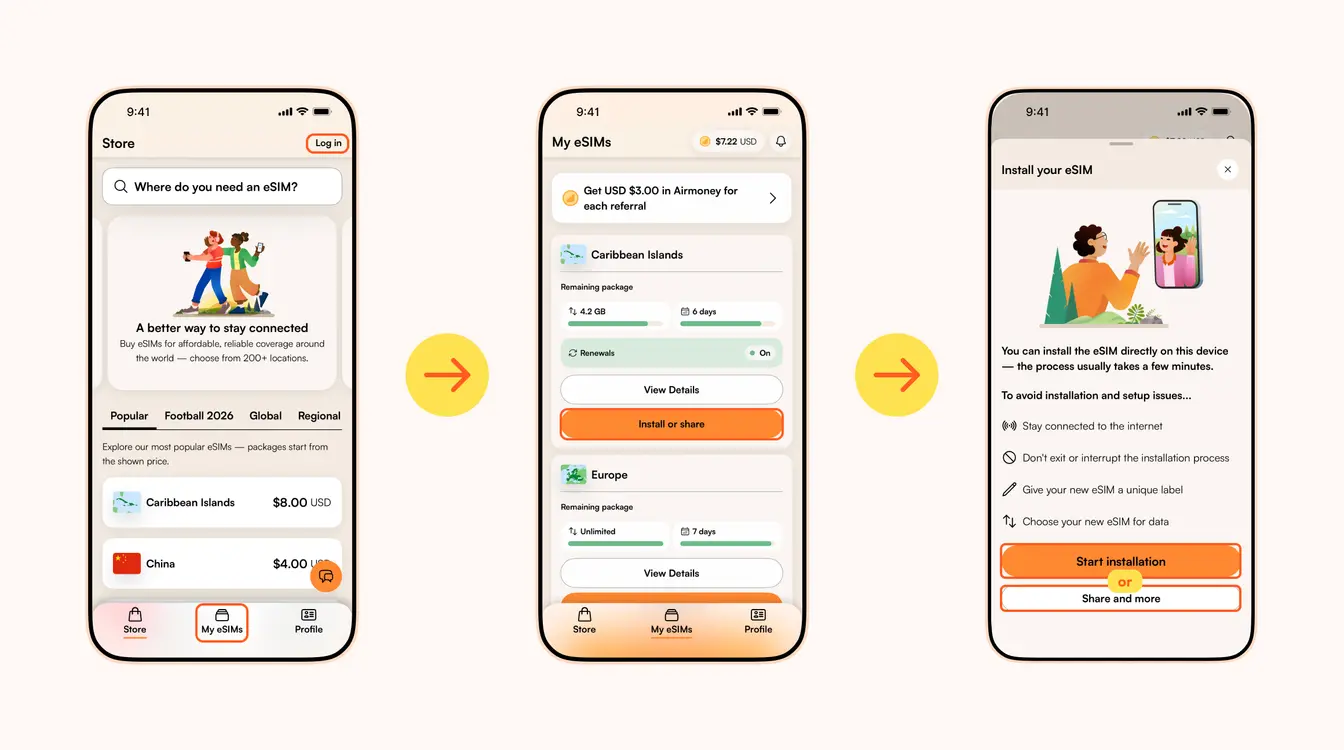
Once you've purchased your eSIM, you can choose to install or share the eSIM. If it's for your own use, select Start installation. Remember, you'll need a stable Wi-Fi connection for this.
Here are three different methods to install an Airalo eSIM:
- Direct: This is the most straightforward option. Go to your eSIM in the Airalo app, select Install or share → Start installation and follow the step-by-step prompts.
- QR Code: Use a QR code to start the installation process on another device. You can find more information under Install or share → Share and more.
- Manual: Enter your eSIM details manually in your device's Settings section. You can find more information under Install or share → Share and more.
For details on how to install your eSIM on a specific phone, follow the steps outlined in these links:
- iOS/iPhone eSIM guide
- Android eSIM guide
- Samsung Galaxy S20/S21 eSIM guide
- Google Pixel eSIM guide
- Huawei eSIM guide
Pro Tip: As you follow the installation steps, you'll be prompted to label your eSIM. For example, if you're visiting Japan, you can label your line as "Japan eSIM" to distinguish between your primary SIM and your eSIM. It makes switching between your eSIMs and turning them on and off easier — especially when using your SIM card for calls and texts, and your eSIM for data.
Step 3: Activate/Connect to Your Destination's Network
When should you activate/connect your eSIM?
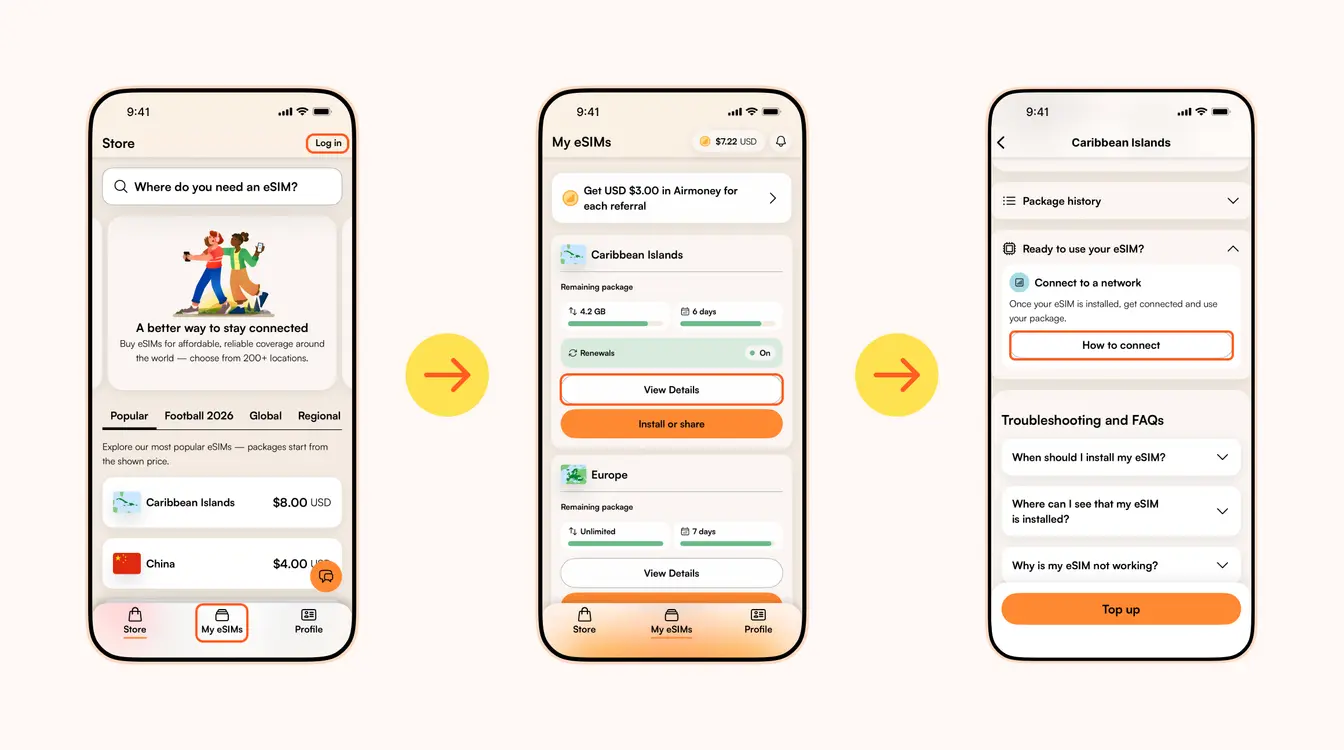
Once you've installed your eSIM over Wi-Fi, the next step is to connect your eSIM. If you want to connect automatically on arrival, follow the steps below before you take off for your trip. Otherwise, you can do so once you arrive at your destination (you don't need a Wi-Fi connection for this step).
Follow the steps below to connect your eSIM to a network:
1. Go to the Airalo app
2. Navigate to My eSIMs → Your eSIM → View details → Ready to use your eSIM → Connect to a network → How to connect.
There, you'll find the exact steps you need to follow, but read on for a quick summary.
Here's how to turn on your eSIM line on iPhone:
- Go to Settings.
- Tap Cellular/Mobile Service.
- Select your new eSIM, if it hasn't already been selected.
- Toggle on Turn On This Line.
- Toggle on Data Roaming (if required in How to connect).
- Return to the main Cellular/Mobile Service menu.
- Tap Cellular Data/Mobile Data.
- Choose your eSIM.
- If your package includes calls and texts, tap Default Voice Line and choose your eSIM there as well.
Here's how to do it on Android:
- Go to Settings.
- Tap Network & Internet.
- Tap Mobile Network.
- Turn on your eSIM.
- Turn on Mobile Data.
- Turn on Data Roaming (if required in How to connect).
In case your eSIM does not connect to a network, try turning your phone off and on, or enable airplane mode for 10 seconds to refresh the network connection.
Important:
- To avoid being charged for roaming fees, you'll also want to turn off your carrier's data service. You can read how to do this here.
- If you're using a Global eSIM or a regional eSIM that includes your home country, do not activate it before you travel. Otherwise, it may activate in your home country, causing the validity period to begin before your trip.
- If your eSIM supports multiple networks, you can manually select the network you want to use. Check the supported networks for your eSIM in the Airalo app.
You can also follow our troubleshooting steps or contact our 24/7 help support.
Leidt naar het Airalo-helpcentrum voor meer supportinformatie.
Opent de chat met de Airalo-support op WhatsApp.
Looking to use an eSIM to stay connected during your trip? Browse Airalo eSIMs to connect in 200+ destinations.