


If you've ever had to deal with a physical SIM card, then you're all too familiar with its limits. From having to wait in line at airports, to setup hassle and easy misplacement, the physical SIM card can cause frustration. That's where eSIMs come in.
eSIMs are digital SIMs that you can download directly to your phone. eSIMs help you stay connected on the go more smoothly, but like any new technology, you may need some guidance to get started. In this article, we'll take you through 3 simple steps to install and connect your Airalo eSIM.
In this article:
What Are the Benefits of Using an Airalo eSIM?

eSIMs have many benefits over traditional SIM cards, such as instant travel connectivity and more. Using an eSIM from Airalo comes with many benefits, including:
- No roaming fees. Airalo eSIMs are prepaid. Pay only for the data you need, and say goodbye to surprise roaming fees.
- You aren't tied to a specific carrier. You can choose the eSIM data package that best suits your needs and easily switch packages when you travel.
- You can connect like a local. Airalo works with local providers to ensure you get the best prices and service during your trip.
- Contact us 24/7. Our support team is available 24/7, so you can get the assistance you need, no matter your time zone.
Prepare for Your Airalo eSIM Setup

Before you install and activate your eSIM, check that your device is:
- Carrier-unlocked
- eSIM Compatible
- Connected to Wi-Fi
Read on for more information or jump to Step 1.
1) Ensure Your Phone is Unlocked
Carrier-unlocked means that your device isn't tied to a contract with a mobile carrier. If you're unsure, we recommend calling your carrier to confirm or checking your device's settings.
Here's how to do it on iPhone:
- Go to your iPhone's Settings.
- Tap General.
- Tap About.
- Scroll down to Carrier Lock or Network Provider Lock.
- Check the status there.
- If your iPhone is unlocked, its status will be No SIM restrictions. If it's locked, you'll see your carrier's name.
Settings will look different based on your Android model, but generally will look like this:
- Open Settings.
- Tap Network & Internet, Connections, or a similar menu option.
- Tap SIMs, Mobile Network, or a similar option.
- You'll then be able to choose a network/SIM or select network operators for further choices. If you see more than one network to choose from or options to manage your SIMs, this likely indicates that your phone is unlocked.
2) Check if Your Phone is eSIM-Compatible
Whether your phone is eSIM-compatible depends on the model and where it was manufactured, not just the year it was released. While many newer smartphones support eSIM technology, this isn't guaranteed.
Some phones only support eSIM technology in certain regions, while others may have different hardware depending on the market they were made for. For example, two phones with the same name can have different eSIM capabilities, depending on the country in which they were manufactured.
Before purchasing an eSIM, we strongly recommend verifying that your phone is eSIM-compatible, which means it supports the storage of digital SIMs. Here are a few ways you can do this:
Method 1: Settings Check
- Open Settings on your phone.
- Navigate to your SIMs (under Mobile/Cellular Networks or similar).
- Look for an Add eSIM or Download SIM option. You might have to select a SIM before you see the option.
- If it's there, you're eSIM-ready.
Note: Instructions vary based on your phone model. If you struggle to find the Add eSIM/or Download eSIM option, use your phone's search function.
Method 2: IMEI and EID Check
- Dial *#06# on your phone.
- If you see two IMEI numbers, your phone likely supports dual-SIMs (physical and eSIM).
- Note down the IMEI and check with your carrier.
- Alternatively, if an EID appears, your phone supports eSIM.
Method 3: Manual Check
- Check your phone's original packaging or documentation. If it's available, eSIM support is usually listed in the technical specifications.
- You can also check Airalo's regularly updated eSIM compatibility list here.
Method 4: Quick Dial Code (Android only)
- Open your phone app.
- Dial ##4636##.
- On most Android phones, this opens a hidden menu that allows users to view and modify network settings.
- From this menu, select Phone Information.
- Look for an eSIM or embedded SIM status.
Note: You can still purchase an eSIM if your phone isn't eSIM compatible. You'll have the option to share the eSIM to another device, rather than install it on your phone.
3) Connect to Wi-Fi Before Installing Your eSIM
We always recommend that you connect to a stable Wi-Fi network when installing your eSIM. This is because eSIMs can only be installed once, and an unstable connection can cause the installation to fail.
We generally recommend doing so before leaving for your trip, so that you can get connected upon landing. Most eSIM's validity period only starts when the eSIM connects to the mobile network in its coverage area, so that you won't lose precious data.
Pro tip: Check an eSIM's validity policy by selecting Package details before or after purchase. This will let you know if the eSIM's validity period starts when it connects to a network, or more rarely, upon installation.
Now that you've got the basics down, it's time to buy and install your eSIM.
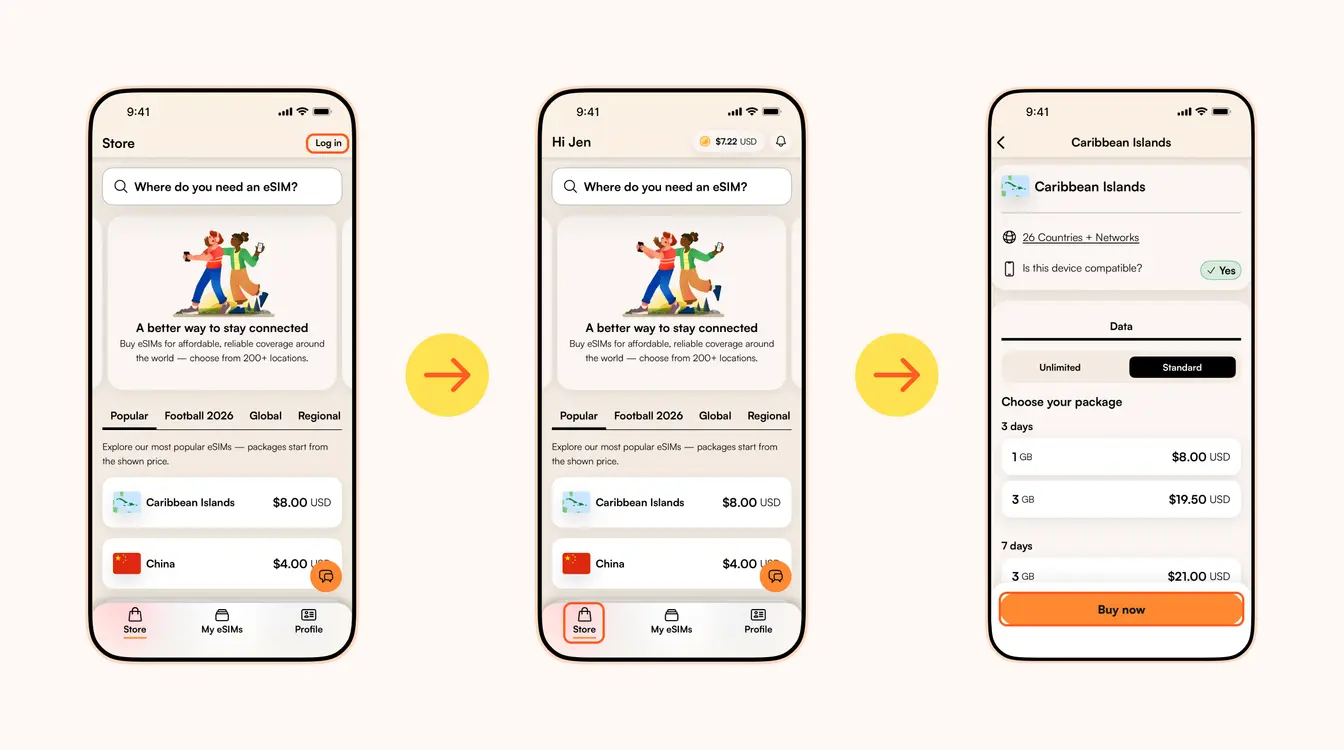
Step 1: Buy an eSIM
如果您曾經使用過實體 SIM 卡(我們確信您有),那麼您就會知道改用 eSIM 會有多棒。 從旅行時的即時連接到簡單的安裝和啟動步驟,還有什麼理由不喜歡呢?
Airalo(是的,就是我們!)eSIM 提供者可協助您隨時隨地保持網路聯繫。 我們消除了 SIM 卡的麻煩,為您提供全球 200 多個國家和地區的即時連線。
與任何新技術一樣,您可能需要一些入門幫助。 在本文中,我們將引導您完成安裝和啟動 Airalo eSIM 的步驟。
請詳閱以下:
- 如何透過四個步驟安裝和啟動 Airalo eSIM
- 安裝 eSIM
- 啟用 eSIM
- 本地、區域和全球 eSIM
- 使用 Airalo eSIM 的好處
- 有關 Airalo eSIM 的常見問題 (FAQ)
如何透過 4 個步驟啟動 Airalo eSIM
在安裝並啟動 eSIM 之前,請確保您的手機:
- 電信商已解鎖。這表示您的手機不受與行動電信商的合約的約束。 如果您直接購買手機,沒有任何行動服務協議,那麼您的手機可能已解鎖。 如果您不確定,我們建議您致電您的電信業者進行仔細檢查!
- 可下載eSIM -如果您的智慧型手機是 2018 年或之後生產的,那麼您的手機很可能支援 eSIM。 查看我們的可下載eSIM手機的完整列表,看看您的手機是否包含在內。
現在您已確認您的手機已解鎖運營商並且支援 eSIM,是時候按照以下四個簡單步驟安裝和啟動您的 eSIM 了!
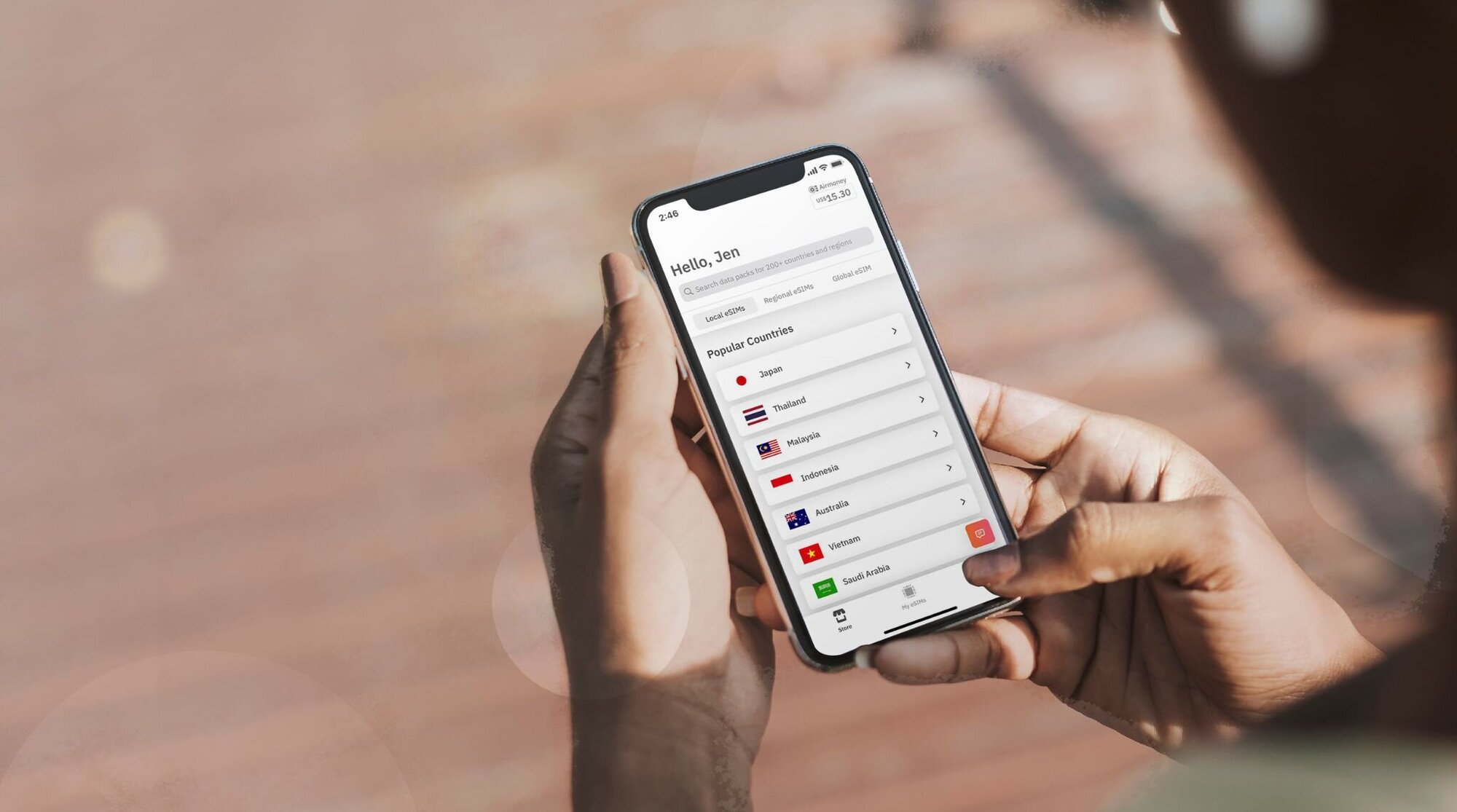
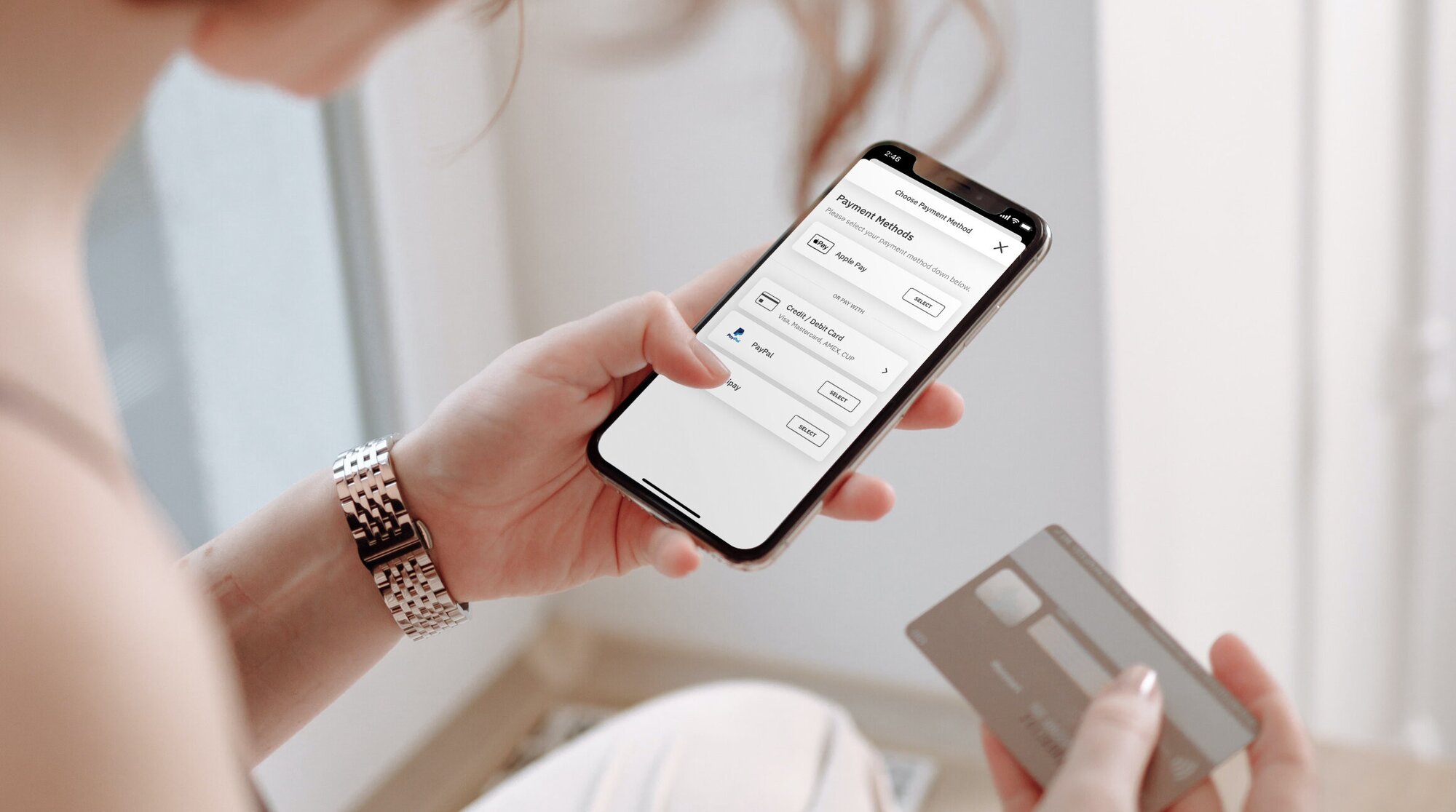
第 1 步:購買 eSIM
首先,您需要購買 eSIM 。 方法如下:
- 前往Airalo 網站或下載 Airalo 應用程式(可在iOS和Android上使用)。
- 選擇適合您旅行目的地的 eSIM 。
- 考慮您需要的網路流量、eSIM 的有效期限及其價格等因素。
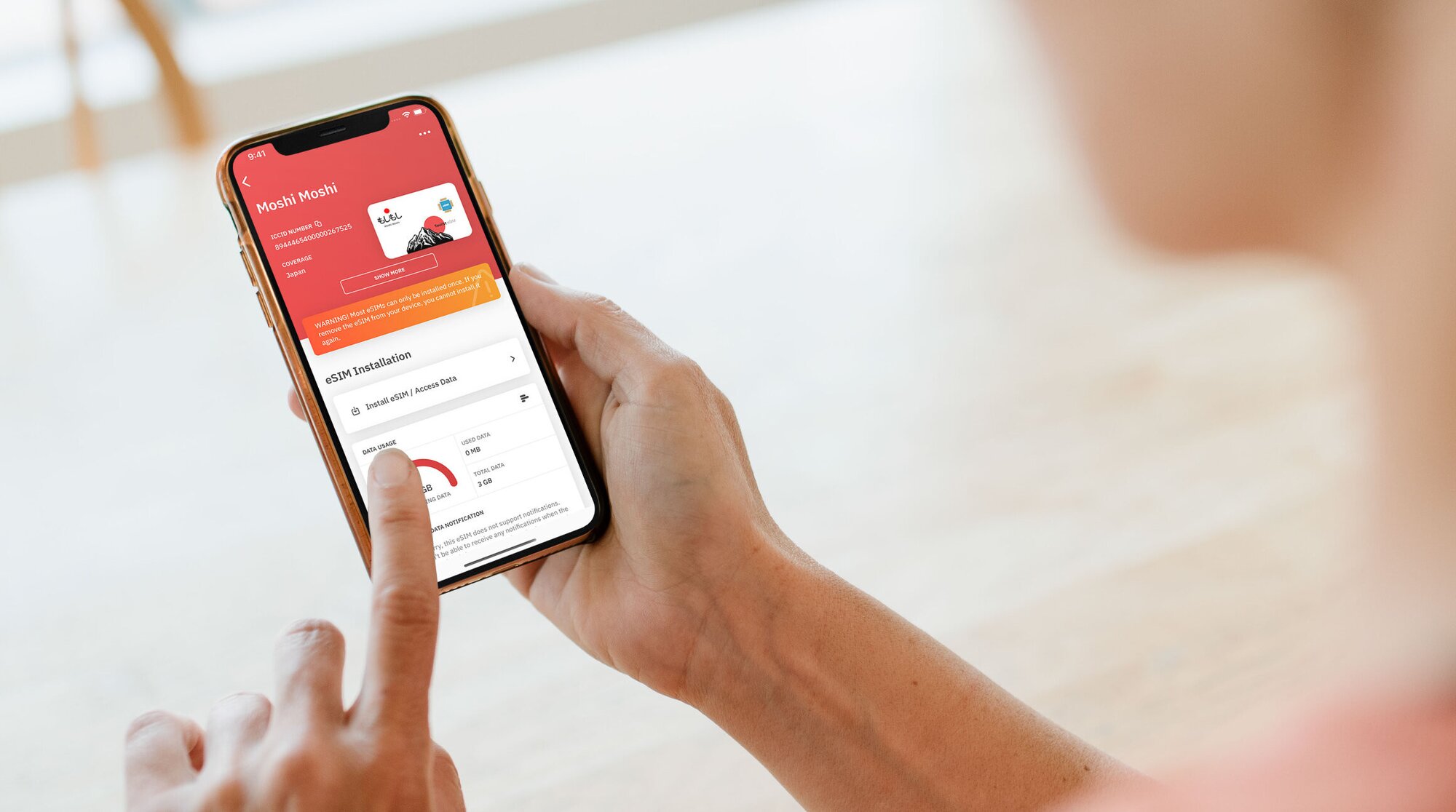
第 2 步:安裝您的 eSIM
購買 eSIM 後,您需要將其安裝到您的手機上。 在開始安裝程序之前,請確保您有穩定的 Wi-Fi 連線。
以下是安裝 Airalo eSIM 的三種不同方法:
- 直接:前往 Airalo 應用程式並按照逐步提示安裝您的 eSIM。
- 二維碼:掃描二維碼開始安裝程序。
- 手動:在手機的「設定」部分手動輸入您的 eSIM 詳細資料。
有關如何安裝 eSIM 的更多詳細信息,請按照以下連結中概述的步驟操作:
當您依照安裝步驟操作時,系統會提示您為 eSIM 附上標籤。 例如,如果您要去埃及旅行,您可以將您的線路標記為“埃及 eSIM”,以區分您的主 SIM 卡和 eSIM 。 它讓生活變得更加輕鬆 – 尤其是在使用 SIM 卡撥打電話和發送簡訊以及使用 eSIM 使用網路時。
第 3 步:啟動您的 eSIM
您的 eSIM 啟動策略會告訴您其有效期限何時開始。 eSIM 啟動策略有兩種:
- 當您連接到支援的網路時啟動的 eSIM。 當您開啟 eSIM 線路並連接到目的地當地的網路時,大多數 eSIM 都會啟動。 連線後,您的有效期將開始,您可以開始使用您的 eSIM 網路。
- 安裝後啟動的 eSIM。 有些 eSIM 會在安裝後立即啟動有效期 - 即使您沒有離開家。 對於立即啟動的 eSIM ,我們建議您在旅行前安裝它們,以便您可以充分利用 eSIM 網路。
您可以在 eSIM 的其他資訊部分找到啟動政策:
- 打開 Airalo 應用程式。
- 選擇您要購買的 eSIM 。
- 點擊 立即購買,查看其詳細資訊(不用擔心,您還不需要購買 eSIM)。
- 向下捲動到其他資訊。
- 閱讀 啟動政策。
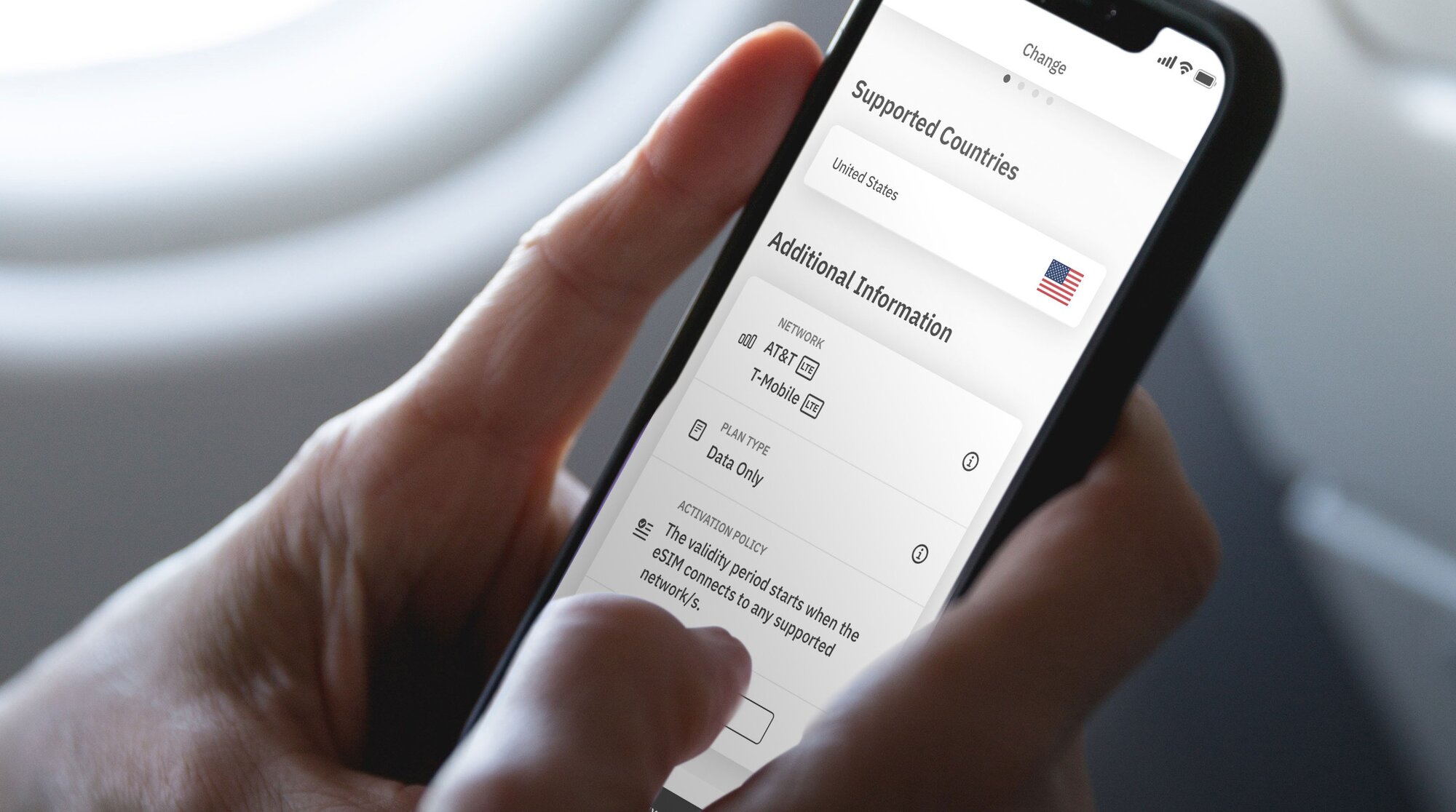
第 4 步:連接到本地網絡
現在您已經了解了兩種類型的 eSIM 啟動策略,接下來讓我們回顧一下開啟 eSIM 線路並連接到本地網路的步驟。
以下是在 iPhone 上開啟 eSIM 線路的方法:
- 前往設定。
- 點選行動網路.
- 點選您的 eSIM 線路。
- 若未啟用,請點選開啟此線路。
- 開啟數據漫遊.
- 點選網路選擇並選擇支援的網路(您可以在 eSIM 的其他資訊部分找到網路清單)。
以及如何在 Android 上執行此操作:
- 前往設定。
- 點選網路和網際網路
- 點選行動網路。
- 開啟您的 eSIM.
- 點選行動數據。
- 開啟數據漫遊.
- 選擇支援的網路(您可以在 eSIM其他資訊 部分找到網路清單)。
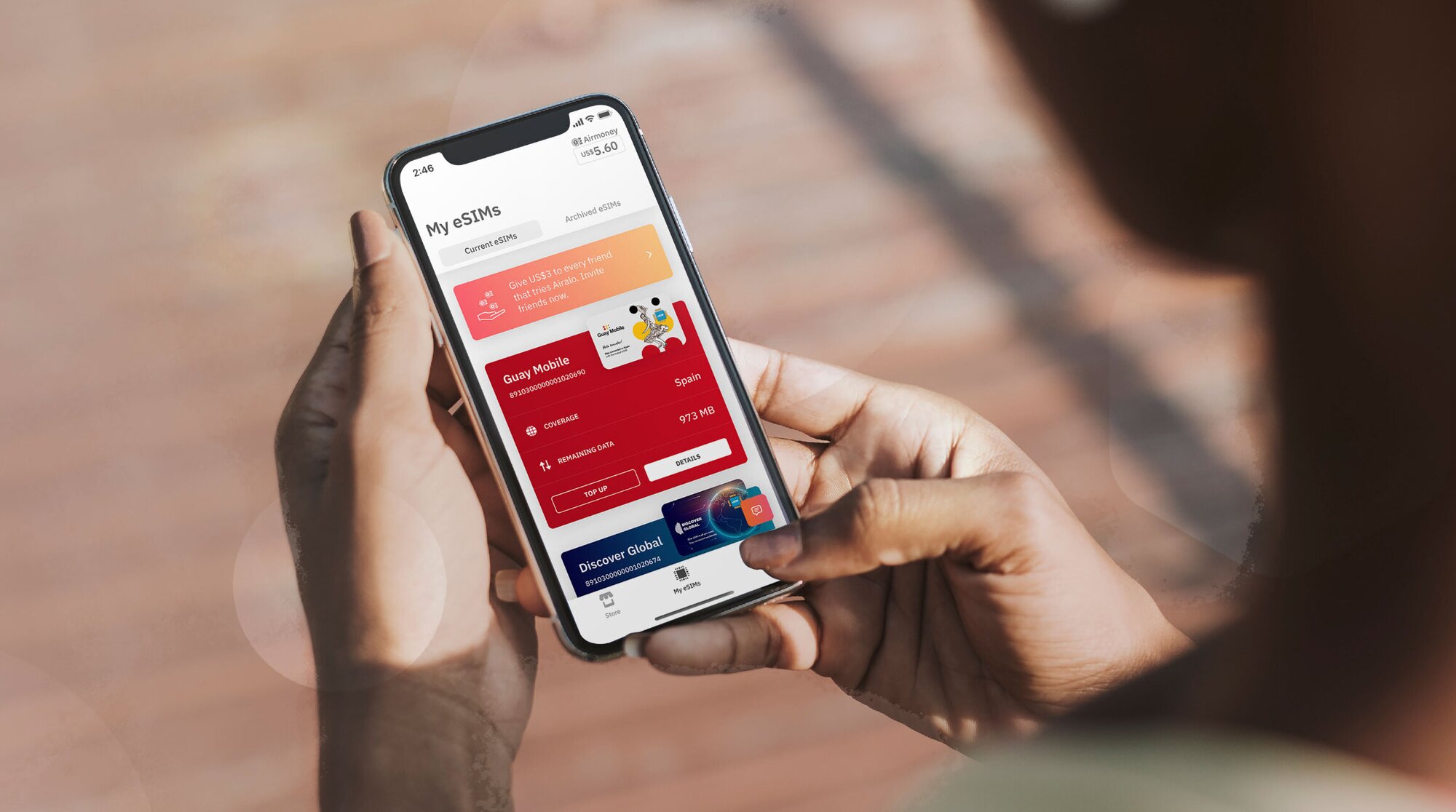
選擇本地、區域或全球 Airalo eSIM
使用 Airalo eSIM,您可以在全球 200 多個國家和地區進行連線。
更好的是,您還可以根據您的旅行需求選擇eSIM方案。 從以下選項中選擇:
- 本地 eSIM:如果您要去一個目的地旅行,就可以選擇本地 eSIM。 此類計劃為您提供單一國家/地區的網路。
- 區域 eSIM:跨國連接,無需切換 eSIM。 此類計劃為您提供特定地區的多個國家/地區的承保。 如果您想要跳島遊、歐洲之旅或非洲冒險,那麼它就是您的完美選擇!
- 全球 eSIM:如果您熱衷於環遊世界,全球 eSIM 是讓您保持網路聯繫的完美解決方案。 全球 eSIM 方案可覆蓋全球多個目的地。
使用 Airalo eSIM 的好處
與傳統 SIM 卡相比,eSIM 具有許多優勢,例如即時旅行連接等。 使用 Airalo 的 eSIM 具有許多優勢,包括:
- 無漫遊費。Airalo eSIM 方案是預付的。 您只需為預先購買或儲值的數據方案付費。
- 您不受特定業者的限制。您可以選擇最適合您需求的 eSIM 數據方案,並在旅行時輕鬆切方案。
- 您可以像本地人一樣連線。Airalo 與當地供應商合作,確保您在旅途中獲得最優惠的價格和服務。
- 24/7 聯絡我們。我們的支援團隊 24/7 全天候提供服務,因此無論您身在哪個時區,您都可以獲得所需的協助。

關於 Airalo eSIM 的常見問題解答
當您考慮使用 Airalo eSIM 來滿足您的旅行需求時,您可能會遇到一些問題。
啟動我的 eSIM 需要多長時間?
不需要時間!
根據 eSIM 的不同,您的eSIM方案將在您安裝後或在目的地連接到新網路後立即啟動。
在這兩種情況下,您都需要開啟 eSIM 線路並連接到支援的網路才能使用 eSIM 網路。
當我的方案結束時,我需要重新啟動我的 eSIM 嗎?
不需要! 根據您購買的方案,您的 Airalo 方案已預先載入eSIM網路方案。 如果您的網路用完或有效期到期,您可以在 Airalo 應用程式中輕鬆充值。
如果您的 eSIM 方案沒有儲值選項,您可以下載另一個 eSIM 方案以保持網路連線。
我可以用 Airalo eSIM 做什麼?
您可以使用 Airalo eSIM 執行與傳統 SIM 卡相同的操作,包括:連接到移動網絡、瀏覽網路、使用您喜愛的應用程序以及使用基於網路的通話和通訊應用程序(如WhatsApp)。
我可以同時使用 SIM 和 eSIM 嗎?
絕對地! 大多數手機將允許您同時使用多個 SIM 和/或 eSIM。 您可以使用家庭網路 SIM 卡進行通話和發送短信,使用 eSIM網路。
如果您對如何啟動 eSIM 仍有疑問,請造訪我們的幫助中心或發送電子郵件至[email protected]。
希望在旅途中使用 eSIM 保持網路聯繫? 瀏覽Airalo eSIM以連接 200 多個國家和地區。
Step 2: Install Your eSIM
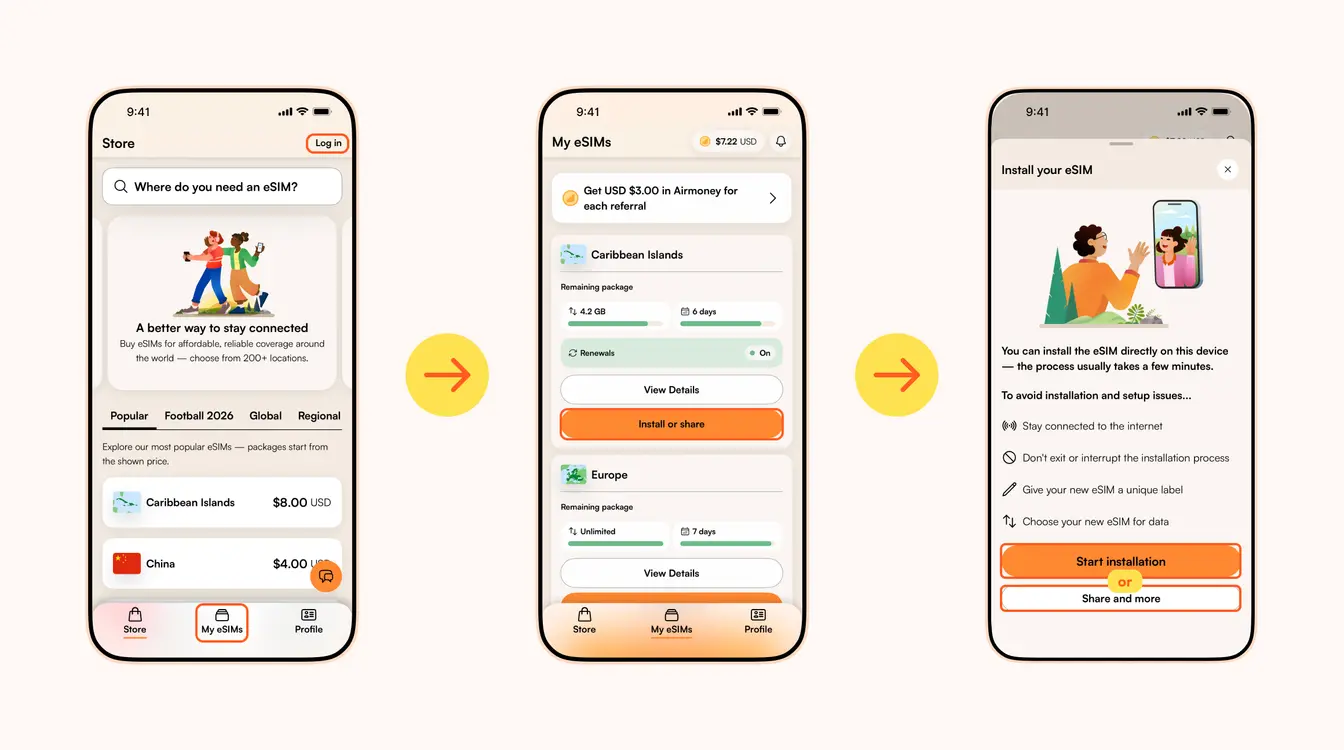
Once you've purchased your eSIM, you can choose to install or share the eSIM. If it's for your own use, select Start installation. Remember, you'll need a stable Wi-Fi connection for this.
Here are three different methods to install an Airalo eSIM:
- Direct: This is the most straightforward option. Go to your eSIM in the Airalo app, select Install or share → Start installation and follow the step-by-step prompts.
- QR Code: Use a QR code to start the installation process on another device. You can find more information under Install or share → Share and more.
- Manual: Enter your eSIM details manually in your device's Settings section. You can find more information under Install or share → Share and more.
For details on how to install your eSIM on a specific phone, follow the steps outlined in these links:
- iOS/iPhone eSIM guide
- Android eSIM guide
- Samsung Galaxy S20/S21 eSIM guide
- Google Pixel eSIM guide
- Huawei eSIM guide
Pro Tip: As you follow the installation steps, you'll be prompted to label your eSIM. For example, if you're visiting Japan, you can label your line as "Japan eSIM" to distinguish between your primary SIM and your eSIM. It makes switching between your eSIMs and turning them on and off easier — especially when using your SIM card for calls and texts, and your eSIM for data.
Step 3: Activate/Connect to Your Destination's Network
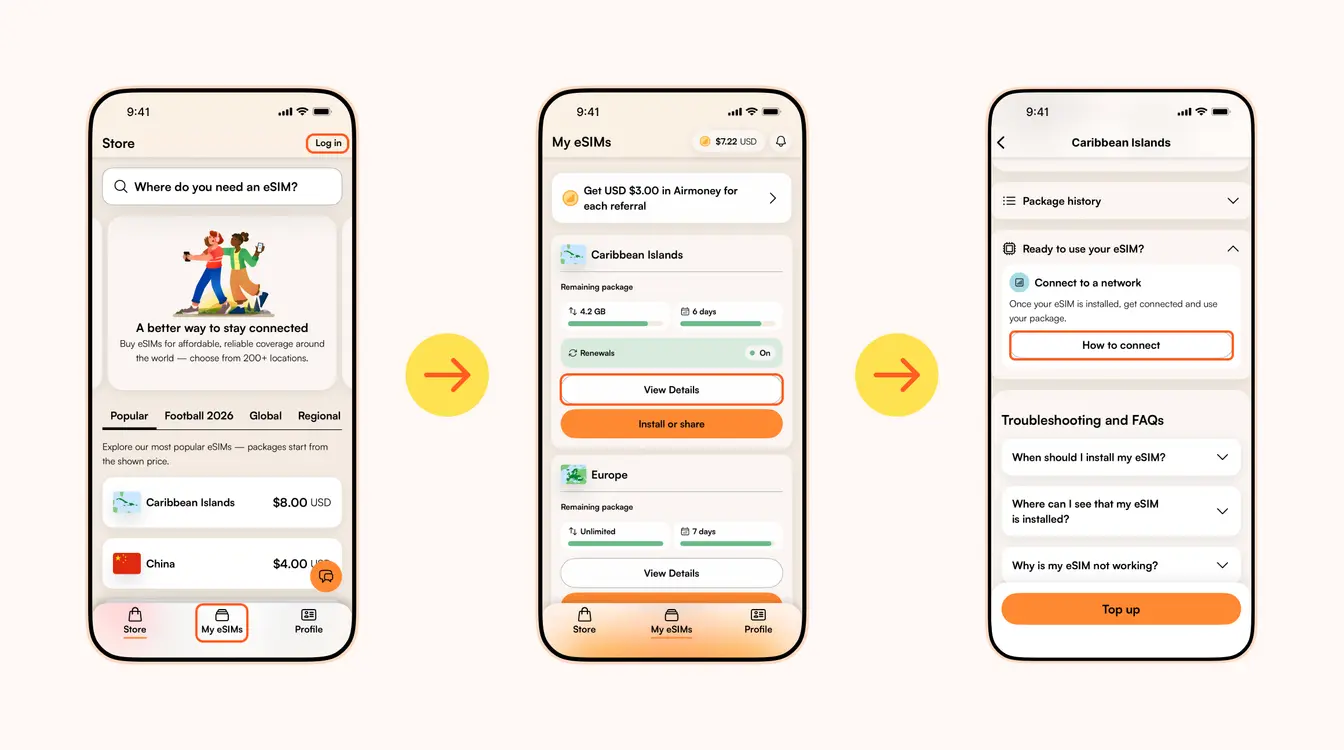
When should you activate/connect your eSIM?
Once you've installed your eSIM over Wi-Fi, the next step is to connect your eSIM. If you want to connect automatically on arrival, follow the steps below before you take off for your trip. Otherwise, you can do so once you arrive at your destination (you don't need a Wi-Fi connection for this step).
Follow the steps below to connect your eSIM to a network:
1. Go to the Airalo app
2. Navigate to My eSIMs → Your eSIM → View details → Ready to use your eSIM → Connect to a network → How to connect.
There, you'll find the exact steps you need to follow, but read on for a quick summary.
Here's how to turn on your eSIM line on iPhone:
- Go to Settings.
- Tap Cellular/Mobile Service.
- Select your new eSIM, if it hasn't already been selected.
- Toggle on Turn On This Line.
- Toggle on Data Roaming (if required in How to connect).
- Return to the main Cellular/Mobile Service menu.
- Tap Cellular Data/Mobile Data.
- Choose your eSIM.
- If your package includes calls and texts, tap Default Voice Line and choose your eSIM there as well.
Here's how to do it on Android:
- Go to Settings.
- Tap Network & Internet.
- Tap Mobile Network.
- Turn on your eSIM.
- Turn on Mobile Data.
- Turn on Data Roaming (if required in How to connect).
In case your eSIM does not connect to a network, try turning your phone off and on, or enable airplane mode for 10 seconds to refresh the network connection.
Important:
- To avoid being charged for roaming fees, you'll also want to turn off your carrier's data service. You can read how to do this here.
- If you're using a Global eSIM or a regional eSIM that includes your home country, do not activate it before you travel. Otherwise, it may activate in your home country, causing the validity period to begin before your trip.
- If your eSIM supports multiple networks, you can manually select the network you want to use. Check the supported networks for your eSIM in the Airalo app.
You can also follow our troubleshooting steps or contact our 24/7 help support.
導向 Airalo 說明中心了解更多支援資訊。
在 WhatsApp 上開啟與 Airalo 支援團隊的即時聊天。
Looking to use an eSIM to stay connected during your trip? Browse Airalo eSIMs to connect in 200+ destinations.