


If you've ever had to deal with a physical SIM card, then you're all too familiar with its limits. From having to wait in line at airports, to setup hassle and easy misplacement, the physical SIM card can cause frustration. That's where eSIMs come in.
eSIMs are digital SIMs that you can download directly to your phone. eSIMs help you stay connected on the go more smoothly, but like any new technology, you may need some guidance to get started. In this article, we'll take you through 3 simple steps to install and connect your Airalo eSIM.
In this article:
What Are the Benefits of Using an Airalo eSIM?

eSIMs have many benefits over traditional SIM cards, such as instant travel connectivity and more. Using an eSIM from Airalo comes with many benefits, including:
- No roaming fees. Airalo eSIMs are prepaid. Pay only for the data you need, and say goodbye to surprise roaming fees.
- You aren't tied to a specific carrier. You can choose the eSIM data package that best suits your needs and easily switch packages when you travel.
- You can connect like a local. Airalo works with local providers to ensure you get the best prices and service during your trip.
- Contact us 24/7. Our support team is available 24/7, so you can get the assistance you need, no matter your time zone.
Prepare for Your Airalo eSIM Setup

Before you install and activate your eSIM, check that your device is:
- Carrier-unlocked
- eSIM Compatible
- Connected to Wi-Fi
Read on for more information or jump to Step 1.
1) Ensure Your Phone is Unlocked
Carrier-unlocked means that your device isn't tied to a contract with a mobile carrier. If you're unsure, we recommend calling your carrier to confirm or checking your device's settings.
Here's how to do it on iPhone:
- Go to your iPhone's Settings.
- Tap General.
- Tap About.
- Scroll down to Carrier Lock or Network Provider Lock.
- Check the status there.
- If your iPhone is unlocked, its status will be No SIM restrictions. If it's locked, you'll see your carrier's name.
Settings will look different based on your Android model, but generally will look like this:
- Open Settings.
- Tap Network & Internet, Connections, or a similar menu option.
- Tap SIMs, Mobile Network, or a similar option.
- You'll then be able to choose a network/SIM or select network operators for further choices. If you see more than one network to choose from or options to manage your SIMs, this likely indicates that your phone is unlocked.
2) Check if Your Phone is eSIM-Compatible
Whether your phone is eSIM-compatible depends on the model and where it was manufactured, not just the year it was released. While many newer smartphones support eSIM technology, this isn't guaranteed.
Some phones only support eSIM technology in certain regions, while others may have different hardware depending on the market they were made for. For example, two phones with the same name can have different eSIM capabilities, depending on the country in which they were manufactured.
Before purchasing an eSIM, we strongly recommend verifying that your phone is eSIM-compatible, which means it supports the storage of digital SIMs. Here are a few ways you can do this:
Method 1: Settings Check
- Open Settings on your phone.
- Navigate to your SIMs (under Mobile/Cellular Networks or similar).
- Look for an Add eSIM or Download SIM option. You might have to select a SIM before you see the option.
- If it's there, you're eSIM-ready.
Note: Instructions vary based on your phone model. If you struggle to find the Add eSIM/or Download eSIM option, use your phone's search function.
Method 2: IMEI and EID Check
- Dial *#06# on your phone.
- If you see two IMEI numbers, your phone likely supports dual-SIMs (physical and eSIM).
- Note down the IMEI and check with your carrier.
- Alternatively, if an EID appears, your phone supports eSIM.
Method 3: Manual Check
- Check your phone's original packaging or documentation. If it's available, eSIM support is usually listed in the technical specifications.
- You can also check Airalo's regularly updated eSIM compatibility list here.
Method 4: Quick Dial Code (Android only)
- Open your phone app.
- Dial ##4636##.
- On most Android phones, this opens a hidden menu that allows users to view and modify network settings.
- From this menu, select Phone Information.
- Look for an eSIM or embedded SIM status.
Note: You can still purchase an eSIM if your phone isn't eSIM compatible. You'll have the option to share the eSIM to another device, rather than install it on your phone.
3) Connect to Wi-Fi Before Installing Your eSIM
We always recommend that you connect to a stable Wi-Fi network when installing your eSIM. This is because eSIMs can only be installed once, and an unstable connection can cause the installation to fail.
We generally recommend doing so before leaving for your trip, so that you can get connected upon landing. Most eSIM's validity period only starts when the eSIM connects to the mobile network in its coverage area, so that you won't lose precious data.
Pro tip: Check an eSIM's validity policy by selecting Package details before or after purchase. This will let you know if the eSIM's validity period starts when it connects to a network, or more rarely, upon installation.
Now that you've got the basics down, it's time to buy and install your eSIM.
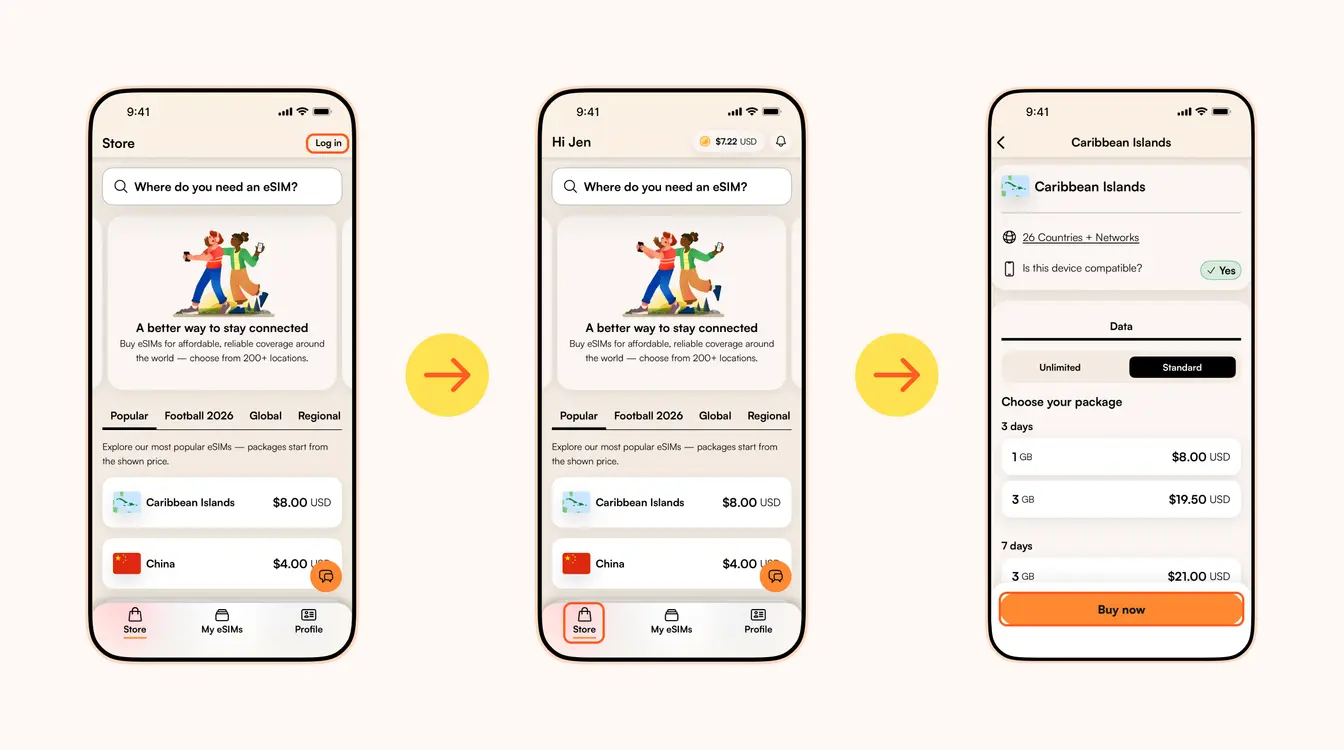
Step 1: Buy an eSIM
إذا تعاملت في وقت سابق مع بطاقة SIM (أي شريحة الاتصال الفعلية)، فستدرك مدى روعة الانتقال إلى استخدام وتفعيل الشريحة الإلكترونية (eSIM)، من الاتصال الفوري أثناء السفر إلى خطوات التشغيل والتثبيت السهلة؟
يمكنك أن تبقى على اتصال بساعدة مزودو خدمة الشريحة الإلكترونية مثل Airalo (نعم، نحن Airalo!). ونحن نساعدك في الاتصال فوريًا في أكثر من 200 دولة ومنطقة حول العالم ونخلصك من عناء شرائح SIM التقليدية.
وكما هو الحال مع أي تقنية جديدة، قد تحتاج إلى القليل من المساعدة لتبدأ في تشغيل الشريحة الالكترونية. في هذا المقال، سنعرفك على طريقة تفعيل الشريحة الإلكترونية وتشغيلها وكيف تعمل الشريحة الالكترونية (eSIM) من Airalo.
انتقل إلى:
- طريقة تفعيل وتثبيت الشريحة الالكترونية من Airalo في 4 خطوات
- تثبيت الشريحة الالكترونية
- تفعيل الشريحة الالكترونية
- شرائح إلكترونية محلية، وإقليمية، وعالمية
- مميزات استخدام الشريحة الإلكترونية (eSIM) من Airalo
- أسئلة شائعة حول الشريحة الإلكترونية (eSIM) من Airalo
طريقة تفعيل الشريحة الالكترونية من Airalo في 4 خطوات
قبل أن تبدأ في تثبيت وتفعيل الشريحة الالكترونية، تأكد أن جوالك:
- غير مقفل الشّبكة. مما يعني أن جوالك ليس مرتبطًا بعقد ما مع أي شركة اتصالات. إذا قمت بشراء جوال مباشرةً من متجر بيع الهواتف أو من منتج الهواتف بالمثال بدون تقسيط على شركة اتصال، فهو في الأرجح غير مقفل. وإذا لم تكن متأكدًا، ننصحك بالاتصال بشبكة الجوال للتحقق من ذلك!
- متوافق مع تقنية الشريحة الإلكترونية (eSIM). إذا كان لديك هاتف ذكي تم تصنيعه في عام 2018 أو ما بعده، فمن المرجح أن هاتفك يدعم هذه التقنية. تحقق من قائمة الأجهزة المتوافقة مع الشريحة الإلكترونية (eSIM) لمعرفة ما إذا كان هاتفك مدرجًا أم لا.
الآن وبعد أن تأكدت من دعم هاتفك لتقنية الشريحة الإلكترونية (eSIM) ومن كونه غير مغلق بواسطة شركات الاتصالات، ما عليك سوى اتباع هذه الخطوات الأربع لتثبيت وتفعيل الشريحة الإلكترونية!
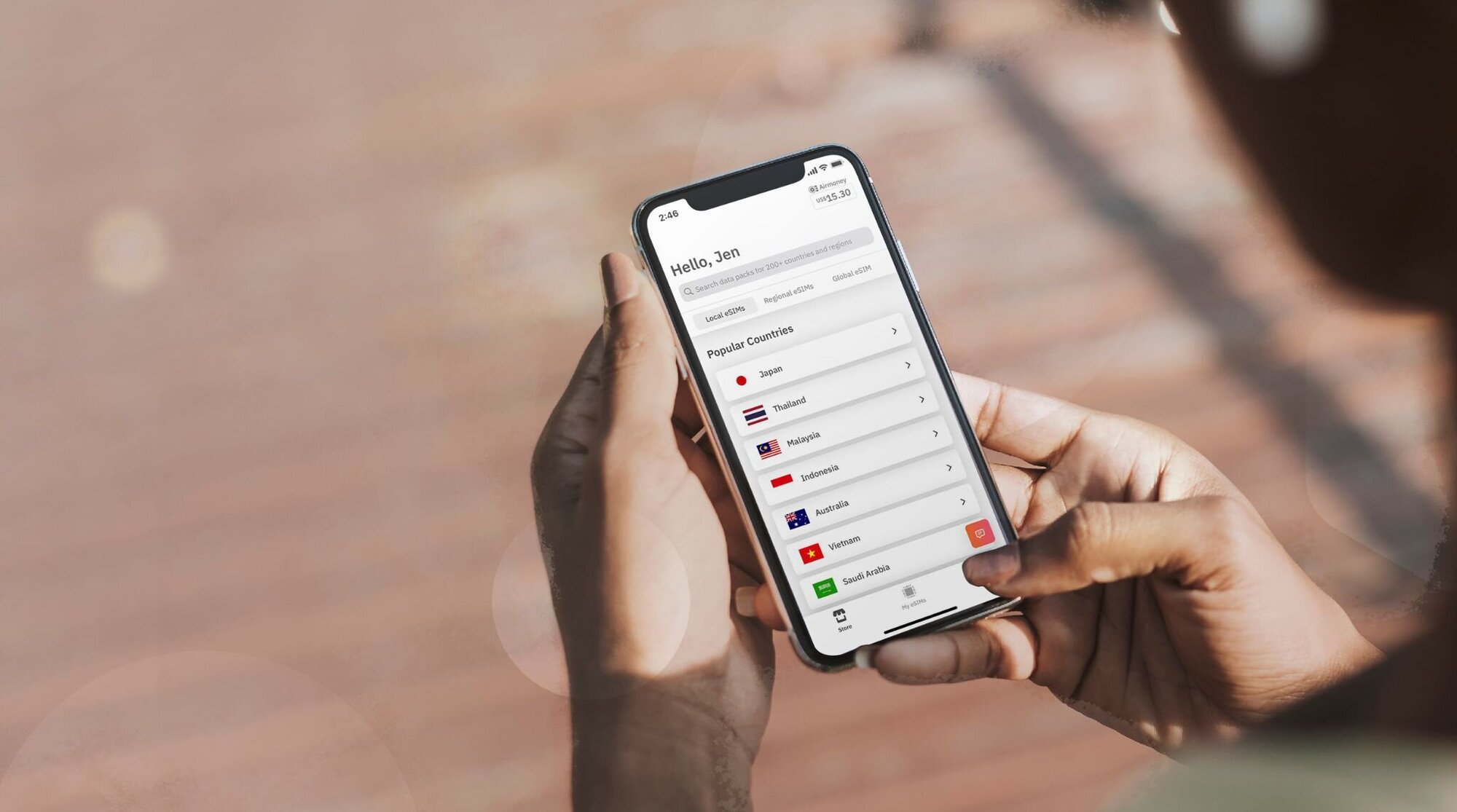
الخطوة الأولى: شراء الشريحة الإلكترونية (eSIM)
تتمثل الخطوة الأولى في شراء شريحة إلكترونية وإليك الطريقة:
- انتقل إلى موقع Airalo الإلكتروني أو حمل التطبيق (متوفر على iOS وأندرويد).
- اختر الشريحة الإلكترونية المخصصة لوجهتك.
- ضع في اعتبارك كمية البيانات التي تحتاجها، وفترة صلاحية الشريحة الإلكترونية، وسعرها.
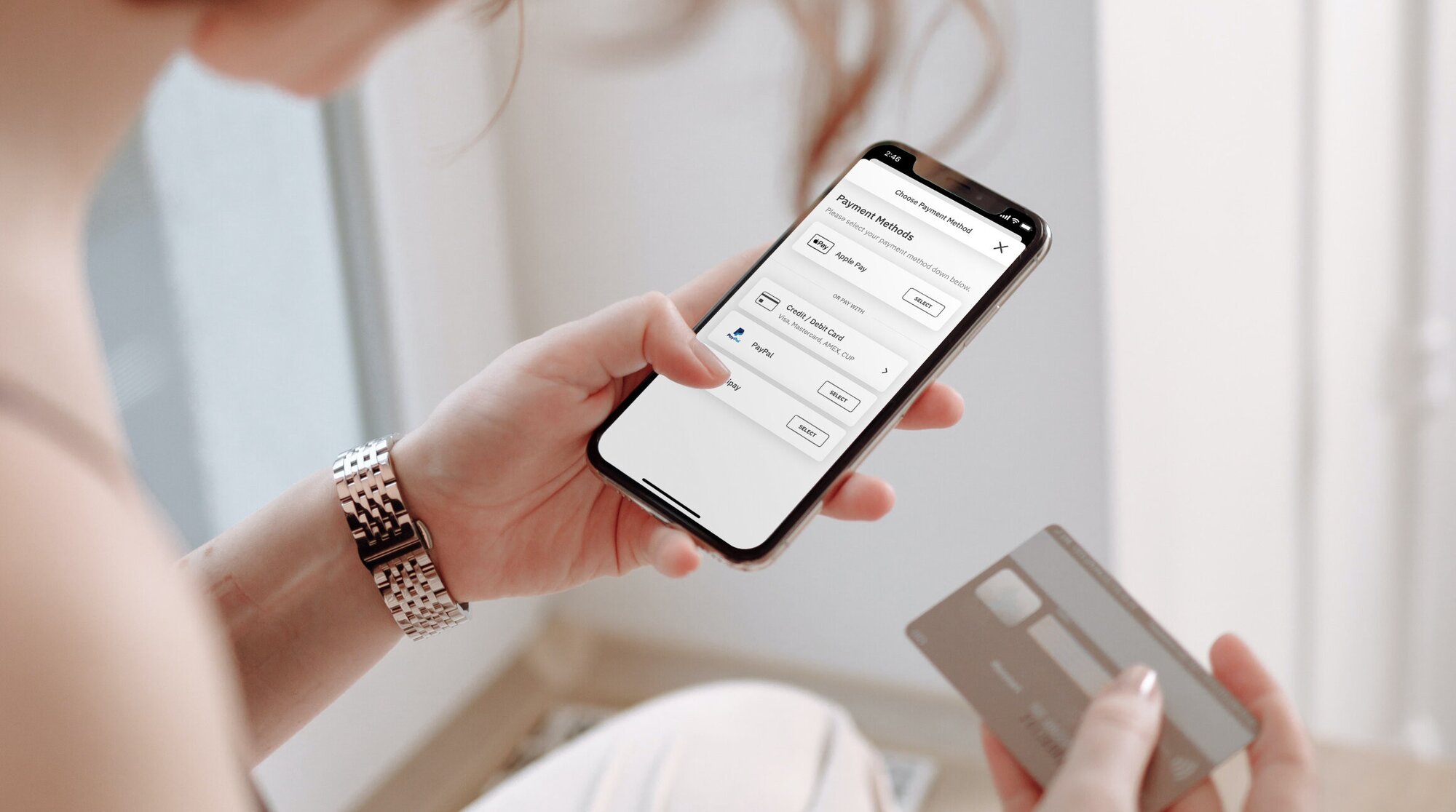
الخطوة الثانية: تثبيت الشريحة الإلكترونية (eSIM)
بمجرد أن تقوم بشراء الشريحة الإلكترونية، ستحتاج إلى تثبيتها على جهازك. قبل بدء عملية تثبيت الشريحة الإلكترونية، تأكد من اتصالك بشبكة واي فاي مستقرة.
فيما يلي ثلاث طرق مختلفة من أجل تثبيت الشريحة الإلكترونية (eSIM) من Airalo:
- التثبيت المباشر: انتقل إلى تطبيق Airalo واتبع التعليمات خطوة بخطوة من أجل تثبيت الشريحة الإلكترونية.
- رمز الاستجابة السريعة (QR): امسح رمز الاستجابة السريعة لبدء عملية التثبيت.
- التثبيت اليدوي: أدخل تفاصيل الشريحة الإلكترونية يدويًا في قسم الإعدادات بجهازك.
لمزيد من التفاصيل حول كيفية تثبيت الشريحة الإلكترونية، اتبع الخطوات الموضحة في هذه الروابط:
- دليل الشريحة الإلكترونية (eSIM) لجهاز ايفون (iOS/iPhone)
- دليل الشريحة الإلكترونية (eSIM) لجهاز أندرويد (Android)
- دليل الشريحة الإلكترونية (eSIM) لجهاز سامسونج جالكسي Samsung Galaxy S20/21) S20/S21)
- دليل الشريحة الإلكترونية (eSIM) لجهاز جوجل بيكسل (Google Pixel)
- دليل الشريحة الإلكترونية (eSIM) لجهاز هواوي (Huawei)
أثناء اتباع خطوات التثبيت، سيُطلب منك تسمية شريحتك الإلكترونية. على سبيل المثال، إذا كنت تنوي زيارة مصر، فيمكنك تسمية خطك باسم "eSIM مصر" للتمييز بين شريحتك الأساسية والشريحة الإلكترونية، مما يسهل الأمر كثيرًا خاصة عند استخدام شريحتك الأساسية للمكالمات والرسائل النصية، وتخصيص شريحتك الإلكترونية للبيانات.
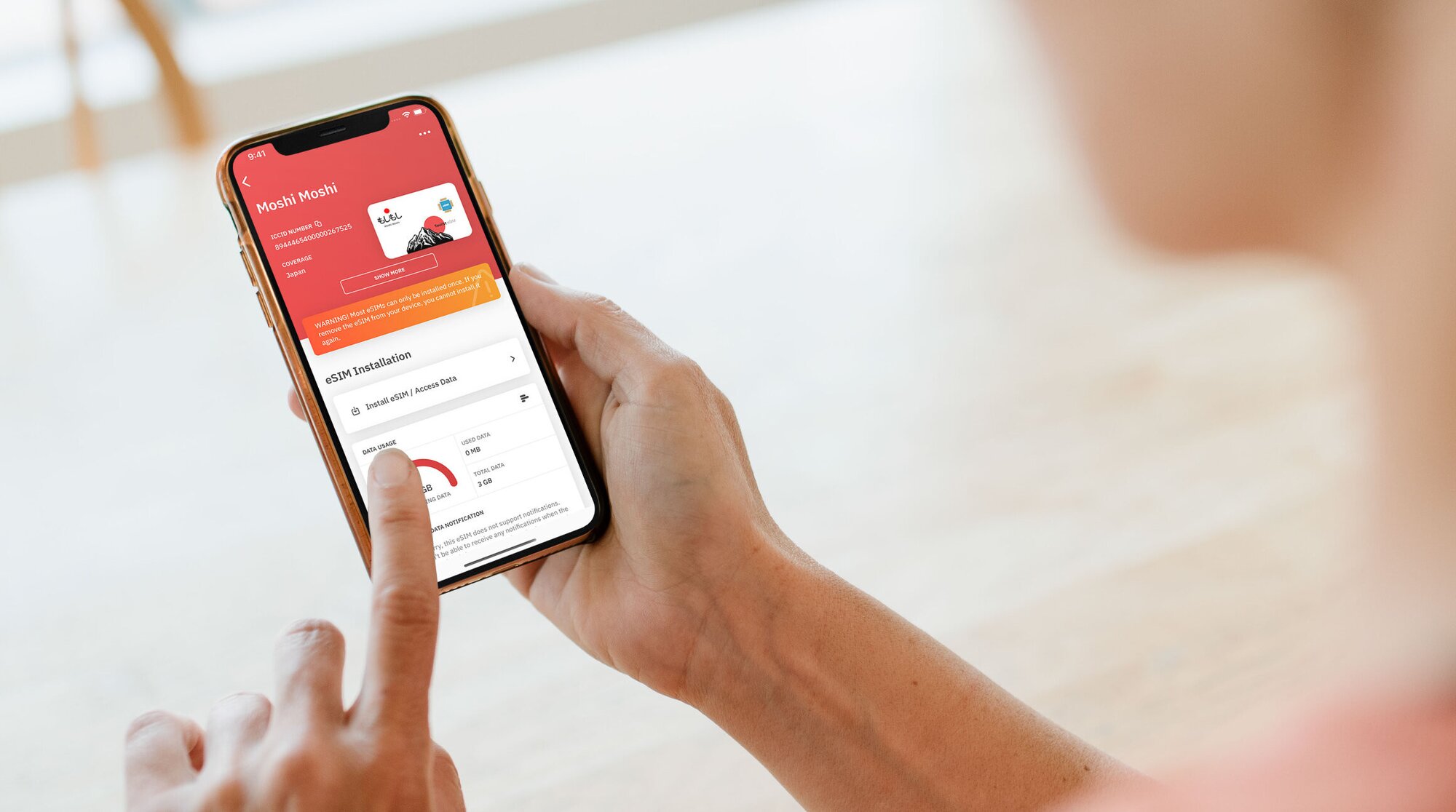
الخطوة الثالثة: تفعيل الشريحة الإلكترونية (eSIM)
تنص سياسة تفعيل الشريحة الإلكترونية على توقيت بدء صلاحيتها. هناك نوعان من سياسات تفعيل شريحة الكترونية:
- شريحة إلكترونية تتطلب الاتصال بشبكة مدعومة. يتم تفعيل معظم الشرائح الإلكترونية عند تشغيل الخط والاتصال بشبكة مدعومة في وجهتك. بمجرد الاتصال بالشبكة، تبدأ فترة الصلاحية ويمكنك البدء في استخدام بيانات الشريحة الإلكترونية في نفس اللحظة.
- الشرائح الإلكترونية تلقائية التفعيل. يتم تفعيل بعض الشرائح الإلكترونية فور التثبيت – حتى لو لم تغادر منزلك. نوصي بتثبيت الشريحة الإلكترونية من هذا النوع تحديدًا قبل السفر مباشرة حتى تتمكن من تحقيق أقصى استفادة من البيانات.
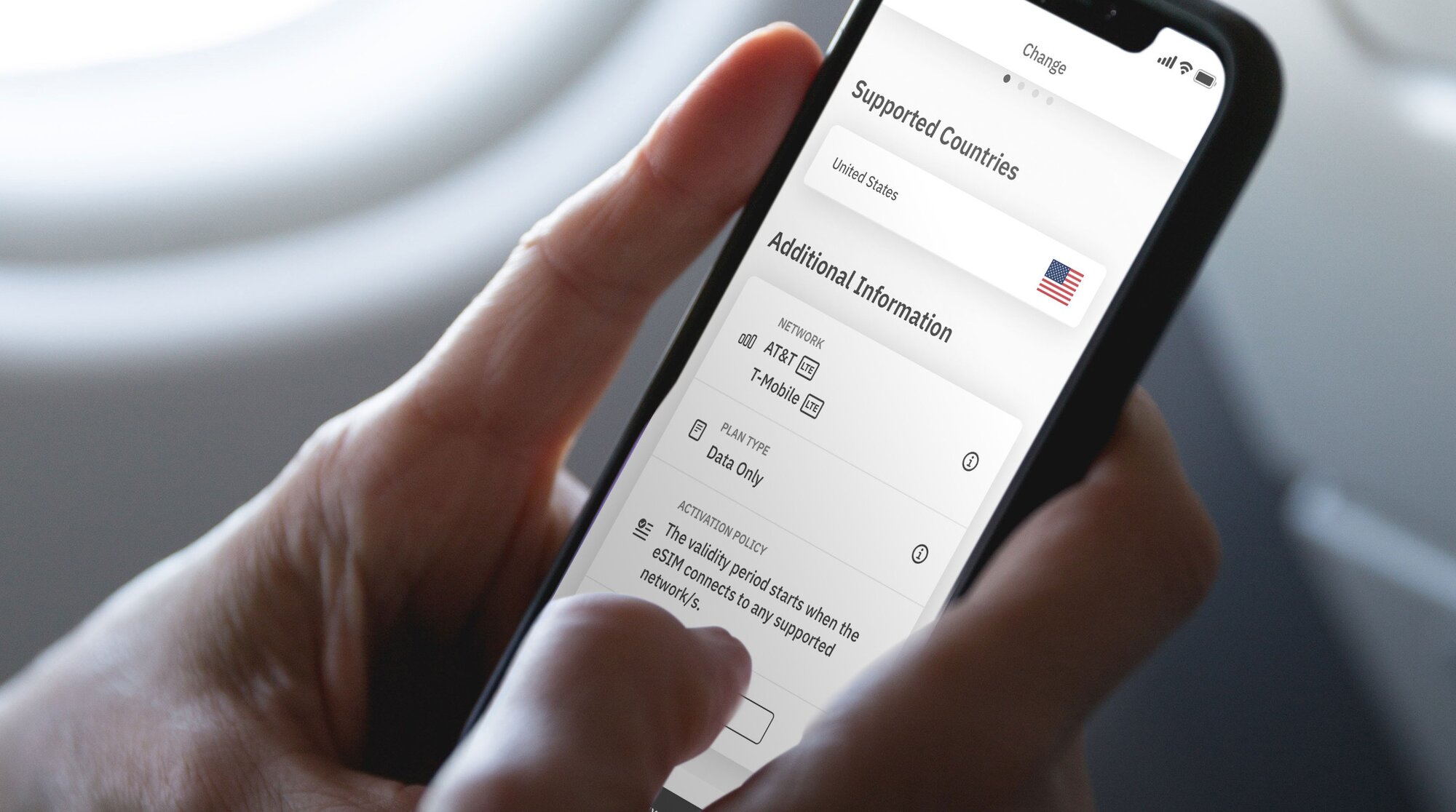
يمكنك التعرف على سياسة التفعيل في قسم المعلومات الإضافية للشريحة الإلكترونية (eSIM) الخاصة بك:
- افتح تطبيق Airalo.
- حدد الشريحة الإلكترونية التي ترغب في شرائها.
- انقر على شراء الآن لعرض التفاصيل (لا تقلق، لست بحاجة إلى شراء شريحة إلكترونية في هذه الخطوة).
- قم بالتمرير لأسفل إلى قسم المعلومات الإضافية.
- اقرأ سياسة التفعيل.
الخطوة الرابعة: الاتصال بالشبكة المحلية
الآن بعد أن تعرفت على نوعي سياسات التفعيل، إليك خطوات تشغيل شريحتك الإلكترونية والاتصال بشبكة محلية.
إليك كيفية تشغيل شريحة إلكترونية (eSIM) على أجهزة آيفون:
- توجّه إلى الإعدادات (Settings).
- انقر على البيانات الخلوية (Cellular).
- انقر على خط شريحتك الإلكترونية (eSIM).
- انقر على تشغيل هذا الخط (Turn On This Line).
- انقر على تجوال البيانات (Data Roaming).
- انقر على تحديد الشبكة (Network Selection) وحدد شبكة مدعومة (يمكنك العثور على قائمة بالشبكات في قسم المعلومات الإضافية للشريحة الإلكترونية).
وكيفية القيام بذلك على أجهزة أندرويد:
- توجّه إلى الإعدادات (Settings).
- انقر على الشبكة والإنترنت (Network & Internet).
- انقر على شبكة الجوال (Mobile Network).
- قم بتشغيل شريحتك الإلكترونية (eSIM).
- قم بتشغيل بيانات الجوال (Mobile Data).
- انقر على تجوال البيانات (Data Roaming).
- انقر على شبكة مدعومة (يمكنك العثور على قائمة بالشبكات في قسم المعلومات الإضافية للشريحة الإلكترونية).
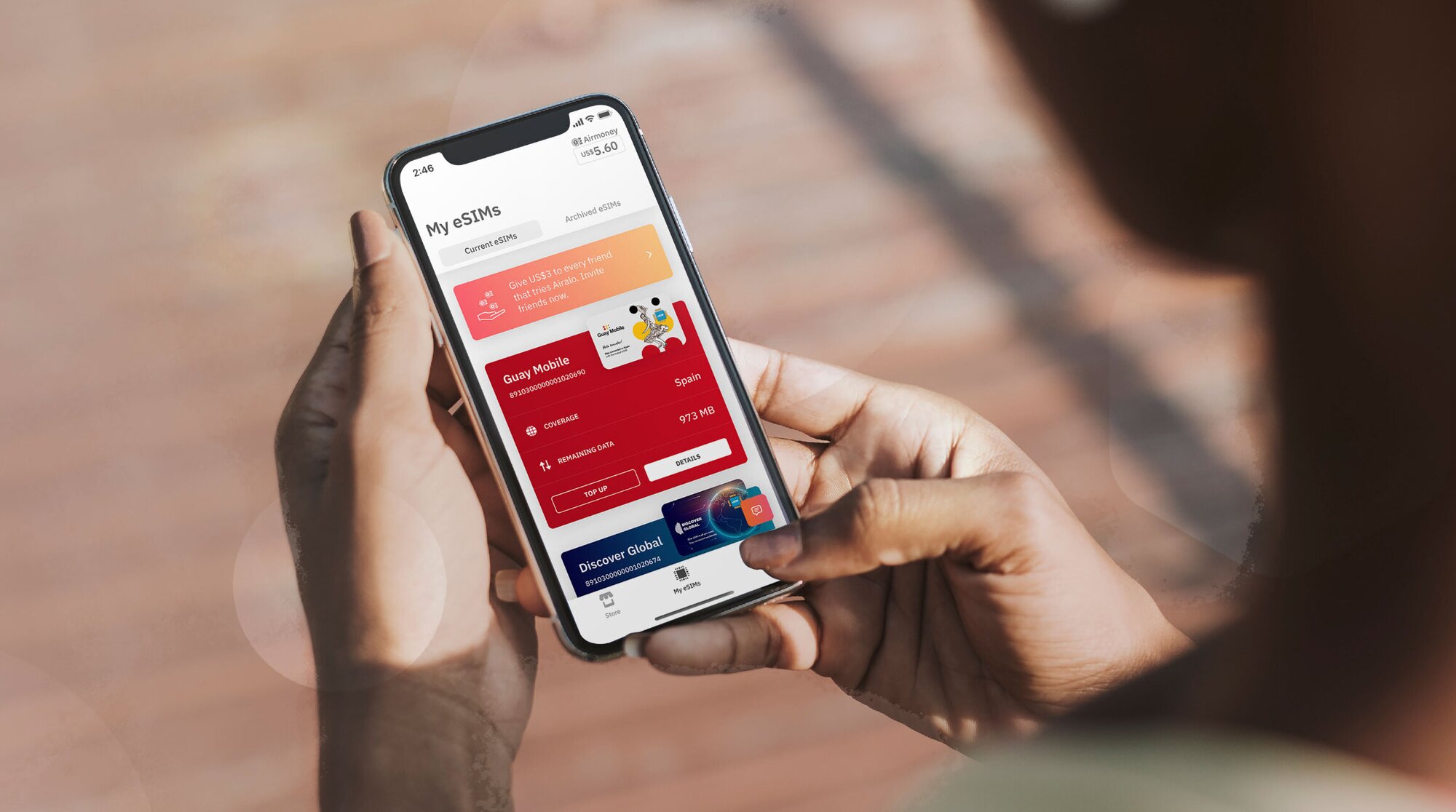
اختيار شريحة إلكترونية (eSIM) محلية، أو إقليمية، أو عالمية من Airalo
يتيح لك استخدام الشريحة الإلكترونية من Airalo البقاء على اتصال بالشبكة في أكثر من 200 دولة ومنطقة حول العالم.
وأفضل ما في الأمر، أنه يمكنك اختيار باقة eSIM مناسبة بناءً على متطلباتك، إذ يمكنك الاختيار من بين:
- شريحة إلكترونية محلية: إذا كنت مسافرًا إلى وجهة واحدة، فمن المنطقي اختيار شريحة محلية. يمنحك هذا النوع من الخطط تغطية في دولة واحدة.
- شريحة إلكترونية إقليمية: ابق على اتصال عبر الحدود دون الحاجة إلى تبديل شريحتك الإلكترونية (eSIM). يمنحك هذا النوع من الخطط تغطية في العديد من البلدان في منطقة معينة. تعد هذه الشريحة مثالية إذا كنت تتنقل بين جزر متقاربة أو في رحلة عبر أوروبا، أو كنت تبحث عن مغامرة في إفريقيا!
- شريحة إلكترونية عالمية: إذا كنت مهتمًا بالسفر حول العالم، فالشريحة العالمية هي الحل الأمثل للبقاء على اتصال بالشبكة. تمنحك الباقة العالمية تغطية في العديد من الوجهات حول العالم.
مزايا استخدام الشريحة الإلكترونية (eSIM)
تتمتع الشريحة الإلكترونية بالعديد من المزايا مقارنة بالشرائح التقليدية، بما في ذلك الاتصال الفوري بالشبكة، وغير ذلك من الميزات. استخدام شريحة إلكترونية من Airalo لها العديد من المزايا:
- لا توجد رسوم للتجوال. باقات شريحة Airalo الإلكترونية (eSIM) مسبقة الدفع. ستدفع مقدمًا فقط مقابل البيانات التي تشتريها أو لإعادة شحن الباقة أثناء سفرك.
- أنت غير مقيد بشركة اتصالات معينة. يمكنك اختيار باقة بيانات الشريحة الإلكترونية (eSIM) التي تناسب احتياجاتك والتبديل بين الباقات بسهولة.
- يمكنك الاتصال بالشبكة تمامًا كالسكان المحليين. نحن نعمل مع مزودي الخدمة المحليين لضمان حصولك على أفضل الأسعار والخدمات أثناء رحلتك.
- تواصل معنا على مدار الساعة وطوال أيام الأسبوع. يمكنك التواصل مع فريق الدعم لدينا على مدار الساعة طوال أيام الأسبوع، حتى تتمكن من الحصول على المساعدة التي تحتاجها بغض النظر عن المنطقة الزمنية التي تتواجد فيها.

أسئلة شائعة حول الشريحة الإلكترونية (eSIM) من Airalo
قد تراودك بعض الأسئلة عندما تفكيرك في استخدام الشريحة الإلكترونية من Airalo.
كم من الوقت يستغرق تفعيل الشريحة الإلكترونية؟
لا يستغرق أي وقت على الإطلاق!
اعتمادًا على سياسة تفعيل شريحتك الإلكترونية، يتم تفعيلها تلقائيًا بمجرد تثبيتها، أو عند الاتصال بشبكة مدعومة في وجهتك.
في كلتا الحالتين، تحتاج إلى تشغيل شريحتك الإلكترونية والاتصال بشبكة مدعومة لاستخدام البيانات.
هل أحتاج إلى إعادة تفعيل الشريحة الإلكترونية عند انتهاء الباقة؟
لا حاجة لذلك! تحتوي باقة Airalo بالفعل على بيانات محملة مسبقًا، بناءً على الباقة التي تشتريها. في حالة نفاد بياناتك أو انتهاء فترة الصلاحية، يمكنك بسهولة إعادة شحنها من خلال تطبيق Airalo.
إذا كانت باقتك لا تشمل خيار إعادة الشحن، فيمكنك تنزيل باقة أخرى للبقاء على اتصال.
ماذا يمكنني فعله باستخدام الشريحة الإلكترونية من Airalo؟
يمكنك استخدام الشريحة الإلكترونية من Airalo بالضبط كما تستخدم شريحتك التقليدية: إذ تمكنك من الاتصال بشبكة الهاتف المحمول، وتصفح الإنترنت، واستخدام تطبيقاتك المفضلة، واستخدام تطبيقات الاتصال، والمراسلة عبر الإنترنت مثل واتساب.
هل يمكنني استخدام الشريحة الإلكترونية والشريحة التقليدية في آن واحد؟
بالتأكيد! تتيح لك معظم الأجهزة استخدام شرائح eSIM متعددة في نفس الوقت. يمكنك استخدام بطاقتك التقليدية الخاصة بشبكتك المحلية للمكالمات والرسائل القصيرة، بينما تستخدم شريحتك الإلكترونية للبيانات.
هل لا زالت لديك أسئلة حول كيفية تفعيل الشريحة الإلكترونية (eSIM)؟ تفضل بزيارة مركز المساعدة أو أرسل لنا بريدًا إلكترونيًا على [email protected].
هل تبحث عن شريحة إلكترونية مناسبة للبقاء على اتصال أثناء رحلتك؟ تصفح موقع Airalo لاختيار وتفعيل الشريحة الإلكترونية المناسبة وابق على اتصال عبر أكثر من 200 دولة ومنطقة حول العالم.
Step 2: Install Your eSIM
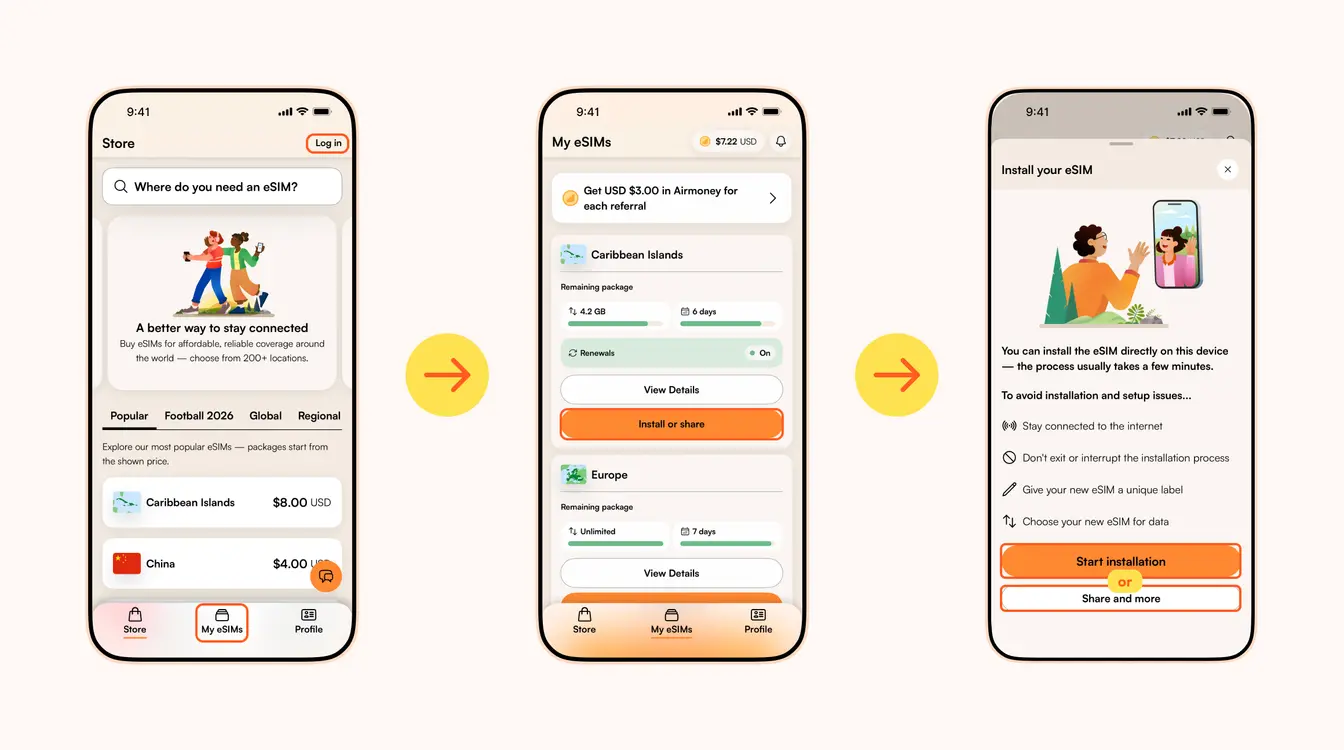
Once you've purchased your eSIM, you can choose to install or share the eSIM. If it's for your own use, select Start installation. Remember, you'll need a stable Wi-Fi connection for this.
Here are three different methods to install an Airalo eSIM:
- Direct: This is the most straightforward option. Go to your eSIM in the Airalo app, select Install or share → Start installation and follow the step-by-step prompts.
- QR Code: Use a QR code to start the installation process on another device. You can find more information under Install or share → Share and more.
- Manual: Enter your eSIM details manually in your device's Settings section. You can find more information under Install or share → Share and more.
For details on how to install your eSIM on a specific phone, follow the steps outlined in these links:
- iOS/iPhone eSIM guide
- Android eSIM guide
- Samsung Galaxy S20/S21 eSIM guide
- Google Pixel eSIM guide
- Huawei eSIM guide
Pro Tip: As you follow the installation steps, you'll be prompted to label your eSIM. For example, if you're visiting Japan, you can label your line as "Japan eSIM" to distinguish between your primary SIM and your eSIM. It makes switching between your eSIMs and turning them on and off easier — especially when using your SIM card for calls and texts, and your eSIM for data.
Step 3: Activate/Connect to Your Destination's Network
When should you activate/connect your eSIM?
Once you've installed your eSIM over Wi-Fi, the next step is to connect your eSIM. If you want to connect automatically on arrival, follow the steps below before you take off for your trip. Otherwise, you can do so once you arrive at your destination (you don't need a Wi-Fi connection for this step).
Follow the steps below to connect your eSIM to a network:
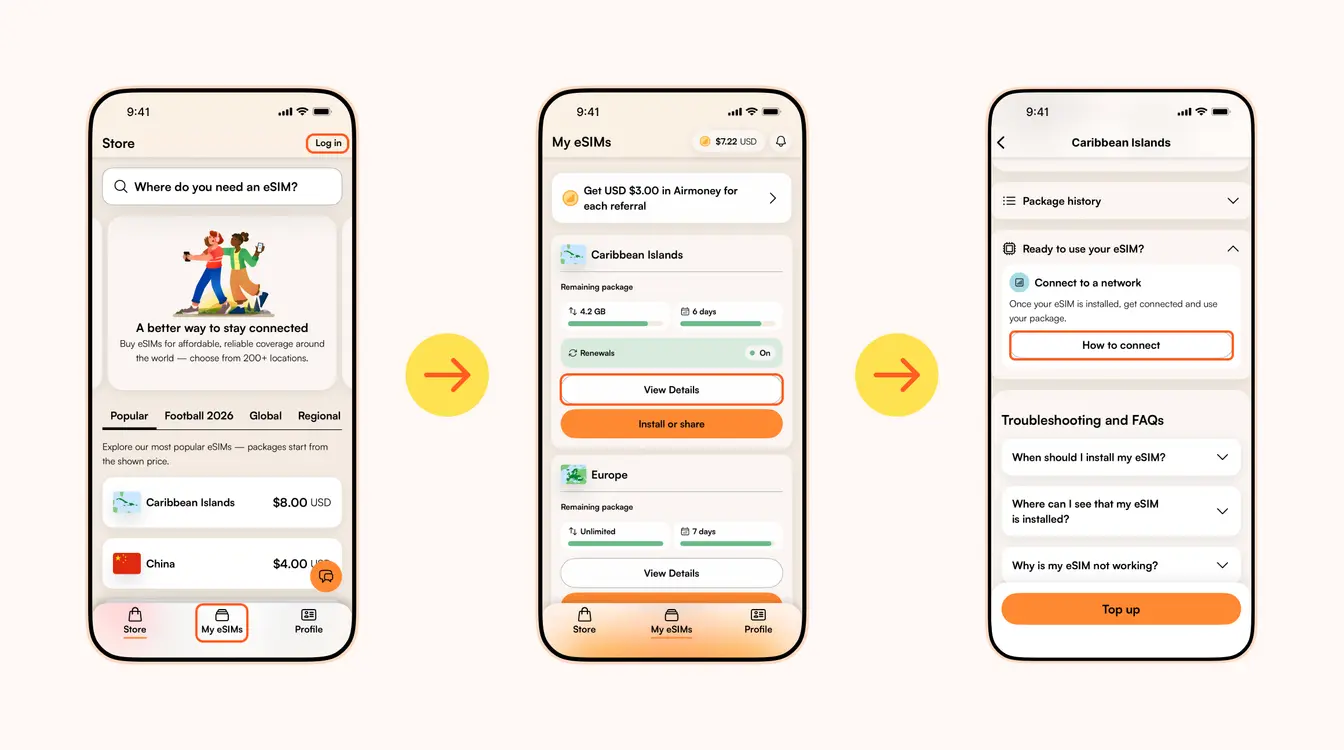
1. Go to the Airalo app
2. Navigate to My eSIMs → Your eSIM → View details → Ready to use your eSIM → Connect to a network → How to connect.
There, you'll find the exact steps you need to follow, but read on for a quick summary.
Here's how to turn on your eSIM line on iPhone:
- Go to Settings.
- Tap Cellular/Mobile Service.
- Select your new eSIM, if it hasn't already been selected.
- Toggle on Turn On This Line.
- Toggle on Data Roaming (if required in How to connect).
- Return to the main Cellular/Mobile Service menu.
- Tap Cellular Data/Mobile Data.
- Choose your eSIM.
- If your package includes calls and texts, tap Default Voice Line and choose your eSIM there as well.
Here's how to do it on Android:
- Go to Settings.
- Tap Network & Internet.
- Tap Mobile Network.
- Turn on your eSIM.
- Turn on Mobile Data.
- Turn on Data Roaming (if required in How to connect).
In case your eSIM does not connect to a network, try turning your phone off and on, or enable airplane mode for 10 seconds to refresh the network connection.
Important:
- To avoid being charged for roaming fees, you'll also want to turn off your carrier's data service. You can read how to do this here.
- If you're using a Global eSIM or a regional eSIM that includes your home country, do not activate it before you travel. Otherwise, it may activate in your home country, causing the validity period to begin before your trip.
- If your eSIM supports multiple networks, you can manually select the network you want to use. Check the supported networks for your eSIM in the Airalo app.
You can also follow our troubleshooting steps or contact our 24/7 help support.
يوجِّه إلى مركز مساعدة Airalo للمزيد من معلومات الدعم.
يفتح دردشة مع دعم Airalo على WhatsApp.
Looking to use an eSIM to stay connected during your trip? Browse Airalo eSIMs to connect in 200+ destinations.