


If you've ever had to deal with a physical SIM card, then you're all too familiar with its limits. From having to wait in line at airports, to setup hassle and easy misplacement, the physical SIM card can cause frustration. That's where eSIMs come in.
eSIMs are digital SIMs that you can download directly to your phone. eSIMs help you stay connected on the go more smoothly, but like any new technology, you may need some guidance to get started. In this article, we'll take you through 3 simple steps to install and connect your Airalo eSIM.
In this article:
What Are the Benefits of Using an Airalo eSIM?

eSIMs have many benefits over traditional SIM cards, such as instant travel connectivity and more. Using an eSIM from Airalo comes with many benefits, including:
- No roaming fees. Airalo eSIMs are prepaid. Pay only for the data you need, and say goodbye to surprise roaming fees.
- You aren't tied to a specific carrier. You can choose the eSIM data package that best suits your needs and easily switch packages when you travel.
- You can connect like a local. Airalo works with local providers to ensure you get the best prices and service during your trip.
- Contact us 24/7. Our support team is available 24/7, so you can get the assistance you need, no matter your time zone.
Prepare for Your Airalo eSIM Setup

Before you install and activate your eSIM, check that your device is:
- Carrier-unlocked
- eSIM Compatible
- Connected to Wi-Fi
Read on for more information or jump to Step 1.
1) Ensure Your Phone is Unlocked
Carrier-unlocked means that your device isn't tied to a contract with a mobile carrier. If you're unsure, we recommend calling your carrier to confirm or checking your device's settings.
Here's how to do it on iPhone:
- Go to your iPhone's Settings.
- Tap General.
- Tap About.
- Scroll down to Carrier Lock or Network Provider Lock.
- Check the status there.
- If your iPhone is unlocked, its status will be No SIM restrictions. If it's locked, you'll see your carrier's name.
Settings will look different based on your Android model, but generally will look like this:
- Open Settings.
- Tap Network & Internet, Connections, or a similar menu option.
- Tap SIMs, Mobile Network, or a similar option.
- You'll then be able to choose a network/SIM or select network operators for further choices. If you see more than one network to choose from or options to manage your SIMs, this likely indicates that your phone is unlocked.
2) Check if Your Phone is eSIM-Compatible
Whether your phone is eSIM-compatible depends on the model and where it was manufactured, not just the year it was released. While many newer smartphones support eSIM technology, this isn't guaranteed.
Some phones only support eSIM technology in certain regions, while others may have different hardware depending on the market they were made for. For example, two phones with the same name can have different eSIM capabilities, depending on the country in which they were manufactured.
Before purchasing an eSIM, we strongly recommend verifying that your phone is eSIM-compatible, which means it supports the storage of digital SIMs. Here are a few ways you can do this:
Method 1: Settings Check
- Open Settings on your phone.
- Navigate to your SIMs (under Mobile/Cellular Networks or similar).
- Look for an Add eSIM or Download SIM option. You might have to select a SIM before you see the option.
- If it's there, you're eSIM-ready.
Note: Instructions vary based on your phone model. If you struggle to find the Add eSIM/or Download eSIM option, use your phone's search function.
Method 2: IMEI and EID Check
- Dial *#06# on your phone.
- If you see two IMEI numbers, your phone likely supports dual-SIMs (physical and eSIM).
- Note down the IMEI and check with your carrier.
- Alternatively, if an EID appears, your phone supports eSIM.
Method 3: Manual Check
- Check your phone's original packaging or documentation. If it's available, eSIM support is usually listed in the technical specifications.
- You can also check Airalo's regularly updated eSIM compatibility list here.
Method 4: Quick Dial Code (Android only)
- Open your phone app.
- Dial ##4636##.
- On most Android phones, this opens a hidden menu that allows users to view and modify network settings.
- From this menu, select Phone Information.
- Look for an eSIM or embedded SIM status.
Note: You can still purchase an eSIM if your phone isn't eSIM compatible. You'll have the option to share the eSIM to another device, rather than install it on your phone.
3) Connect to Wi-Fi Before Installing Your eSIM
We always recommend that you connect to a stable Wi-Fi network when installing your eSIM. This is because eSIMs can only be installed once, and an unstable connection can cause the installation to fail.
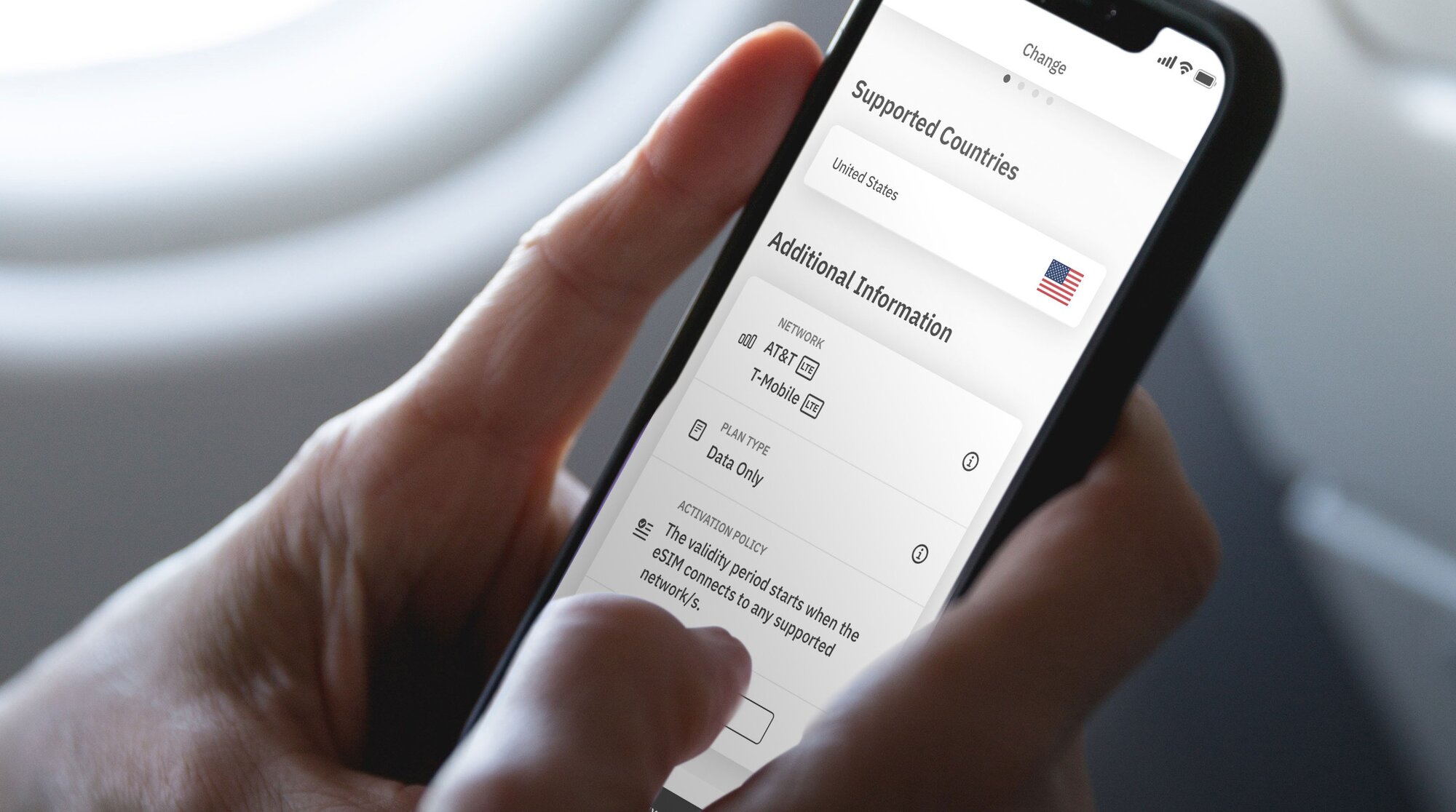
We generally recommend doing so before leaving for your trip, so that you can get connected upon landing. Most eSIM's validity period only starts when the eSIM connects to the mobile network in its coverage area, so that you won't lose precious data.
Pro tip: Check an eSIM's validity policy by selecting Package details before or after purchase. This will let you know if the eSIM's validity period starts when it connects to a network, or more rarely, upon installation.
Now that you've got the basics down, it's time to buy and install your eSIM.
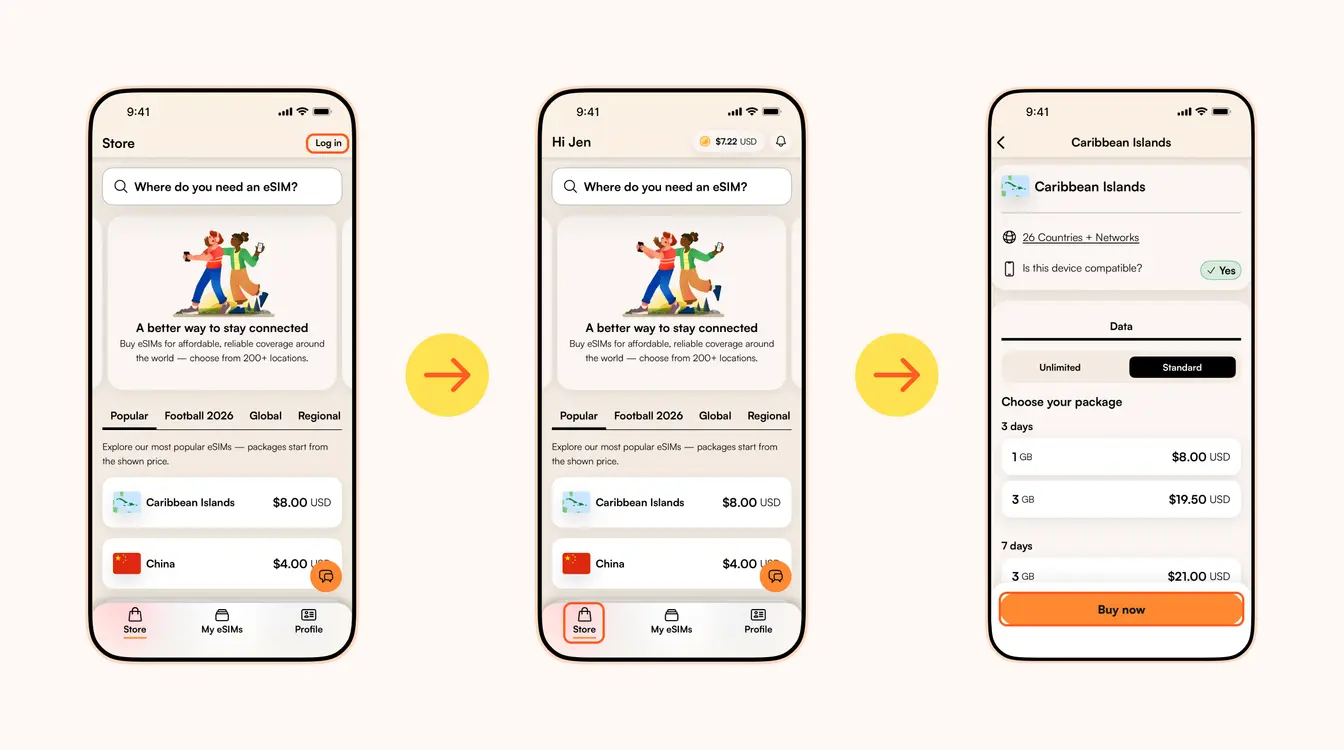
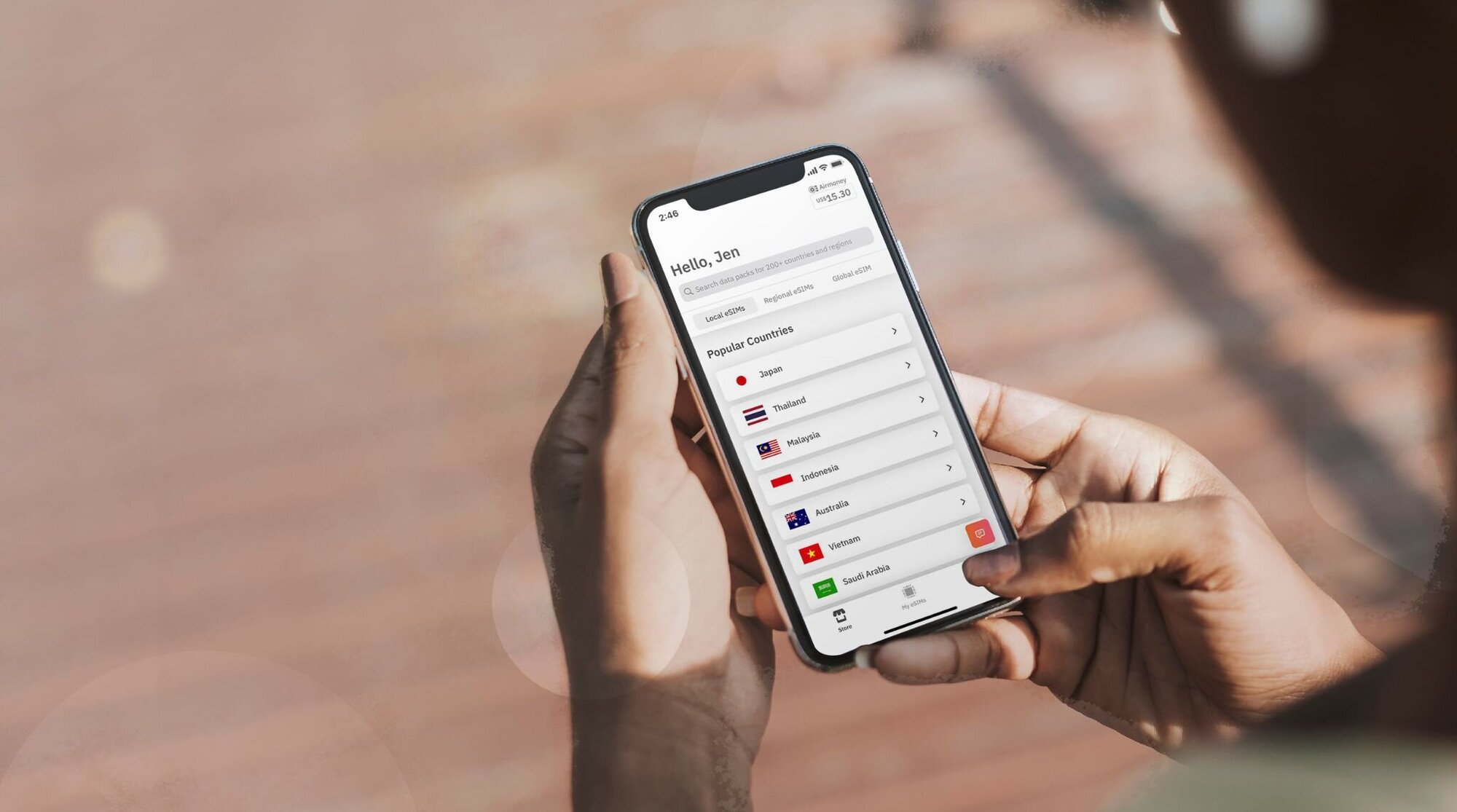
Step 1: Buy an eSIM
Se ti è mai capitato di avere a che fare con una SIM fisica (che siamo sicuri di sì), allora sai quanto sarebbe fantastico passare a una eSIM. Dalla connettività istantanea quando sei in viaggio alle semplici fasi di installazione e attivazione, cosa potrebbe andare storto?
I fornitori di eSIM come Airalo (sì, siamo noi!) ti aiutano a rimanere connesso mentre sei in movimento. Ed eliminiamo il fastidio delle schede SIM per fornirti connettività istantanea in oltre 200 Paesi e aree geografiche in tutto il mondo.
Come con qualsiasi nuova tecnologia, potresti aver bisogno di un po' di aiuto per iniziare. In questo articolo ti guideremo attraverso i passaggi per installare e attivare la tua eSIM Airalo.
Salta a:
- Come installare e attivare una eSIM Airalo in quattro passi
- Installazione di una eSIM
- Attivazione di una eSIM
- eSIM locali, regionali e globali
- Vantaggi dell'utilizzo di una eSIM Airalo
- Domande frequenti (FAQ) sulle eSIM Airalo
Come attivare una eSIM Airalo in 4 passi
Prima di installare e attivare la tua eSIM, assicurati che il tuo dispositivo sia:
- Sbloccato dall'operatore. Ciò significa che il tuo dispositivo non è vincolato a un contratto con un operatore di telefonia mobile. Se hai acquistato il tuo dispositivo a titolo definitivo, senza alcun contratto di servizio mobile, è probabile che il tuo dispositivo sia sbloccato. Se non sei sicuro, ti consigliamo di contattare il tuo operatore per controllare!
- Compatibile con eSIM. Se hai uno smartphone prodotto nel 2018 o successivamente, molto probabilmente il tuo telefono supporta le eSIM. Controlla il nostro elenco completo di dispositivi compatibili con eSIM per vedere se il tuo telefono è incluso.
Ora che hai confermato che il tuo dispositivo è sbloccato dall'operatore e supporta le eSIM, è il momento di seguire questi quattro semplici passi per installare e attivare la tua eSIM!
Passo 1: acquista una eSIM
Innanzitutto, dovrai acquistare una eSIM. Ecco come fare:
- Vai al sito web di Airalo o scarica l'app (disponibile per iOS e Android)
- Scegli una eSIM per la destinazione verso cui viaggi.
- Considera fattori come la quantità di dati di cui hai bisogno, il periodo di validità dell'eSIM e il suo prezzo.
Passo 2: installa la tua eSIM
Una volta acquistata la tua eSIM, dovrai installarla sul tuo dispositivo. Prima di iniziare il processo di installazione, assicurati di disporre di una connessione Wi-Fi stabile.
Ecco tre diversi metodi per installare una eSIM Airalo:
- Diretto: vai all'app Airalo e segui le istruzioni passo passo per installare la tua eSIM.
- Codice QR: scansiona un codice QR per avviare il processo di installazione.
- Manuale: inserisci manualmente i dettagli della tua eSIM nella sezione Impostazioni del tuo dispositivo.
Per maggiori dettagli su come installare la tua eSIM, segui i passaggi descritti in questi link:
- Guida alle eSIM per iOS/iPhone
- Guida alle eSIM per Android
- Guida alle eSIM per Samsung Galaxy S20/S21
- Guida alle eSIM per Google Pixel
- Guida alle eSIM per Huawei
Mentre segui i passaggi di installazione, ti verrà richiesto di etichettare la tua eSIM. Ad esempio, se stai visitando l'Egitto, puoi etichettare la tua linea come "eSIM Egitto" per distinguere tra la tua SIM principale e la tua eSIM. Rende la vita molto più semplice, soprattutto quando usi la scheda SIM per chiamate e SMS e la eSIM per i dati.

Passo 3: attiva la tua eSIM
La politica di attivazione della tua eSIM ti dice quando inizierà il suo periodo di validità. Esistono due tipi di politiche di attivazione eSIM:
- eSIM che si attivano quando ti connetti a una rete supportata. La maggior parte delle eSIM si attiverà quando attivi la linea eSIM e ti connetti a una rete supportata a destinazione. Una volta connesso, inizierà il periodo di validità e potrai iniziare a utilizzare i dati della tua eSIM.
- eSIM che si attivano al momento dell'installazione. Alcune eSIM si attiveranno immediatamente dopo l'installazione, anche se non sei ancora a destinazione. Per le eSIM che si attivano immediatamente, ti consigliamo di installarle subito prima del viaggio in modo da poter sfruttare al massimo i tuoi dati eSIM.
Puoi trovare i criteri di attivazione nella sezione Informazioni aggiuntive della tua eSIM:
- Apri l'app Airalo.
- Seleziona la eSIM che desideri acquistare.
- Tocca ACQUISTA ORA per visualizzarne i dettagli (non preoccuparti, non è ancora necessario acquistare l'eSIM).
- Scorri verso il basso fino a Informazioni aggiuntive.
- Leggi la Politica di attivazione.
Passo 4: connettiti a una rete locale
Ora che conosci i due tipi di politiche di attivazione dell'eSIM, rivediamo i passi per accendere la linea eSIM e connetterti a una rete locale.
Ecco come attivare la tua linea eSIM su iPhone:
- Vai su Impostazioni.
- Tocca Cellulare.
- Tocca la tua linea eSIM.
- Attiva Attiva questa linea.
- Attiva Roaming dati.
- Tocca Selezione rete e seleziona una rete supportata (puoi trovare un elenco di reti nella sezione Informazioni aggiuntive dell'eSIM).
E come farlo su Android:
- Vai su Impostazioni.
- Tocca Rete e Internet.
- Tocca Rete mobile.
- Attiva la tua eSIM.
- Attiva Dati mobili.
- Attiva Roaming dati.
- Seleziona una rete supportata (puoi trovarla nella sezione Informazioni aggiuntive dell'eSIM).
Scegliere una eSIM Airalo locale, regionale o globale
L'utilizzo di una eSIM Airalo ti consente di connetterti in oltre 200 Paesi e aree geografiche in tutto il mondo.
Ancora meglio, puoi scegliere un pacchetto eSIM in base alle tue esigenze di viaggio. Scegli tra:
- eSIM locale: se viaggi verso una destinazione, è opportuno optare per una eSIM locale. Questo tipo di piano ti offre la copertura in un unico Paese.
- eSIM regionale: connettiti oltre confine senza dover cambiare la tua eSIM. Questo tipo di piano ti offre copertura in diversi Paesi in una particolare area geografica. È perfetta se ti sposti da un'isola all'altra, se programmi un viaggio in Europa, o se cerchi avventure in Africa!
- eSIM globale: se ti piace viaggiare per il mondo, una eSIM globale è la soluzione perfetta per mantenendoti connesso. Un piano eSIM globale ti offre copertura in diverse destinazioni in tutto il mondo.
Vantaggi dell'utilizzo di una eSIM Airalo
Le eSIM offrono molti vantaggi rispetto alle tradizionali schede SIM, come la connettività di viaggio istantanea e altro ancora. L'utilizzo di una eSIM di Airalo comporta numerosi vantaggi, tra cui:
- Nessun costo di roaming. I piani eSIM Airalo sono prepagati. Pagherai solo per i dati che acquisti in anticipo o che ricaricherai lungo il percorso.
- Non sei vincolato a un operatore specifico. Puoi scegliere il piano dati eSIM più adatto alle tue esigenze e cambiare facilmente piano mentre viaggi.
- Puoi connetterti come una persona del posto. Airalo collabora con fornitori locali per assicurarti i migliori prezzi e servizi durante il tuo viaggio.
- Contattaci 24 ore su 24, 7 giorni su 7. Il nostro team di supporto è disponibile 24 ore su 24, 7 giorni su 7, così puoi ricevere l'assistenza di cui hai bisogno, indipendentemente dal tuo fuso orario.

Domande frequenti sulle eSIM Airalo
Potresti avere alcune domande mentre consideri l'utilizzo di una eSIM Airalo per le tue esigenze di viaggio.
Quanto tempo occorre per attivare la mia eSIM?
È un'operazione immediata!
A seconda della politica di attivazione della tua eSIM, questa si attiverà non appena la installi o quando ti connetti a una rete supportata a destinazione.
In entrambi i casi, devi accendere la linea eSIM e connetterti a una rete supportata per utilizzare i dati eSIM.
Devo riattivare la mia eSIM al termine del mio pacchetto?
No! Il tuo pacchetto Airalo ha già i dati precaricati, in base al pacchetto che acquisti. Se i tuoi dati si esauriscono o il tuo periodo di validità scade, puoi ricaricare facilmente nella tua app Airalo.
Se il tuo pacchetto eSIM non dispone di un'opzione di ricarica, puoi scaricare un altro pacchetto eSIM per rimanere connesso.
Cosa posso fare con la mia eSIM Airalo?
Con una eSIM Airalo puoi fare le stesse cose che faresti con una SIM tradizionale, tra cui: connetterti a una rete mobile, navigare in Internet, utilizzare le tue app preferite e utilizzare chiamate basate su Internet e app di messaggistica (come WhatsApp).
Posso usare la mia SIM e la eSIM insieme?
Assolutamente! La maggior parte dei dispositivi ti consentirà di utilizzare più SIM e/o eSIM contemporaneamente. Puoi utilizzare la SIM della rete domestica per chiamate e SMS e la eSIM per i dati.
Se hai ancora domande su come attivare una eSIM, visita il nostro Centro assistenza o inviaci un'e-mail a [email protected].
Desideri utilizzare una eSIM per rimanere connesso durante il viaggio? Dai un'occhiata alle eSIM Airalo per connetterti in oltre 200 Paesi e aree geografiche.
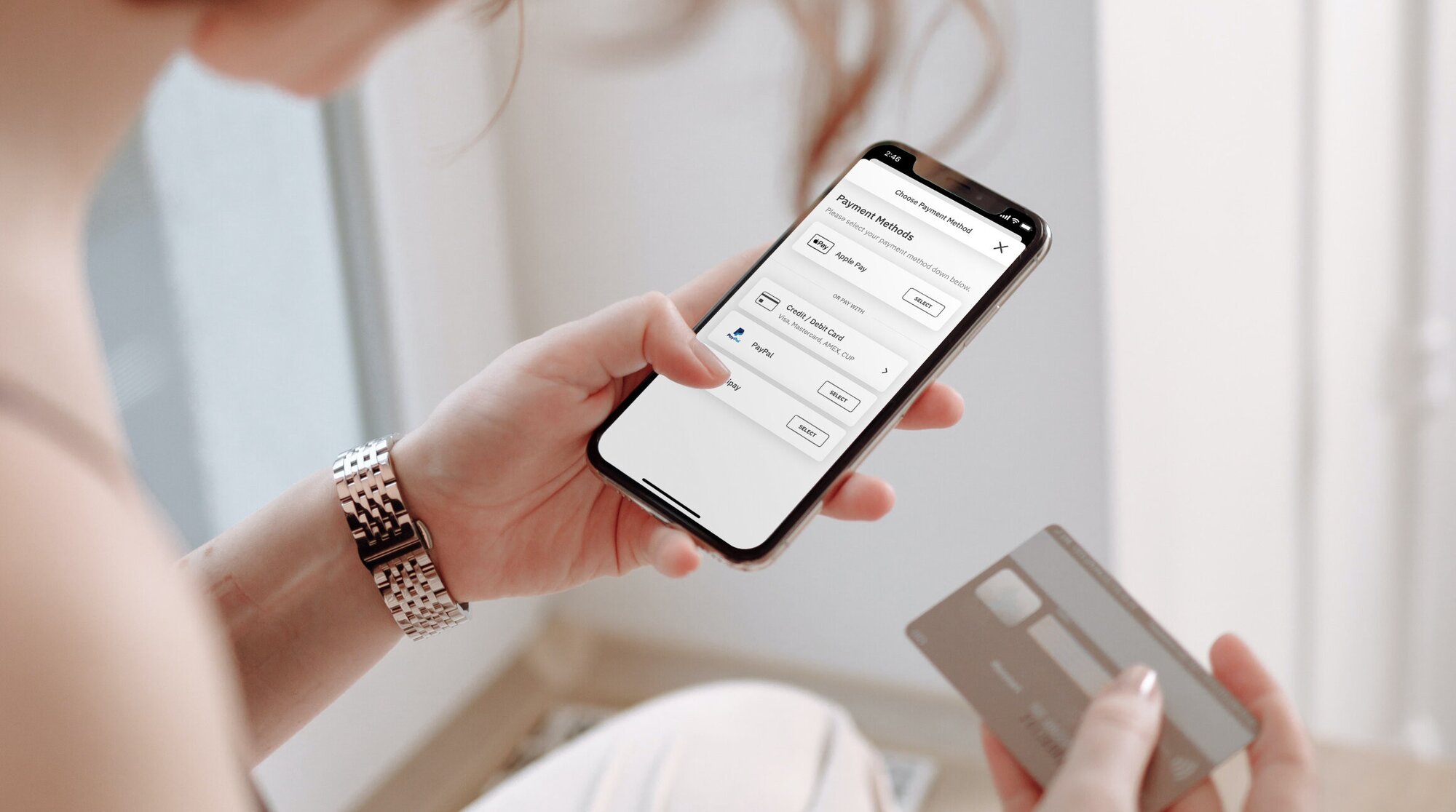
Step 2: Install Your eSIM
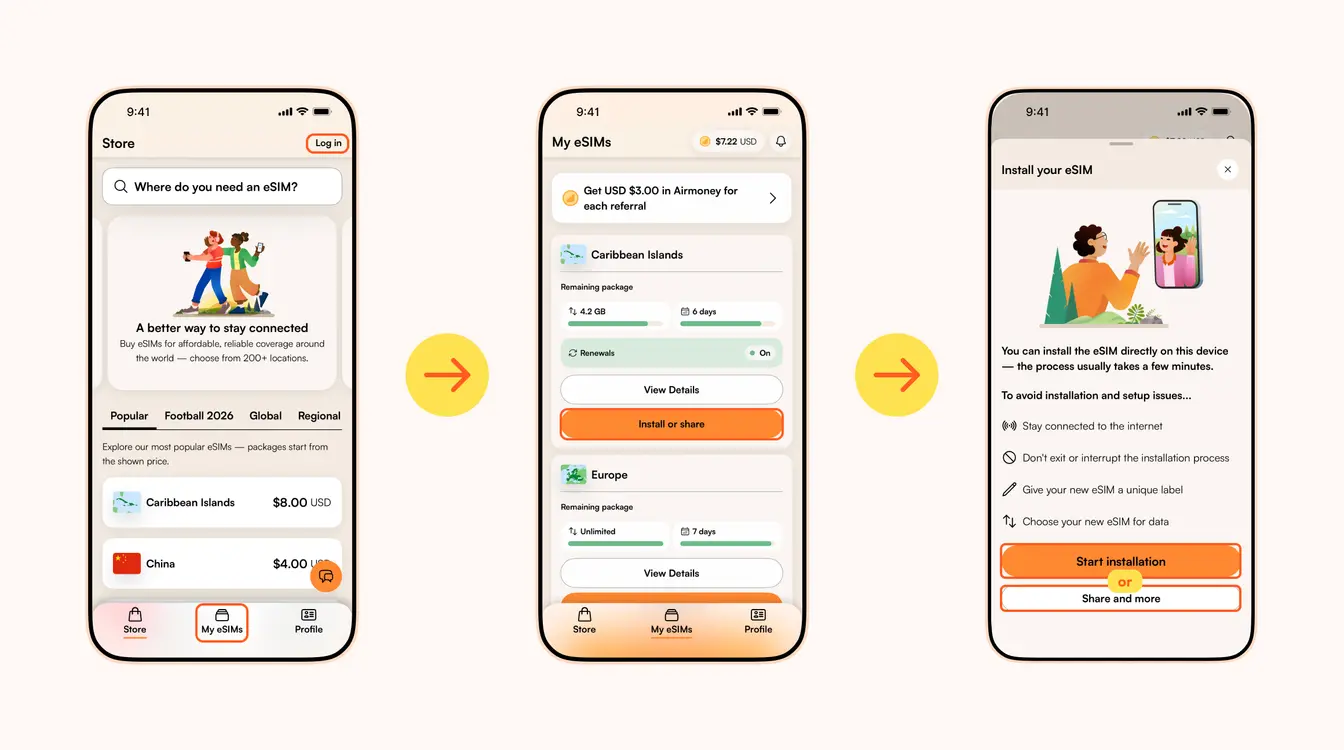
Once you've purchased your eSIM, you can choose to install or share the eSIM. If it's for your own use, select Start installation. Remember, you'll need a stable Wi-Fi connection for this.
Here are three different methods to install an Airalo eSIM:
- Direct: This is the most straightforward option. Go to your eSIM in the Airalo app, select Install or share → Start installation and follow the step-by-step prompts.
- QR Code: Use a QR code to start the installation process on another device. You can find more information under Install or share → Share and more.
- Manual: Enter your eSIM details manually in your device's Settings section. You can find more information under Install or share → Share and more.
For details on how to install your eSIM on a specific phone, follow the steps outlined in these links:
- iOS/iPhone eSIM guide
- Android eSIM guide
- Samsung Galaxy S20/S21 eSIM guide
- Google Pixel eSIM guide
- Huawei eSIM guide
Pro Tip: As you follow the installation steps, you'll be prompted to label your eSIM. For example, if you're visiting Japan, you can label your line as "Japan eSIM" to distinguish between your primary SIM and your eSIM. It makes switching between your eSIMs and turning them on and off easier — especially when using your SIM card for calls and texts, and your eSIM for data.
Step 3: Activate/Connect to Your Destination's Network
When should you activate/connect your eSIM?
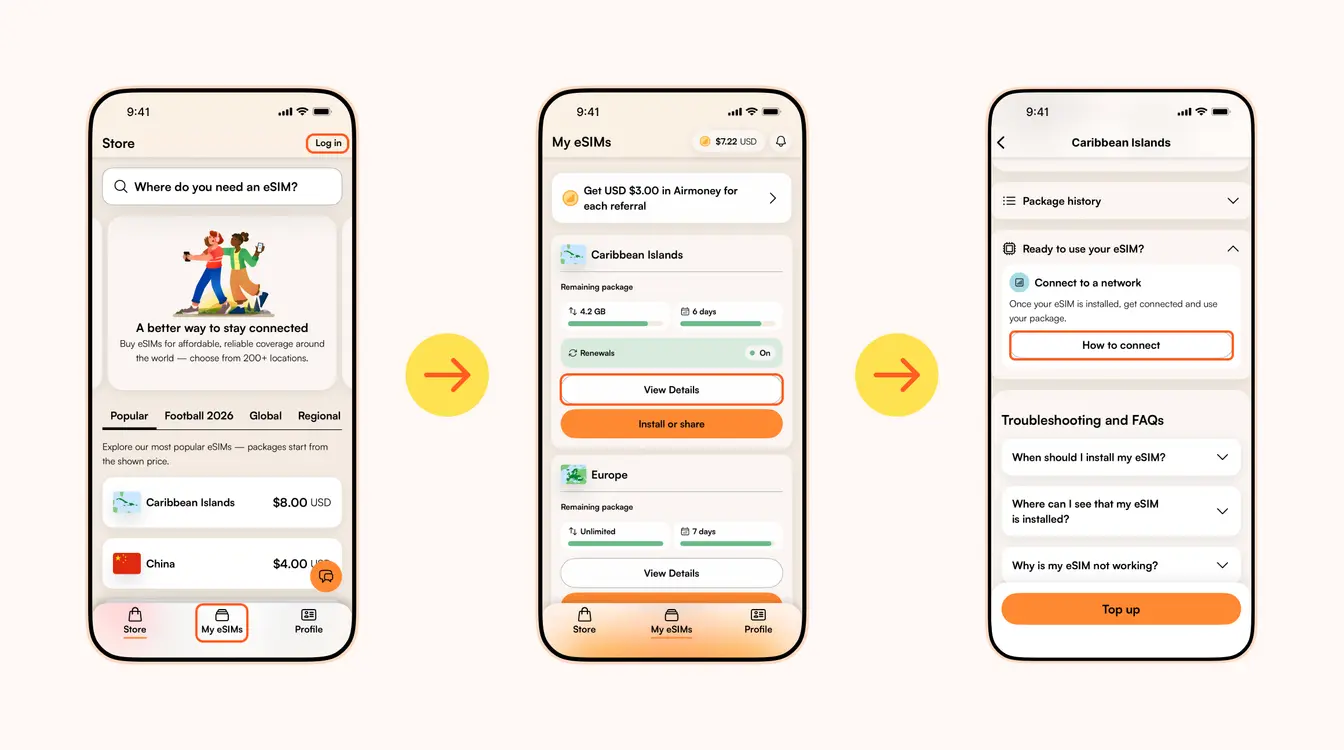
Once you've installed your eSIM over Wi-Fi, the next step is to connect your eSIM. If you want to connect automatically on arrival, follow the steps below before you take off for your trip. Otherwise, you can do so once you arrive at your destination (you don't need a Wi-Fi connection for this step).
Follow the steps below to connect your eSIM to a network:
1. Go to the Airalo app
2. Navigate to My eSIMs → Your eSIM → View details → Ready to use your eSIM → Connect to a network → How to connect.
There, you'll find the exact steps you need to follow, but read on for a quick summary.
Here's how to turn on your eSIM line on iPhone:
- Go to Settings.
- Tap Cellular/Mobile Service.
- Select your new eSIM, if it hasn't already been selected.
- Toggle on Turn On This Line.
- Toggle on Data Roaming (if required in How to connect).
- Return to the main Cellular/Mobile Service menu.
- Tap Cellular Data/Mobile Data.
- Choose your eSIM.
- If your package includes calls and texts, tap Default Voice Line and choose your eSIM there as well.
Here's how to do it on Android:
- Go to Settings.
- Tap Network & Internet.
- Tap Mobile Network.
- Turn on your eSIM.
- Turn on Mobile Data.
- Turn on Data Roaming (if required in How to connect).
In case your eSIM does not connect to a network, try turning your phone off and on, or enable airplane mode for 10 seconds to refresh the network connection.
Important:
- To avoid being charged for roaming fees, you'll also want to turn off your carrier's data service. You can read how to do this here.
- If you're using a Global eSIM or a regional eSIM that includes your home country, do not activate it before you travel. Otherwise, it may activate in your home country, causing the validity period to begin before your trip.
- If your eSIM supports multiple networks, you can manually select the network you want to use. Check the supported networks for your eSIM in the Airalo app.
You can also follow our troubleshooting steps or contact our 24/7 help support.
Porta al centro assistenza Airalo per ulteriori informazioni di supporto.
Apre la chat con l'assistenza Airalo su WhatsApp.
Looking to use an eSIM to stay connected during your trip? Browse Airalo eSIMs to connect in 200+ destinations.