


If you've ever had to deal with a physical SIM card, then you're all too familiar with its limits. From having to wait in line at airports, to setup hassle and easy misplacement, the physical SIM card can cause frustration. That's where eSIMs come in.
eSIMs are digital SIMs that you can download directly to your phone. eSIMs help you stay connected on the go more smoothly, but like any new technology, you may need some guidance to get started. In this article, we'll take you through 3 simple steps to install and connect your Airalo eSIM.
In this article:
What Are the Benefits of Using an Airalo eSIM?

eSIMs have many benefits over traditional SIM cards, such as instant travel connectivity and more. Using an eSIM from Airalo comes with many benefits, including:
- No roaming fees. Airalo eSIMs are prepaid. Pay only for the data you need, and say goodbye to surprise roaming fees.
- You aren't tied to a specific carrier. You can choose the eSIM data package that best suits your needs and easily switch packages when you travel.
- You can connect like a local. Airalo works with local providers to ensure you get the best prices and service during your trip.
- Contact us 24/7. Our support team is available 24/7, so you can get the assistance you need, no matter your time zone.
Prepare for Your Airalo eSIM Setup

Before you install and activate your eSIM, check that your device is:
- Carrier-unlocked
- eSIM Compatible
- Connected to Wi-Fi
Read on for more information or jump to Step 1.
1) Ensure Your Phone is Unlocked
Carrier-unlocked means that your device isn't tied to a contract with a mobile carrier. If you're unsure, we recommend calling your carrier to confirm or checking your device's settings.
Here's how to do it on iPhone:
- Go to your iPhone's Settings.
- Tap General.
- Tap About.
- Scroll down to Carrier Lock or Network Provider Lock.
- Check the status there.
- If your iPhone is unlocked, its status will be No SIM restrictions. If it's locked, you'll see your carrier's name.
Settings will look different based on your Android model, but generally will look like this:
- Open Settings.
- Tap Network & Internet, Connections, or a similar menu option.
- Tap SIMs, Mobile Network, or a similar option.
- You'll then be able to choose a network/SIM or select network operators for further choices. If you see more than one network to choose from or options to manage your SIMs, this likely indicates that your phone is unlocked.
2) Check if Your Phone is eSIM-Compatible
Whether your phone is eSIM-compatible depends on the model and where it was manufactured, not just the year it was released. While many newer smartphones support eSIM technology, this isn't guaranteed.
Some phones only support eSIM technology in certain regions, while others may have different hardware depending on the market they were made for. For example, two phones with the same name can have different eSIM capabilities, depending on the country in which they were manufactured.
Before purchasing an eSIM, we strongly recommend verifying that your phone is eSIM-compatible, which means it supports the storage of digital SIMs. Here are a few ways you can do this:
Method 1: Settings Check
- Open Settings on your phone.
- Navigate to your SIMs (under Mobile/Cellular Networks or similar).
- Look for an Add eSIM or Download SIM option. You might have to select a SIM before you see the option.
- If it's there, you're eSIM-ready.
Note: Instructions vary based on your phone model. If you struggle to find the Add eSIM/or Download eSIM option, use your phone's search function.
Method 2: IMEI and EID Check
- Dial *#06# on your phone.
- If you see two IMEI numbers, your phone likely supports dual-SIMs (physical and eSIM).
- Note down the IMEI and check with your carrier.
- Alternatively, if an EID appears, your phone supports eSIM.
Method 3: Manual Check
- Check your phone's original packaging or documentation. If it's available, eSIM support is usually listed in the technical specifications.
- You can also check Airalo's regularly updated eSIM compatibility list here.
Method 4: Quick Dial Code (Android only)
- Open your phone app.
- Dial ##4636##.
- On most Android phones, this opens a hidden menu that allows users to view and modify network settings.
- From this menu, select Phone Information.
- Look for an eSIM or embedded SIM status.
Note: You can still purchase an eSIM if your phone isn't eSIM compatible. You'll have the option to share the eSIM to another device, rather than install it on your phone.
3) Connect to Wi-Fi Before Installing Your eSIM
We always recommend that you connect to a stable Wi-Fi network when installing your eSIM. This is because eSIMs can only be installed once, and an unstable connection can cause the installation to fail.
We generally recommend doing so before leaving for your trip, so that you can get connected upon landing. Most eSIM's validity period only starts when the eSIM connects to the mobile network in its coverage area, so that you won't lose precious data.
Pro tip: Check an eSIM's validity policy by selecting Package details before or after purchase. This will let you know if the eSIM's validity period starts when it connects to a network, or more rarely, upon installation.
Now that you've got the basics down, it's time to buy and install your eSIM.
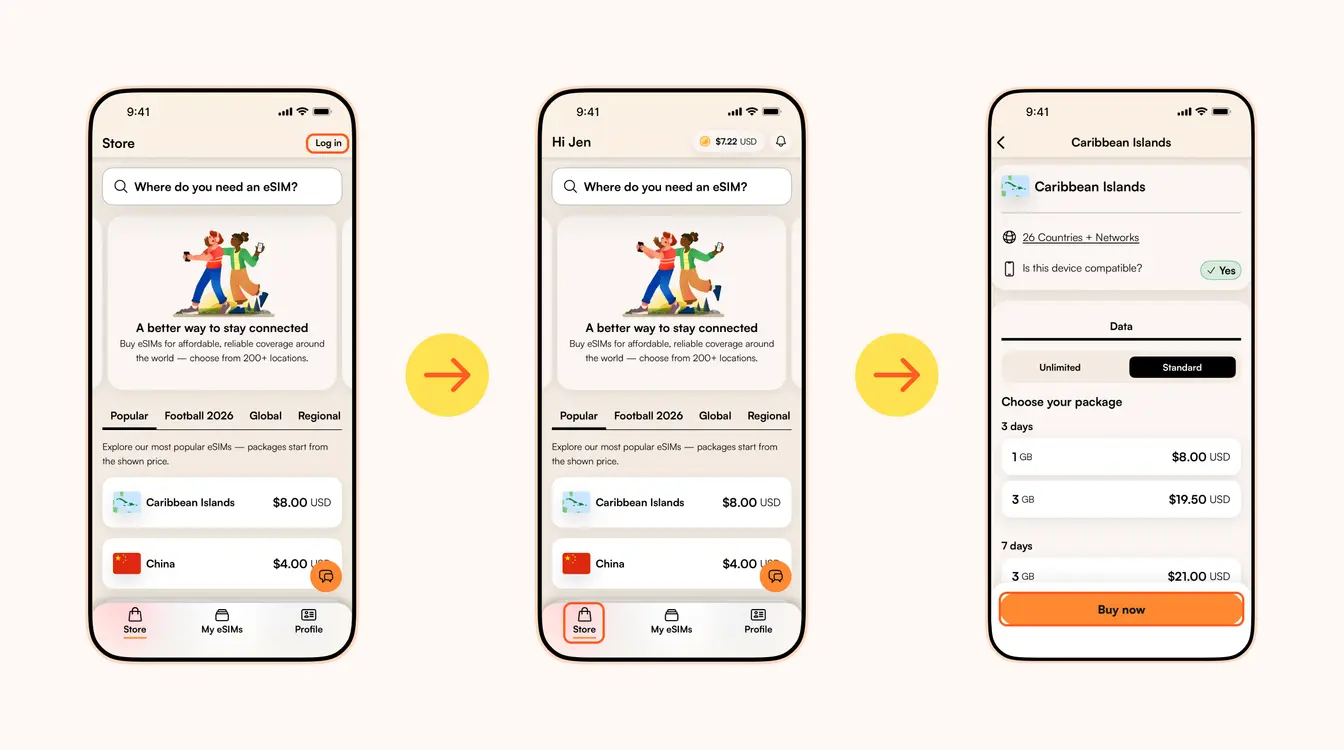
Step 1: Buy an eSIM
SIMカードを利用していた事があれば(実際に持っていたでしょう)、eSIM に切り替えた後にeSIMの快適さに気づくでしょう。 旅行中の即時接続から、簡単なインストールとアクティベーション手順まで、気に入らないことは何ですか?
Airalo (はい、当社です!) のような eSIM プロバイダーは、外出先でも接続を維持するのに役立ちます。 また、SIM カードの煩わしさを取り除き、世界中の 200 以上の国と地域での即時接続を提供します。
新しいテクノロジーと同様に、使い始めるには少し助けが必要な場合があります。 この記事では、Airalo eSIM をインストールしてアクティベートする手順を説明します。
▼目次▼
- 簡単4ステップでAiralo eSIMをインストール&アクティベートする方法
- eSIMのインストール方法
- eSIMのアクティベート方法
- AiraloのeSIMは3タイプ:ローカル、リージョナル(複数国)、グローバル
- Airalo eSIMを使用する利点
- Airalo eSIMに関するよくある質問 (FAQ)
簡単4ステップでAiralo eSIMをアクティベートしよう
eSIMのインストール&アクティベートの前に、デバイスが次の状態であることを確認してください。
- キャリアのロックが解除されている:これは、お使いの端末が携帯通信会社との契約に縛られていないことを意味します。 モバイル サービス契約を結ばずにデバイスを完全に購入した場合は、デバイスのロックが解除されている可能性があります。 不明な場合は、携帯通信会社に電話して再確認することをお勧めします。
- eSIM対応機種である:2018 年以降に製造されたスマートフォンをお持ちの場合、そのスマートフォンはeSIMをサポートしている可能性があります。 eSIM互換デバイスの包括的なリストを確認して、お使いの携帯電話が含まれているかどうかを確認してください。
端末が通信会社でロック解除されていて、eSIMに対応していることを確認したら、以下の 4 つの簡単な手順に従って eSIM をインストールしてアクティブ化します。
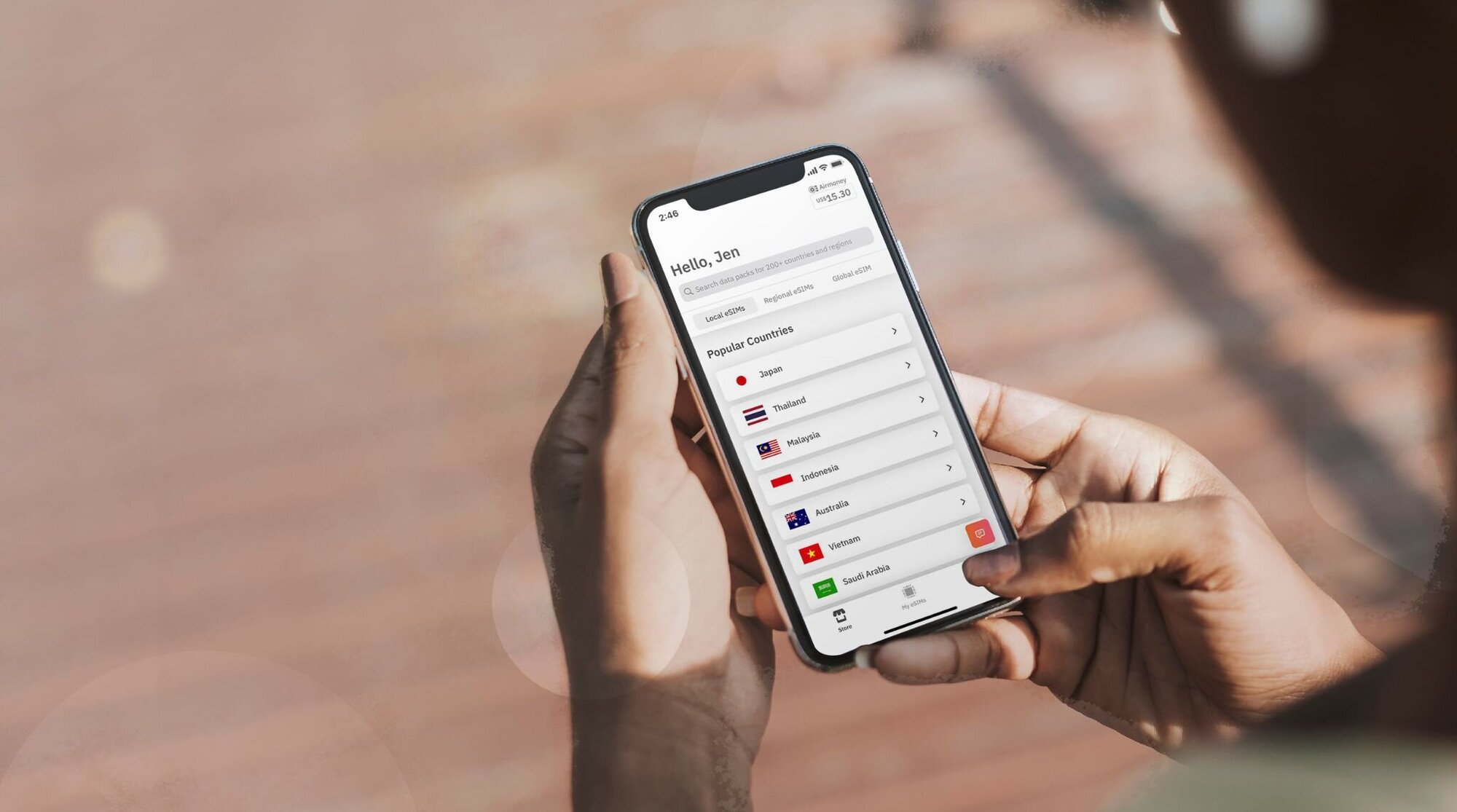
ステップ 1: eSIM を購入する
まず、eSIM を購入する必要があります。 その方法は次のとおりです。
- Airalo Web サイトにアクセスするか、Airalo アプリ (iOSおよびAndroidで利用可能) をダウンロードします。
- 渡航先の eSIM を選択してください。
- 必要なデータ量、eSIM の有効期間、価格などの要素を考慮してください。
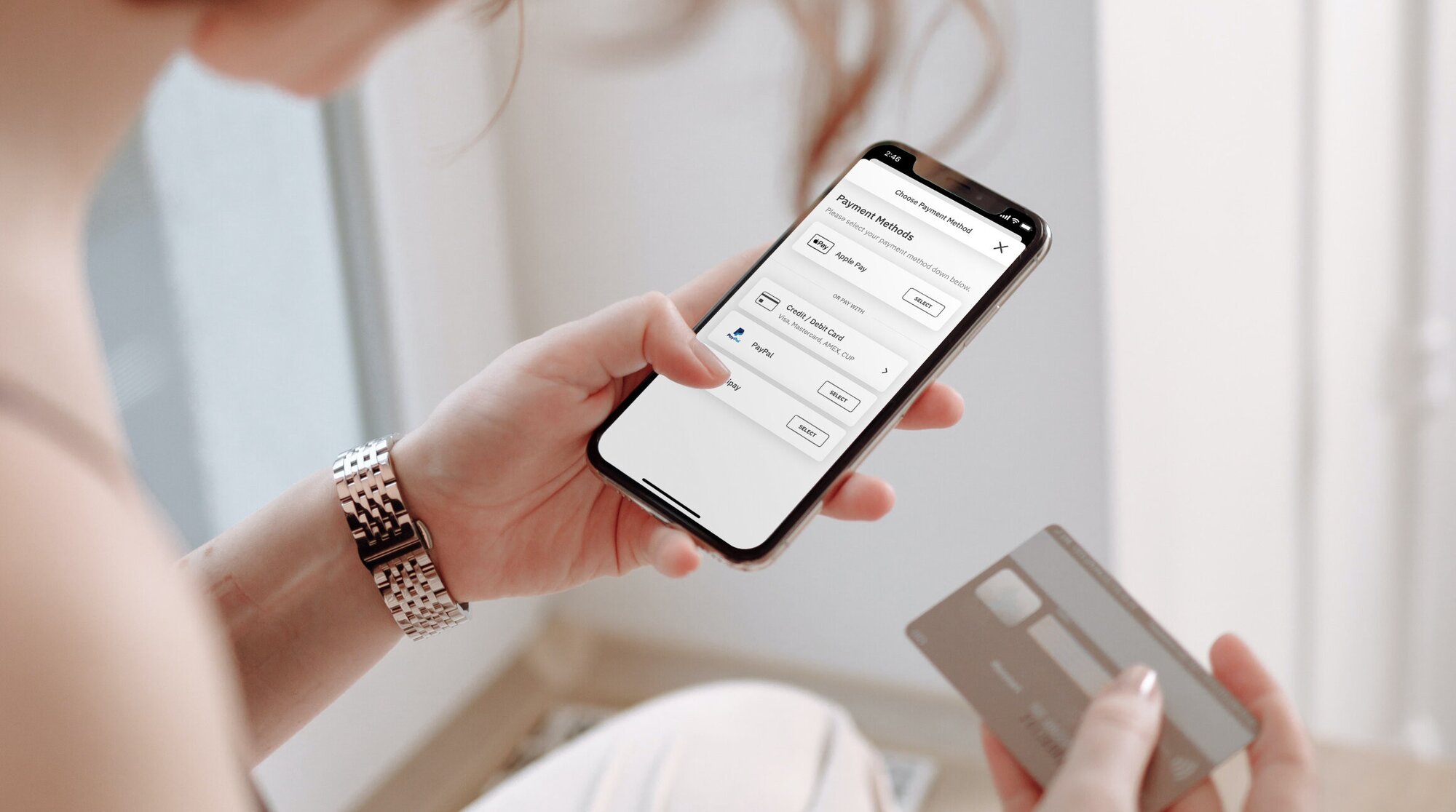
ステップ 2: eSIM をインストールする
eSIM を購入したら、デバイスにインストールする必要があります。 インストールプロセスを開始する前に、安定した Wi-Fi 接続があることを確認してください。
Airalo eSIM をインストールする 3 つの異なる方法を次に示します。
- 直接: Airalo アプリに移動し、段階的なプロンプトに従って eSIM をインストールします。
- QR コード: QR コードをスキャンしてインストールプロセスを開始します。
- 手動: 端末の設定にeSIMの詳細を手動で入力します。
eSIM のインストール方法の詳細については、次のリンクに概説されている手順に従ってください。
- iOS/iPhone eSIMガイド
- Android eSIMガイド
- Samsung Galaxy S20/S21 eSIM ガイド
- Google Pixel eSIM ガイド
- Huawei eSIMガイド
インストール手順に従うと、eSIM にラベルを付けるように求められます。 たとえば、エジプトを訪問している場合は、回線に「エジプト eSIM」というラベルを付けて、メイン SIM と eSIM を区別できます。 これにより、特に通話やテキストメッセージに SIM カードを使用し、データに eSIM を使用する場合に、作業が大幅に楽になります。

ステップ 3: eSIM をアクティブ化する
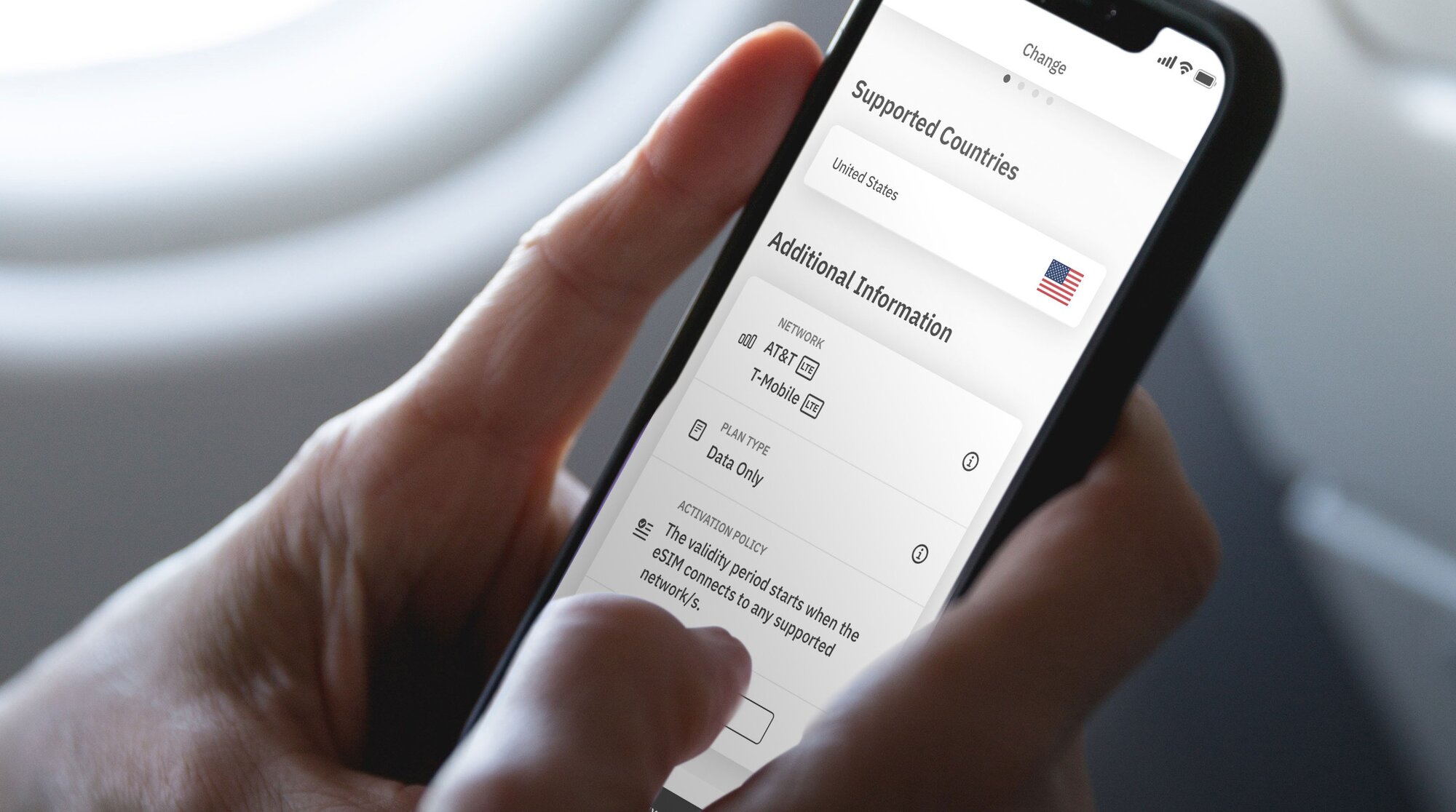
eSIM のアクティベーション ポリシーにより、有効期間がいつ開始されるかがわかります。 eSIM アクティベーション ポリシーには 2 種類があります。
- eSIM は、サポートされているネットワークに接続するとアクティブになります。 ほとんどの eSIM は、eSIM 回線をオンにして目的地でサポートされているネットワークに接続するとアクティベートされます。 接続すると有効期間が開始され、eSIM データの使用を開始できるようになります。
- インストール時にアクティベートされる eSIMもあります。 一部の eSIM は、家を出ていなくても、インストールするとすぐにアクティベートされます。 すぐにアクティベートされる eSIM の場合は、eSIM データを最大限に活用できるように、旅行の直前にインストールすることをお勧めします。
アクティベーション ポリシーは、eSIM の追加情報セクションにあります。
- Airaloアプリを開きます。
- 購入したいeSIMを選択します。
- 今すぐ購入 をタップして詳細を表示します (ご心配なく、まだ eSIM を購入する必要はありません)。
- 追加情報まで下にスクロールします。
- アクティベーション ポリシーをお読みください。
ステップ 4: ローカル ネットワークに接続する
2 種類の eSIM アクティベーション ポリシーを理解したところで、eSIM 回線をオンにしてローカル ネットワークに接続する手順を確認してみましょう。
iPhone で eSIM 回線をオンにする方法は次のとおりです。
- 設定に移動します。
- 携帯電話をタップします。
- eSIM 回線をタップします。
- この行をオンにするをオンに切り替えます。
- データローミングをオンに切り替えます。
- ネットワーク選択をタップし、サポートされているネットワークを選択します (ネットワークのリストは、eSIM の追加情報セクションにあります)。
Android でそれを行う方法:
- 設定に移動します。
- ネットワークとインターネットをタップします。
- モバイルネットワークをタップします。
- eSIM をオンにします。
- モバイルデータをオンにします。
- データ ローミングをオンにします。
- サポートされているネットワークを選択します (これは、eSIM の追加情報セクションにあります)。
ローカル、リージョナル、またはグローバル Airalo eSIM の選択
Airalo eSIM を使用すると、世界 200 以上の国と地域で接続できます。
さらに良いことに、旅行のニーズに基づいて eSIM パッケージを選択することができます。 以下から選択してください:
- ローカル eSIM: 1 つの目的地に旅行する場合は、ローカル eSIM を選択するのが合理的です。 このタイプのプランでは、単一の国での補償が提供されます。
- リージョナル eSIM: eSIM を切り替えることなく国境を越えて接続します。 このタイプのプランでは、特定の地域の複数の国をカバーできます。 島巡り、ヨーロッパ旅行、またはアフリカでの冒険を探している場合に最適です。 !
- グローバル eSIM: 世界旅行に興味があるなら、グローバル eSIM は接続を維持するための完璧なソリューションです。 グローバル eSIM プランでは、世界中の複数の目的地でサービスを利用できます。
Airalo eSIM を使用する利点
eSIM には、インスタント トラベル接続など、従来の SIM カードに比べて多くの利点があります。 Airalo の eSIM を使用すると、次のような多くのメリットが得られます。
- ローミング料金はかかりません。Airalo eSIM プランはプリペイドです。 料金は、前払いまたは途中で追加購入したデータに対してのみお支払いいただきます。
- 特定の通信事業者に縛られません。ニーズに最適な eSIM データ プランを選択し、旅行中に簡単にプランを切り替えることができます。
- 現地の方と同様に接続ができます。Airalo は地元のプロバイダーと協力して、旅行中に最高の価格とサービスを確実に受けられるようにしています。
- 24時間年中無休でお問い合わせください。当社のサポート チームは 24 時間年中無休で対応しているため、タイムゾーンに関係なく、必要なサポートを受けることができます。

Airalo eSIM に関するよくある質問
旅行のニーズに合わせて Airalo eSIM の使用を検討する際に、いくつかの質問があるかもしれません。
eSIM をアクティベートするのにどれくらい時間がかかりますか?
時間はかかりません!
eSIM のアクティベーション ポリシーに応じて、eSIM はインストールするとすぐにアクティベートされるか、目的地でサポートされているネットワークに接続したときにアクティベートされます。
どちらの場合も、eSIM データを使用するには、eSIM 回線をオンにし、サポートされているネットワークに接続する必要があります。
パッケージが終了したら、eSIM を再度アクティブにする必要がありますか?
必要なし! Airalo パッケージには、購入したパッケージに基づいて、すでにデータがプリロードされています。 データがなくなったり、有効期限が切れたりした場合は、Airalo アプリで簡単にチャージできます。
eSIM パッケージにトップアップ オプションがない場合は、別の eSIM パッケージをダウンロードして接続を維持できます。
Airalo eSIM では何ができますか?
Airalo eSIM を使用すると、従来の SIM と同じことができます。これには、モバイル ネットワークへの接続、インターネットの閲覧、お気に入りのアプリの使用、インターネットベースの通話の使用が含まれます。メッセージング アプリ (WhatsApp など)。
SIM と eSIM を併用できますか?
絶対に! ほとんどのデバイスでは、複数の SIM および/または eSIM を同時に使用できます。 ホーム ネットワーク SIM を通話と SMS に使用し、eSIM をデータに使用できます。
eSIM をアクティベートする方法についてまだご質問がある場合は、ヘルプセンターにアクセスするか、[email protected]までメールでお問い合わせください。
旅行中に接続を維持するために eSIM を使用したいと考えていますか? Airalo eSIMを参照して、200 以上の国や地域で接続をお楽しみください!
Step 2: Install Your eSIM
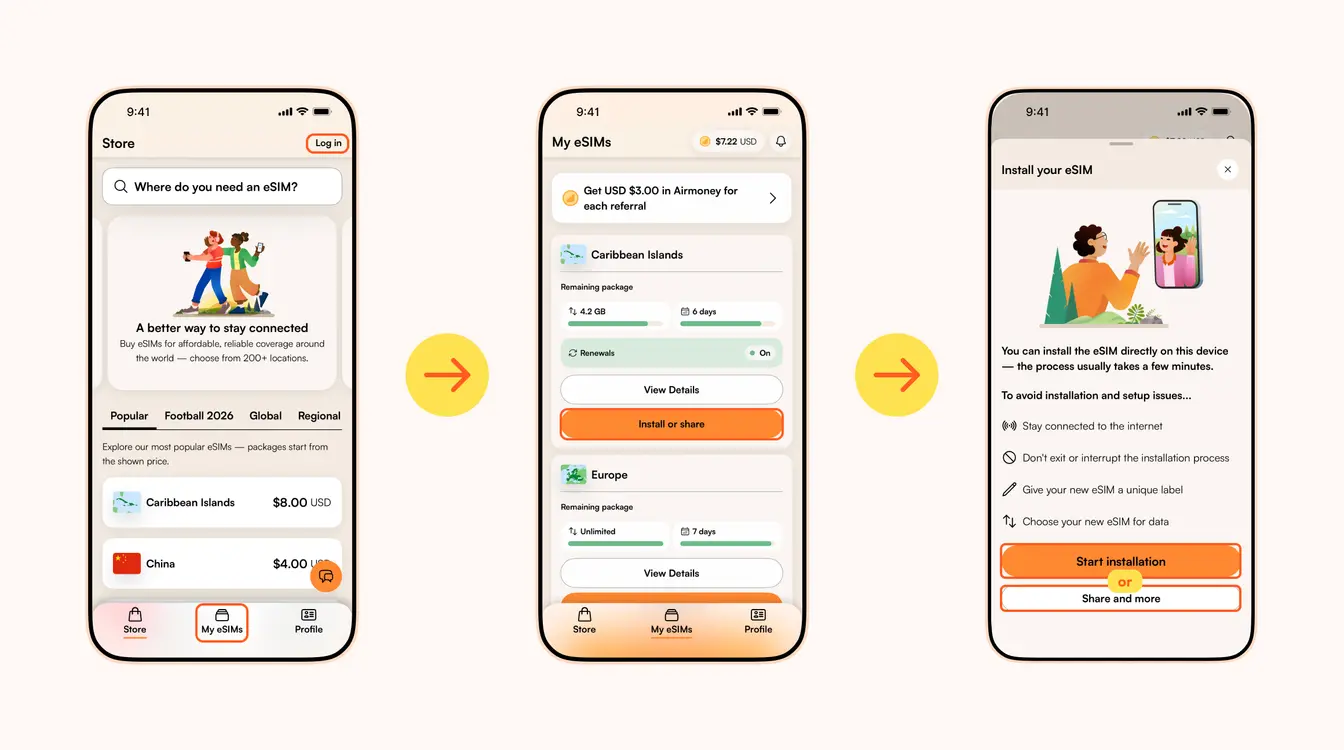
Once you've purchased your eSIM, you can choose to install or share the eSIM. If it's for your own use, select Start installation. Remember, you'll need a stable Wi-Fi connection for this.
Here are three different methods to install an Airalo eSIM:
- Direct: This is the most straightforward option. Go to your eSIM in the Airalo app, select Install or share → Start installation and follow the step-by-step prompts.
- QR Code: Use a QR code to start the installation process on another device. You can find more information under Install or share → Share and more.
- Manual: Enter your eSIM details manually in your device's Settings section. You can find more information under Install or share → Share and more.
For details on how to install your eSIM on a specific phone, follow the steps outlined in these links:
- iOS/iPhone eSIM guide
- Android eSIM guide
- Samsung Galaxy S20/S21 eSIM guide
- Google Pixel eSIM guide
- Huawei eSIM guide
Pro Tip: As you follow the installation steps, you'll be prompted to label your eSIM. For example, if you're visiting Japan, you can label your line as "Japan eSIM" to distinguish between your primary SIM and your eSIM. It makes switching between your eSIMs and turning them on and off easier — especially when using your SIM card for calls and texts, and your eSIM for data.
Step 3: Activate/Connect to Your Destination's Network
When should you activate/connect your eSIM?
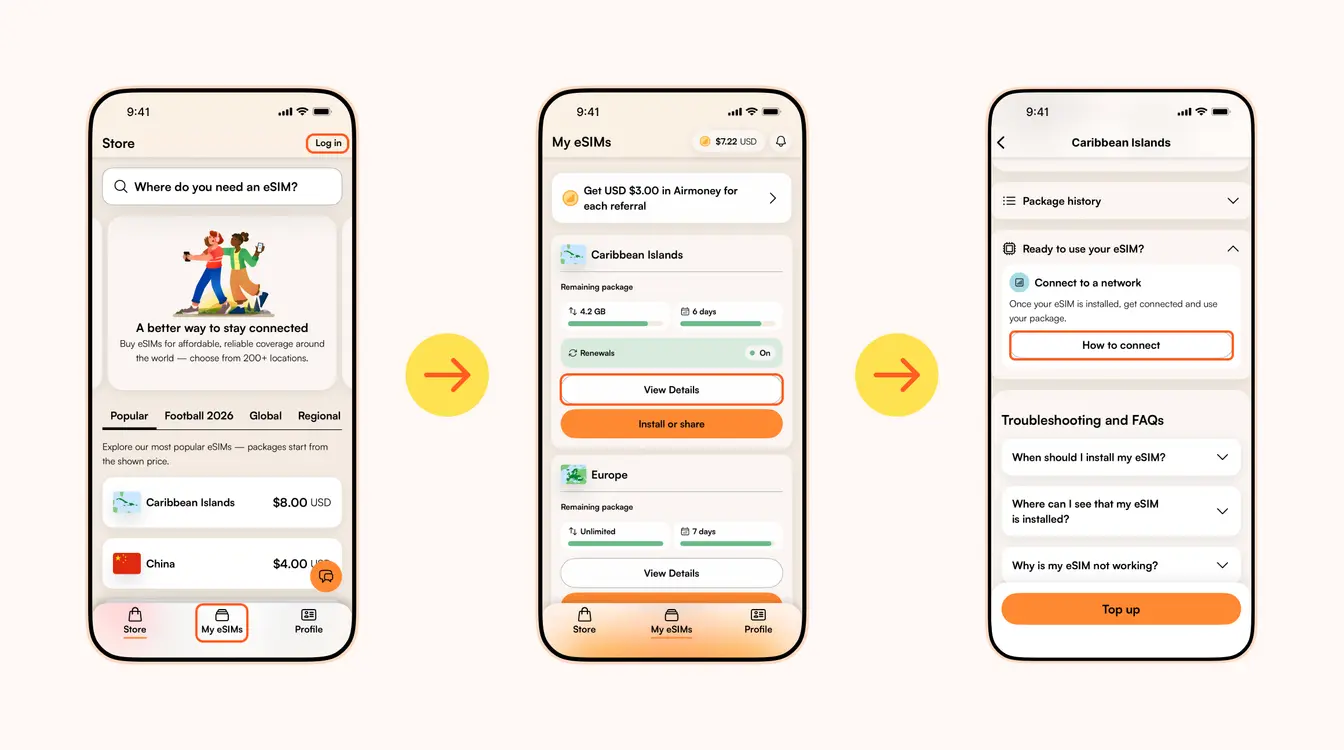
Once you've installed your eSIM over Wi-Fi, the next step is to connect your eSIM. If you want to connect automatically on arrival, follow the steps below before you take off for your trip. Otherwise, you can do so once you arrive at your destination (you don't need a Wi-Fi connection for this step).
Follow the steps below to connect your eSIM to a network:
1. Go to the Airalo app
2. Navigate to My eSIMs → Your eSIM → View details → Ready to use your eSIM → Connect to a network → How to connect.
There, you'll find the exact steps you need to follow, but read on for a quick summary.
Here's how to turn on your eSIM line on iPhone:
- Go to Settings.
- Tap Cellular/Mobile Service.
- Select your new eSIM, if it hasn't already been selected.
- Toggle on Turn On This Line.
- Toggle on Data Roaming (if required in How to connect).
- Return to the main Cellular/Mobile Service menu.
- Tap Cellular Data/Mobile Data.
- Choose your eSIM.
- If your package includes calls and texts, tap Default Voice Line and choose your eSIM there as well.
Here's how to do it on Android:
- Go to Settings.
- Tap Network & Internet.
- Tap Mobile Network.
- Turn on your eSIM.
- Turn on Mobile Data.
- Turn on Data Roaming (if required in How to connect).
In case your eSIM does not connect to a network, try turning your phone off and on, or enable airplane mode for 10 seconds to refresh the network connection.
Important:
- To avoid being charged for roaming fees, you'll also want to turn off your carrier's data service. You can read how to do this here.
- If you're using a Global eSIM or a regional eSIM that includes your home country, do not activate it before you travel. Otherwise, it may activate in your home country, causing the validity period to begin before your trip.
- If your eSIM supports multiple networks, you can manually select the network you want to use. Check the supported networks for your eSIM in the Airalo app.
You can also follow our troubleshooting steps or contact our 24/7 help support.
その他のサポート情報について、エラロヘルプセンターに移動します。
WhatsAppでエラロサポートとのチャットを開きます。
Looking to use an eSIM to stay connected during your trip? Browse Airalo eSIMs to connect in 200+ destinations.